---
sidebar_label: Configure and manage
toc_max_heading_level: 3
doc_id: b82d3f0e-1c47-4a8e-a5f2-7d9b4e8c0126
description: >-
Configure categories, define governance rules, and manage action items
across the organization. For ops and admin engineers.
keywords:
- action items
- platform settings
- categories
- governance
- admin
- ops
- DevOps
- approval
---
import { LiteYouTube } from '@site/src/components/FeatureHighlight';
# Configure and manage action items
At the organization level, you decide what kinds of action items developers can work with and how they move through
their lifecycle. This page covers both paths: driving it from the **Platform Settings** UI, or automating
it with the **np-governance** agent plugin.
:::info
You need an **Admin** or **Ops** role to access this section.
:::
## Manage with the np-governance agent plugin
The [**np-governance**](https://github.com/nullplatform/ai-plugins/tree/main/marketplace/plugins/np-governance) plugin lets you manage action items, categories, and AI suggestions through natural-language prompts from any compatible AI coding assistant (Claude Code, Factory AI, Codex CLI, Kiro, and more). It wraps the same API endpoints used throughout this page, but handles authentication, pagination, and deduplication for you.
For a step-by-step example of what you can do with the plugin, see [Detect stale applications with AI](/docs/tutorials/governance-detect-stale-apps): it scans an account for apps that haven't been deployed in over 90 days and creates tracked action items automatically.
## Managing categories
Categories are the backbone of action items. They classify what each item tracks, how it appears in the UI, and what governance rules apply when developers triage it.
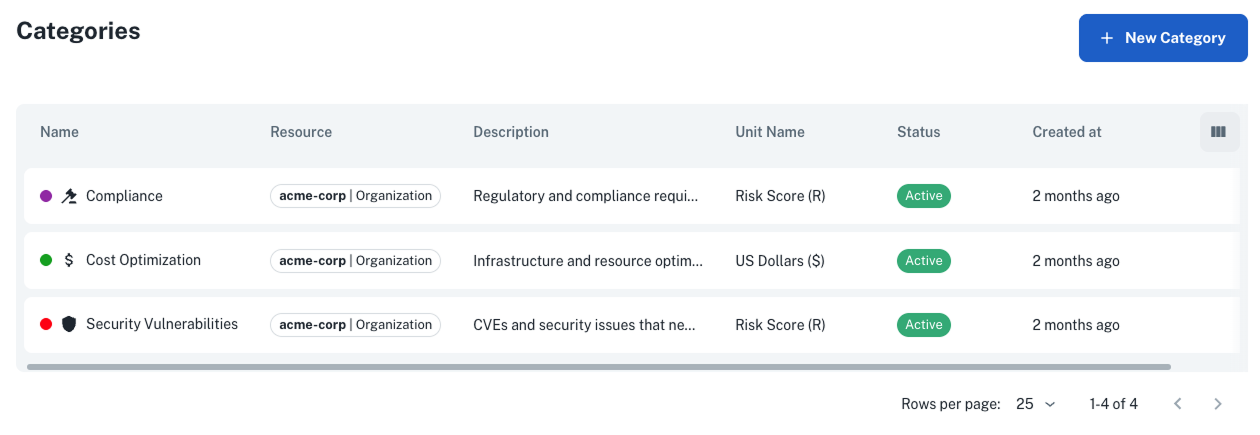
From **Settings > Action Items > Categories**, you see every category available in your organization, the NRN it applies to, and its status:
 ### Create a category
Click **New Category** and fill in the form:
### Create a category
Click **New Category** and fill in the form:
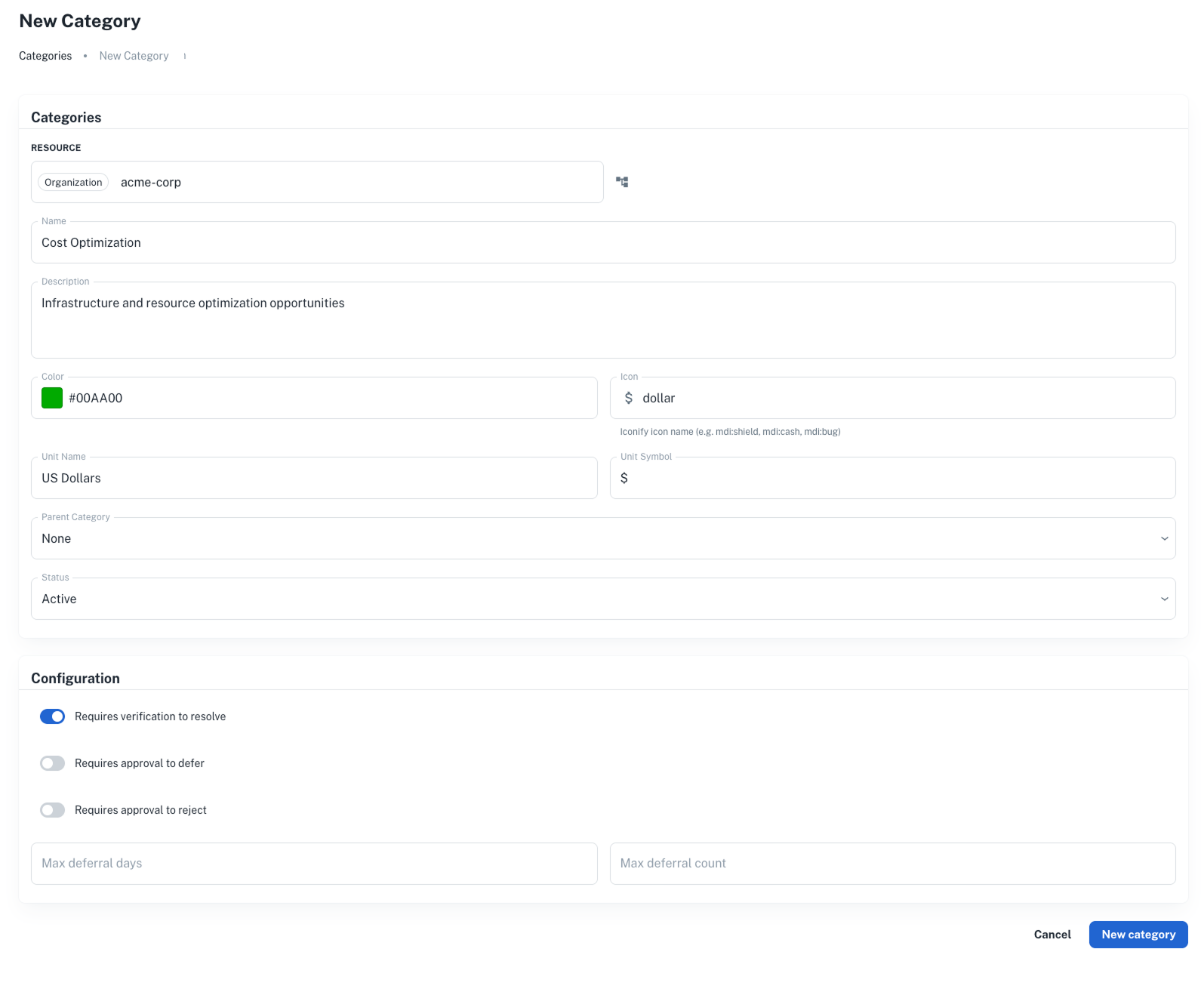 Most fields are self-explanatory. A few to note:
| Field | Behavior |
|---|---|
| **Resource (NRN)** | Categories inherit down the NRN hierarchy, so a category defined at the organization level is available to every account and application below it. |
| **Color** / **Icon** | Color takes a hex code, icon takes an [iconify](https://iconify.design) name. Both determine how items in the category render in the UI. |
| **Unit name / symbol** | Defines what "value" means on items in this category, for example "Dollars" / "$" or "Hours" / "h". The unit combines with priority to compute each item's score. |
| **Parent category** | Optional. Supports up to two levels of nesting. |
The same action is available via a [POST request](/docs/api/action-item-category-create) to `/action_item_category`.
```bash
curl -L -X POST 'https://api.nullplatform.com/action_item_category' \
-H 'Content-Type: application/json' \
-H 'Authorization: Bearer ' \
-d '{
"nrn": "organization=1:account=2",
"name": "Cost optimization",
"description": "Tracks opportunities to reduce cloud spending",
"color": "#38A169",
"icon": "mdi:cash",
"unit_name": "Dollars",
"unit_symbol": "$",
"config": {
"max_deferral_days": 60,
"max_deferral_count": 2
}
}'
```
### Deferral limits
Each category carries a configuration block with two limits on how items can be deferred:
| Setting | Effect |
|---|---|
| **Max deferral days** | Limits how far into the future an item can be deferred. |
| **Max deferral count** | Limits how many times an item can be deferred. |
Approval gating for resolve, defer, and reject is no longer part of the category. It now lives in nullplatform's [approvals](/docs/approvals) engine, which gives you the same governance through policies and notification channels you already use for deployments and scopes. The next section walks through it.
### Category inheritance
Categories follow the NRN hierarchy. A category defined at `organization=1` is available to every account, namespace, and application below it. If a more specific category with the same name exists at a lower level, the more specific one takes precedence.
This means you can set an organization-wide policy once, then override it for a specific account or application when needed.
## Require approval to transition items
Resolving, deferring, and rejecting an item are governed by nullplatform's [approvals](/docs/approvals) engine, the same one that gates deployments, scopes, and services. You create an **approval action** for the `action_item` entity, attach a **policy** that decides when a request needs review, and route notifications through your existing channels (Slack, a webhook, or the approval request page).
### Create the approval action
The `action_item` entity supports three actions: `action_item:resolve`, `action_item:defer`, and `action_item:reject`. To require review before any item can be rejected at a given NRN, [create an approval action](/docs/approvals/actions):
```bash
curl -L -X POST 'https://api.nullplatform.com/approval/action' \
-H 'Content-Type: application/json' \
-H 'Authorization: Bearer ' \
-d '{
"nrn": "organization=1:account=2",
"entity": "action_item",
"action": "action_item:reject",
"on_policy_success": "approve",
"on_policy_fail": "manual"
}'
```
Unlike deployments or scopes, action item approvals don't take dimensions: scope them through the NRN alone.
### Add a policy
A [policy](/docs/approvals/policies) decides when a request needs manual review. Action item requests expose the item's fields to policy conditions, including `action_item.priority`, `action_item.category`, and `action_item.status`, so you can auto-approve low-stakes transitions and reserve manual review for the rest. For example, this policy passes (auto-approves) only when the item isn't critical:
```json
{
"nrn": "organization=1:account=2",
"name": "Manual review for rejecting critical items",
"conditions": {
"action_item.priority": { "$ne": "critical" }
}
}
```
With `on_policy_success: "approve"` and `on_policy_fail: "manual"`, rejecting a non-critical item goes through automatically, while rejecting a critical one waits for a reviewer. [Associate the policy with the action](/docs/approvals/associate-policy-with-action) to put it into effect.
## Managing action items
From **Settings > Action Items > Items**, you see every item across the organization, not just the ones attached to a single application.
Most fields are self-explanatory. A few to note:
| Field | Behavior |
|---|---|
| **Resource (NRN)** | Categories inherit down the NRN hierarchy, so a category defined at the organization level is available to every account and application below it. |
| **Color** / **Icon** | Color takes a hex code, icon takes an [iconify](https://iconify.design) name. Both determine how items in the category render in the UI. |
| **Unit name / symbol** | Defines what "value" means on items in this category, for example "Dollars" / "$" or "Hours" / "h". The unit combines with priority to compute each item's score. |
| **Parent category** | Optional. Supports up to two levels of nesting. |
The same action is available via a [POST request](/docs/api/action-item-category-create) to `/action_item_category`.
```bash
curl -L -X POST 'https://api.nullplatform.com/action_item_category' \
-H 'Content-Type: application/json' \
-H 'Authorization: Bearer ' \
-d '{
"nrn": "organization=1:account=2",
"name": "Cost optimization",
"description": "Tracks opportunities to reduce cloud spending",
"color": "#38A169",
"icon": "mdi:cash",
"unit_name": "Dollars",
"unit_symbol": "$",
"config": {
"max_deferral_days": 60,
"max_deferral_count": 2
}
}'
```
### Deferral limits
Each category carries a configuration block with two limits on how items can be deferred:
| Setting | Effect |
|---|---|
| **Max deferral days** | Limits how far into the future an item can be deferred. |
| **Max deferral count** | Limits how many times an item can be deferred. |
Approval gating for resolve, defer, and reject is no longer part of the category. It now lives in nullplatform's [approvals](/docs/approvals) engine, which gives you the same governance through policies and notification channels you already use for deployments and scopes. The next section walks through it.
### Category inheritance
Categories follow the NRN hierarchy. A category defined at `organization=1` is available to every account, namespace, and application below it. If a more specific category with the same name exists at a lower level, the more specific one takes precedence.
This means you can set an organization-wide policy once, then override it for a specific account or application when needed.
## Require approval to transition items
Resolving, deferring, and rejecting an item are governed by nullplatform's [approvals](/docs/approvals) engine, the same one that gates deployments, scopes, and services. You create an **approval action** for the `action_item` entity, attach a **policy** that decides when a request needs review, and route notifications through your existing channels (Slack, a webhook, or the approval request page).
### Create the approval action
The `action_item` entity supports three actions: `action_item:resolve`, `action_item:defer`, and `action_item:reject`. To require review before any item can be rejected at a given NRN, [create an approval action](/docs/approvals/actions):
```bash
curl -L -X POST 'https://api.nullplatform.com/approval/action' \
-H 'Content-Type: application/json' \
-H 'Authorization: Bearer ' \
-d '{
"nrn": "organization=1:account=2",
"entity": "action_item",
"action": "action_item:reject",
"on_policy_success": "approve",
"on_policy_fail": "manual"
}'
```
Unlike deployments or scopes, action item approvals don't take dimensions: scope them through the NRN alone.
### Add a policy
A [policy](/docs/approvals/policies) decides when a request needs manual review. Action item requests expose the item's fields to policy conditions, including `action_item.priority`, `action_item.category`, and `action_item.status`, so you can auto-approve low-stakes transitions and reserve manual review for the rest. For example, this policy passes (auto-approves) only when the item isn't critical:
```json
{
"nrn": "organization=1:account=2",
"name": "Manual review for rejecting critical items",
"conditions": {
"action_item.priority": { "$ne": "critical" }
}
}
```
With `on_policy_success: "approve"` and `on_policy_fail: "manual"`, rejecting a non-critical item goes through automatically, while rejecting a critical one waits for a reviewer. [Associate the policy with the action](/docs/approvals/associate-policy-with-action) to put it into effect.
## Managing action items
From **Settings > Action Items > Items**, you see every item across the organization, not just the ones attached to a single application.
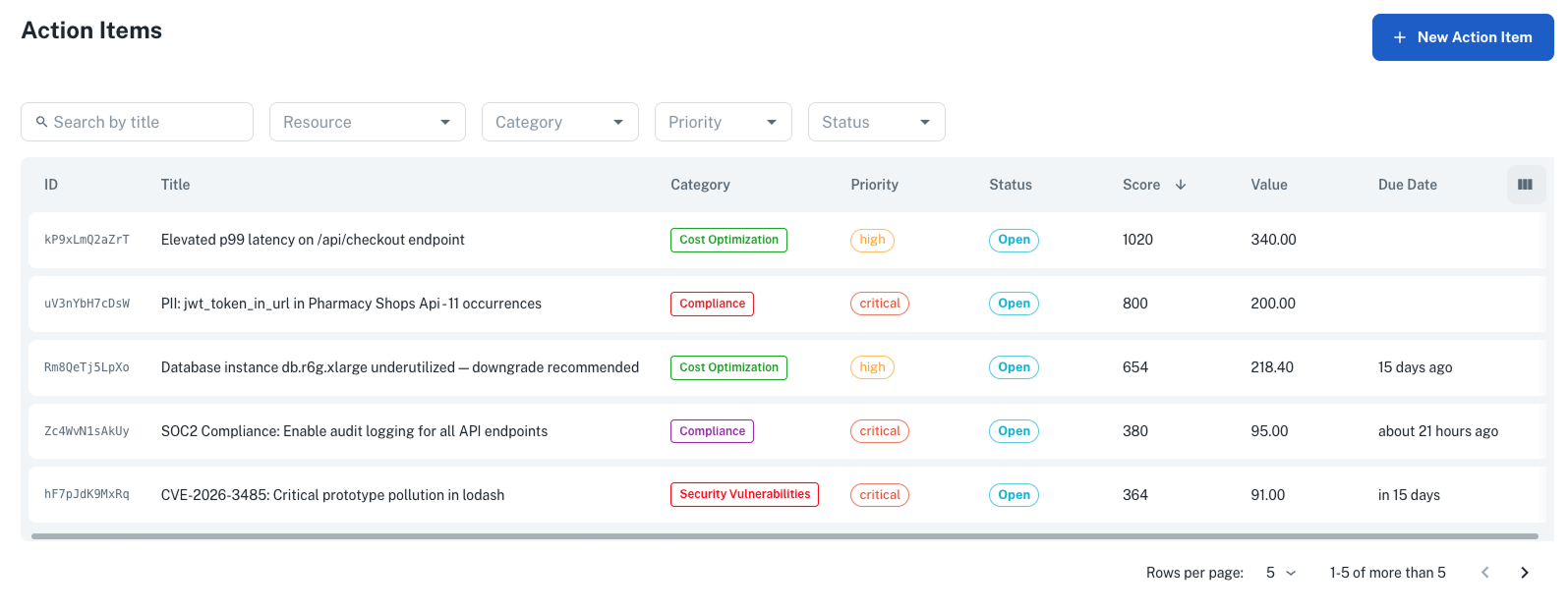 The list view supports the same filters as the developer list, plus NRN filtering so you can slice by account, namespace, or application.
### Create an item manually
Click **New Action Item** to create an item by hand. This is useful when you want to track improvements that aren't surfaced by an agent, such as manual audit findings or planned migrations.
The list view supports the same filters as the developer list, plus NRN filtering so you can slice by account, namespace, or application.
### Create an item manually
Click **New Action Item** to create an item by hand. This is useful when you want to track improvements that aren't surfaced by an agent, such as manual audit findings or planned migrations.
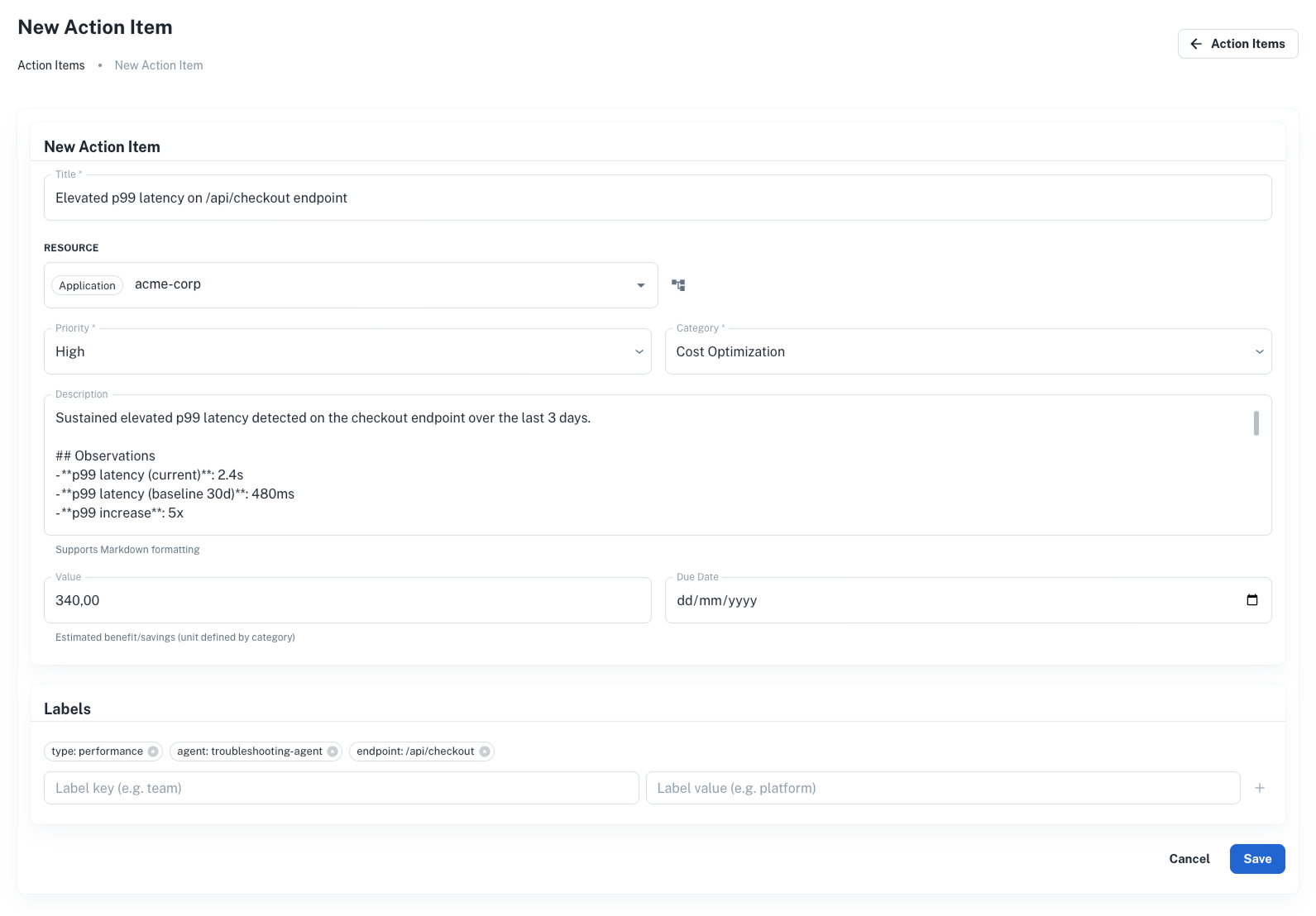 The equivalent API call is a [POST request](/docs/api/action-item-create) to `/action_item`.
```bash
curl -L -X POST 'https://api.nullplatform.com/action_item' \
-H 'Content-Type: application/json' \
-H 'Authorization: Bearer ' \
-d '{
"nrn": "organization=1:account=2:namespace=3:application=4",
"title": "Upgrade base image to fix CVE-2026-1234",
"description": "The current base image has a critical vulnerability that allows remote code execution.",
"category_slug": "security-vulnerabilities",
"priority": "critical",
"value": 500,
"due_date": "2026-05-01T00:00:00Z",
"labels": {
"source": "container-scan",
"cve": "CVE-2026-1234"
}
}'
```
### Review pending requests
When a developer triggers a transition that an approval action gates, the item lands in a `pending_*` state and an approval request goes out to your reviewers. You don't approve or deny from this list. That happens in the approvals flow: from the [notification channel](/docs/approvals/set-up-notifications) or the [approval request page](/docs/approvals/approval-requests), where you can also see who requested the transition and the reason they gave.
Once the request is decided, the item advances to its final state or returns to `open` automatically. You can track its current state from this list or the item's Activity tab.
### Close, reopen, or delete
Beyond configuring approvals, you have a few direct actions on items:
- **Close**: close an item without resolution. Closed items are terminal. Use this for items that no longer apply, such as agent-generated items whose underlying issue has disappeared.
- **Reopen**: bring a closed, rejected, or deferred item back to `open`.
- **Delete**: permanently remove an item and its suggestions.
### Admin workflow
The admin role is to set the rules, not to triage items. You configure categories, decide which transitions need approval, and create items manually when something isn't surfaced by an agent. Developers do the resolving, deferring, and rejecting; reviewers act on the approval requests those transitions generate.
```mermaid
stateDiagram-v2
direction TB
open --> pending_verification : Developer resolves
open --> pending_deferral : Developer defers
open --> pending_rejection : Developer rejects
pending_verification --> resolved : Request approved
pending_verification --> open : Request denied
pending_deferral --> deferred : Request approved
pending_deferral --> open : Request denied
pending_rejection --> rejected : Request approved
pending_rejection --> open : Request denied
```
A transition only passes through a `pending_*` state when an approval action gates it. Otherwise the item moves straight to its final state. Deferred items auto-reopen when their target date passes, and admins can close, reopen, or delete items at any point.
## Next steps
- [Action items overview](/docs/action-items): see how the detect-triage-resolve cycle fits together
- [Triage and resolve action items](/docs/action-items/triage-and-resolve): understand the workflow your governance rules shape
- [Approvals](/docs/approvals): gate item transitions with policies and notification channels
- [API reference](/docs/api/action-item-list): endpoints to manage items and categories programmatically
The equivalent API call is a [POST request](/docs/api/action-item-create) to `/action_item`.
```bash
curl -L -X POST 'https://api.nullplatform.com/action_item' \
-H 'Content-Type: application/json' \
-H 'Authorization: Bearer ' \
-d '{
"nrn": "organization=1:account=2:namespace=3:application=4",
"title": "Upgrade base image to fix CVE-2026-1234",
"description": "The current base image has a critical vulnerability that allows remote code execution.",
"category_slug": "security-vulnerabilities",
"priority": "critical",
"value": 500,
"due_date": "2026-05-01T00:00:00Z",
"labels": {
"source": "container-scan",
"cve": "CVE-2026-1234"
}
}'
```
### Review pending requests
When a developer triggers a transition that an approval action gates, the item lands in a `pending_*` state and an approval request goes out to your reviewers. You don't approve or deny from this list. That happens in the approvals flow: from the [notification channel](/docs/approvals/set-up-notifications) or the [approval request page](/docs/approvals/approval-requests), where you can also see who requested the transition and the reason they gave.
Once the request is decided, the item advances to its final state or returns to `open` automatically. You can track its current state from this list or the item's Activity tab.
### Close, reopen, or delete
Beyond configuring approvals, you have a few direct actions on items:
- **Close**: close an item without resolution. Closed items are terminal. Use this for items that no longer apply, such as agent-generated items whose underlying issue has disappeared.
- **Reopen**: bring a closed, rejected, or deferred item back to `open`.
- **Delete**: permanently remove an item and its suggestions.
### Admin workflow
The admin role is to set the rules, not to triage items. You configure categories, decide which transitions need approval, and create items manually when something isn't surfaced by an agent. Developers do the resolving, deferring, and rejecting; reviewers act on the approval requests those transitions generate.
```mermaid
stateDiagram-v2
direction TB
open --> pending_verification : Developer resolves
open --> pending_deferral : Developer defers
open --> pending_rejection : Developer rejects
pending_verification --> resolved : Request approved
pending_verification --> open : Request denied
pending_deferral --> deferred : Request approved
pending_deferral --> open : Request denied
pending_rejection --> rejected : Request approved
pending_rejection --> open : Request denied
```
A transition only passes through a `pending_*` state when an approval action gates it. Otherwise the item moves straight to its final state. Deferred items auto-reopen when their target date passes, and admins can close, reopen, or delete items at any point.
## Next steps
- [Action items overview](/docs/action-items): see how the detect-triage-resolve cycle fits together
- [Triage and resolve action items](/docs/action-items/triage-and-resolve): understand the workflow your governance rules shape
- [Approvals](/docs/approvals): gate item transitions with policies and notification channels
- [API reference](/docs/api/action-item-list): endpoints to manage items and categories programmatically