---
sidebar_label: Triage and resolve
toc_max_heading_level: 3
doc_id: a4c91b82-6f3e-4d91-9b27-8e5f0c6a3d17
description: >-
Triage, resolve, defer, and reject action items from the application
dashboard. Review AI suggestions, comment, and track activity for items
assigned to your applications.
keywords:
- action items
- developer
- triage
- resolve
- defer
- reject
- board
- AI suggestions
- application dashboard
---
import Tabs from '@theme/Tabs';
import TabItem from '@theme/TabItem';
# Triage and resolve action items
Every action item created for your application lands in your queue. You'll find them in two places in the dashboard: a summary widget on the application home page, and the full backlog under **Manage > Action Items**, which you can read as a list or as a board.
From there you decide what happens to each one: resolve it, defer it, or reject it as not applicable, with or without help from AI suggestions.
## The dashboard widget
When you open an application, the home page shows a summary widget with the action items assigned to it.
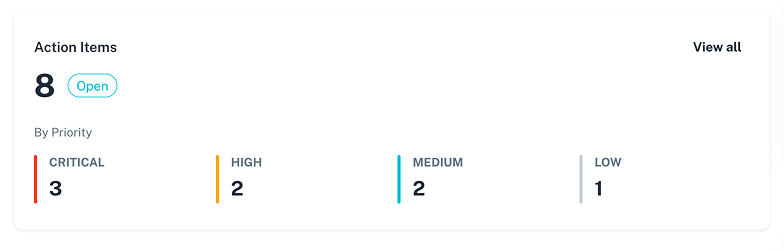 Use it as a quick pulse check. If any item is waiting on an admin decision, a pending approval notice appears alongside the counts. Click **View all** to open the full list.
## The list view
Go to **Manage > Action Items** from the application sidebar to see every item assigned to your application.
Use it as a quick pulse check. If any item is waiting on an admin decision, a pending approval notice appears alongside the counts. Click **View all** to open the full list.
## The list view
Go to **Manage > Action Items** from the application sidebar to see every item assigned to your application.
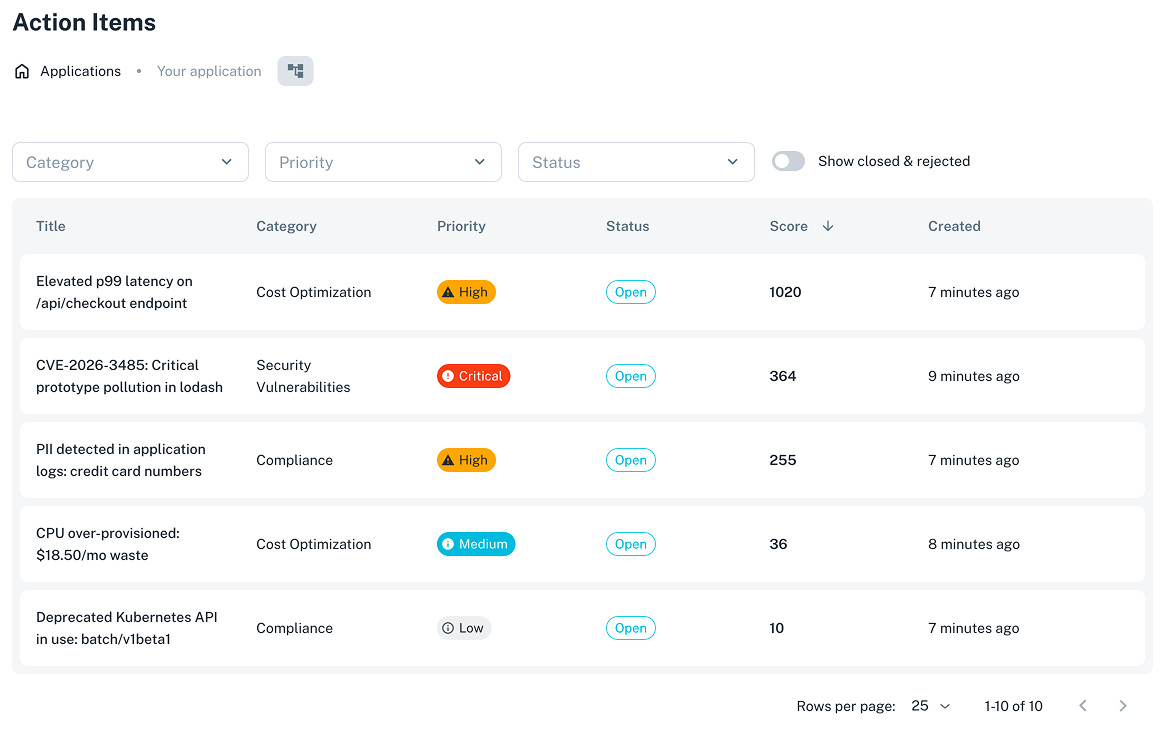 Click any title to open the detail view. Items are sorted by score, so the highest-value, highest-priority work surfaces first.
Use the filters above the table to narrow by category, priority, owner, or status, and the search bar to match on item title. The status filter starts on the working set, so resolved and closed items stay out of the way until you ask for them.
## The board view
The same items as cards in columns instead of rows. Switch between the two with the **View** control in the toolbar, which remembers your choice.
Click any title to open the detail view. Items are sorted by score, so the highest-value, highest-priority work surfaces first.
Use the filters above the table to narrow by category, priority, owner, or status, and the search bar to match on item title. The status filter starts on the working set, so resolved and closed items stay out of the way until you ask for them.
## The board view
The same items as cards in columns instead of rows. Switch between the two with the **View** control in the toolbar, which remembers your choice.
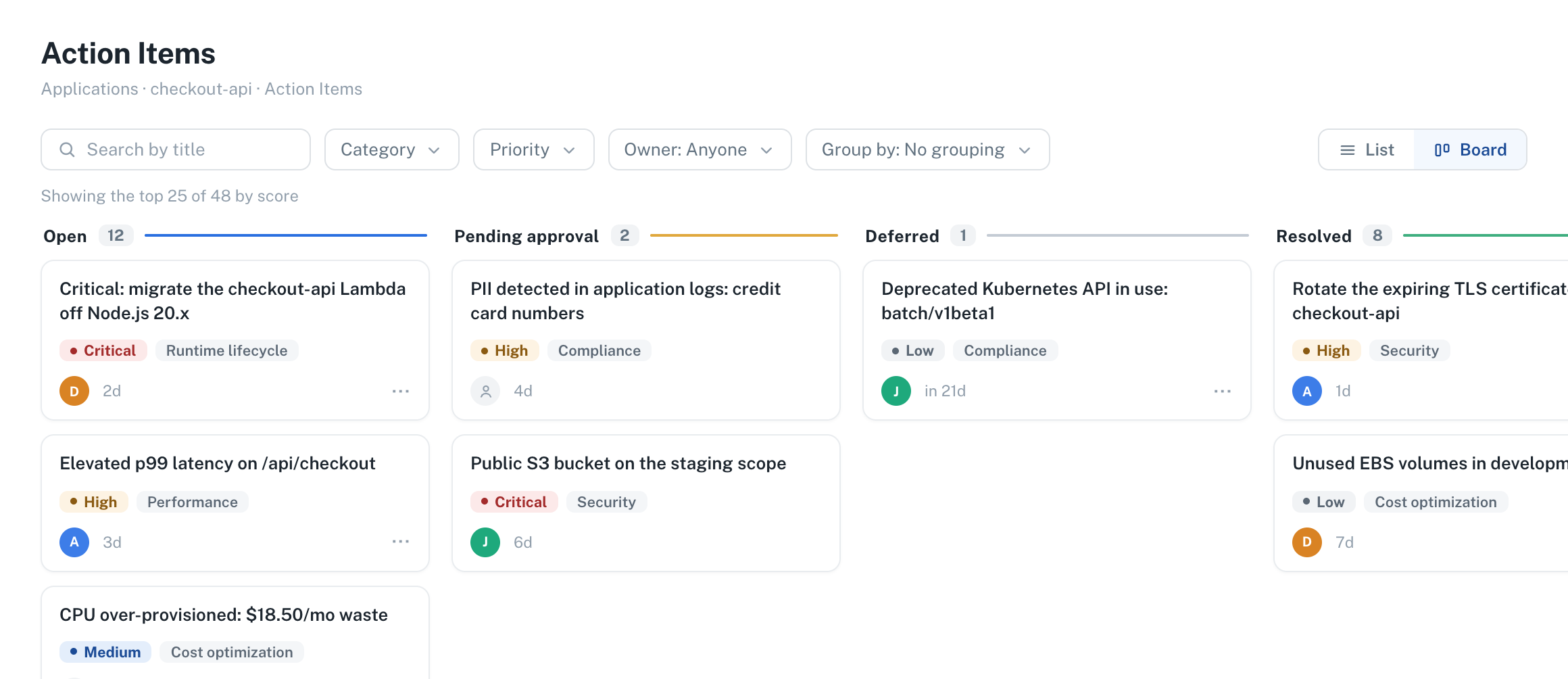 The columns are always the statuses, in the order work moves through them: **Open**, **Pending approval**, **Deferred**, **Resolved**, **Rejected**, and **Closed**. The three `pending_*` statuses share one column, since they differ only in which transition is waiting on a reviewer.
**Group by** splits the board into horizontal lanes, by priority, owner, or category. Each card carries the item's title, category, priority, and owner, plus a menu with the transitions its status allows, so you can triage without leaving the column you're in. Cards waiting on an approval have no menu, because nothing can move until the reviewer decides.
Filters and search are shared with the list, so a set you narrowed in one view is the same set in the other. One difference worth knowing: the board loads a single window of items sorted by score instead of paging through all of them, and tells you so above the columns when there are more.
## Triaging an action item
Click any item to open its detail view. The page has two tabs, **Overview** and **Activity**, and a properties column beside them that always shows the item's current state: status, owner, priority, dates, source, and labels.
The columns are always the statuses, in the order work moves through them: **Open**, **Pending approval**, **Deferred**, **Resolved**, **Rejected**, and **Closed**. The three `pending_*` statuses share one column, since they differ only in which transition is waiting on a reviewer.
**Group by** splits the board into horizontal lanes, by priority, owner, or category. Each card carries the item's title, category, priority, and owner, plus a menu with the transitions its status allows, so you can triage without leaving the column you're in. Cards waiting on an approval have no menu, because nothing can move until the reviewer decides.
Filters and search are shared with the list, so a set you narrowed in one view is the same set in the other. One difference worth knowing: the board loads a single window of items sorted by score instead of paging through all of them, and tells you so above the columns when there are more.
## Triaging an action item
Click any item to open its detail view. The page has two tabs, **Overview** and **Activity**, and a properties column beside them that always shows the item's current state: status, owner, priority, dates, source, and labels.
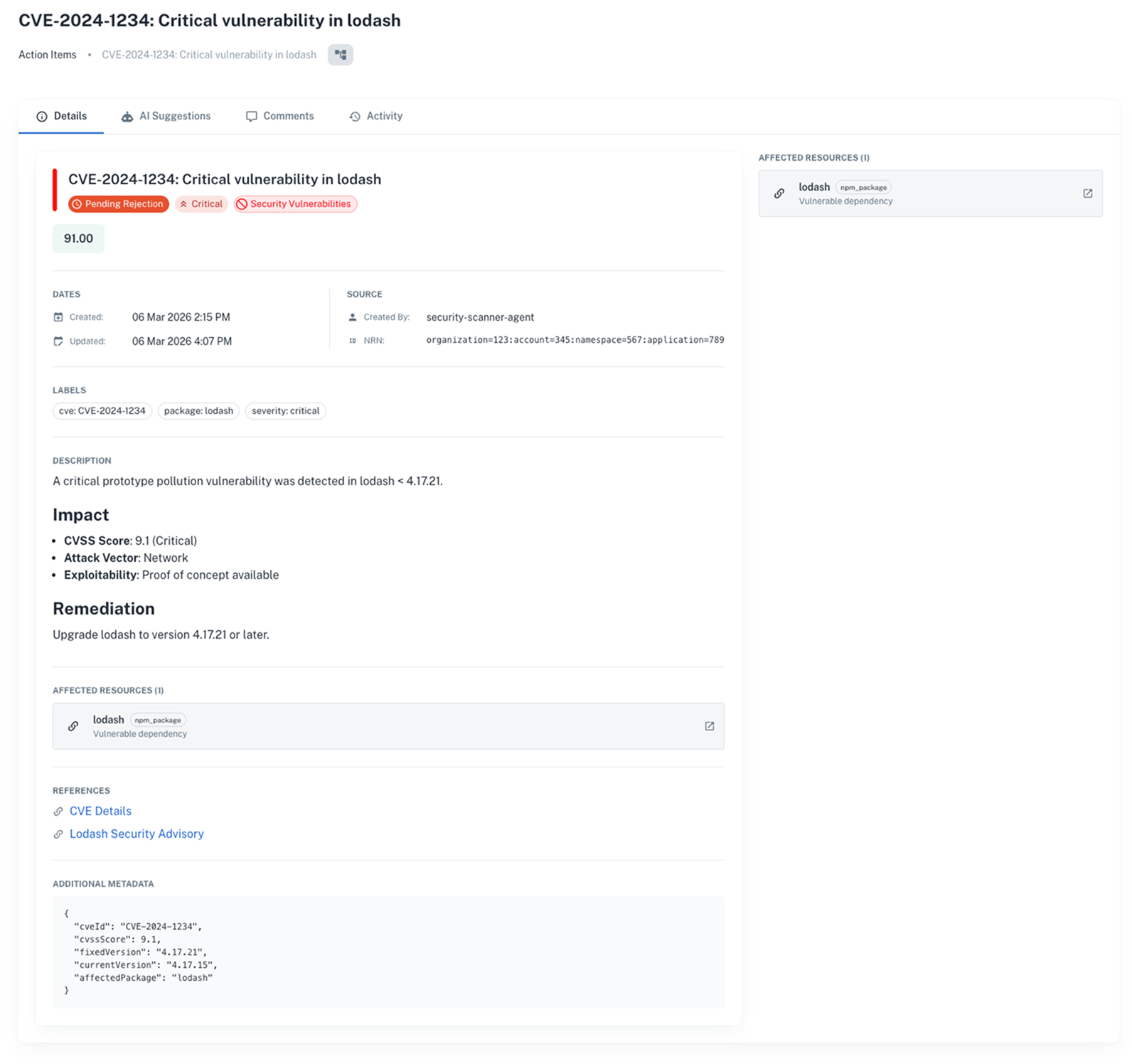 From the top of the page you can resolve, defer, or reject the item. Each one asks for a bit of context first:
| Action | When to use it | What you provide |
|---|---|---|
| **Resolve** | The work is done | An optional note, and an evidence URL such as the pull request that fixed it |
| **Defer** | It's real, but not now | A reason of at least 10 characters, and a target date |
| **Reject** | It doesn't apply, like a false positive | A reason of at least 20 characters |
If an [approval action](/docs/approvals/actions) gates the transition, your choice creates an approval request and the item waits in the matching `pending_*` status until a reviewer decides. Otherwise it moves straight to `resolved`, `deferred`, or `rejected`. A deferred item reopens on its own when the target date passes.
:::info Deferral limits
If the category defines `max_deferral_count` or `max_deferral_days`, those limits are enforced. An item that has already been deferred too many times, or for too long, is blocked from further deferrals.
:::
Every transition has an API equivalent:
Send a [POST request](/docs/api/action-item-resolve) to `/action_item/{id}/resolve`.
```bash
curl -L -X POST 'https://api.nullplatform.com/action_item/xYz789AbCdEf/resolve' \
-H 'Content-Type: application/json' \
-H 'Authorization: Bearer ' \
-d '{
"resolution": "Upgraded base image to node:20-alpine3.19",
"evidence_url": "https://github.com/org/repo/pull/42"
}'
```
Send a [POST request](/docs/api/action-item-defer) to `/action_item/{id}/defer`.
```bash
curl -L -X POST 'https://api.nullplatform.com/action_item/xYz789AbCdEf/defer' \
-H 'Content-Type: application/json' \
-H 'Authorization: Bearer ' \
-d '{
"defer_until": "2026-06-01",
"reason": "Waiting for the next maintenance window to apply this change safely."
}'
```
Send a [POST request](/docs/api/action-item-reject) to `/action_item/{id}/reject`.
```bash
curl -L -X POST 'https://api.nullplatform.com/action_item/xYz789AbCdEf/reject' \
-H 'Content-Type: application/json' \
-H 'Authorization: Bearer ' \
-d '{
"reason": "This CVE does not affect our usage of this library. The vulnerable function is never called."
}'
```
### Categorizing the outcome
:::info 🚀 Early release
This is rolling out and the available labels may change.
:::
When you resolve, defer, or reject an item, you can tag the outcome with a label from a fixed set defined by nullplatform, such as marking a rejection as a false positive or a resolution as a priority fix. It gives your team a consistent vocabulary for why items were closed out, which helps when reviewing activity later.
### Status flow
The path an item takes depends on whether an approval action gates the transition. When one does, your action moves the item through a `pending_*` state first:
```mermaid
stateDiagram-v2
direction TB
[*] --> open
open --> pending_verification : Resolve
open --> pending_deferral : Defer
open --> pending_rejection : Reject
pending_verification --> resolved : Approve
pending_verification --> open : Deny
pending_deferral --> deferred : Approve
pending_deferral --> open : Deny
pending_rejection --> rejected : Approve
pending_rejection --> open : Deny
deferred --> open : Auto-reopen
```
While an item sits in a `pending_*` state, an [approval request](/docs/approvals/approval-requests) waits for a reviewer to approve or deny it, through Slack, a webhook, or the approval request page. You can keep tabs on it from the list view or the **Activity** tab.
## Reviewing AI suggestions
Some items come with one or more AI-generated fix proposals, at the top of the **Overview** tab. Approving one is the only path that closes an item without anyone doing the work by hand, which is why the page offers it first.
From the top of the page you can resolve, defer, or reject the item. Each one asks for a bit of context first:
| Action | When to use it | What you provide |
|---|---|---|
| **Resolve** | The work is done | An optional note, and an evidence URL such as the pull request that fixed it |
| **Defer** | It's real, but not now | A reason of at least 10 characters, and a target date |
| **Reject** | It doesn't apply, like a false positive | A reason of at least 20 characters |
If an [approval action](/docs/approvals/actions) gates the transition, your choice creates an approval request and the item waits in the matching `pending_*` status until a reviewer decides. Otherwise it moves straight to `resolved`, `deferred`, or `rejected`. A deferred item reopens on its own when the target date passes.
:::info Deferral limits
If the category defines `max_deferral_count` or `max_deferral_days`, those limits are enforced. An item that has already been deferred too many times, or for too long, is blocked from further deferrals.
:::
Every transition has an API equivalent:
Send a [POST request](/docs/api/action-item-resolve) to `/action_item/{id}/resolve`.
```bash
curl -L -X POST 'https://api.nullplatform.com/action_item/xYz789AbCdEf/resolve' \
-H 'Content-Type: application/json' \
-H 'Authorization: Bearer ' \
-d '{
"resolution": "Upgraded base image to node:20-alpine3.19",
"evidence_url": "https://github.com/org/repo/pull/42"
}'
```
Send a [POST request](/docs/api/action-item-defer) to `/action_item/{id}/defer`.
```bash
curl -L -X POST 'https://api.nullplatform.com/action_item/xYz789AbCdEf/defer' \
-H 'Content-Type: application/json' \
-H 'Authorization: Bearer ' \
-d '{
"defer_until": "2026-06-01",
"reason": "Waiting for the next maintenance window to apply this change safely."
}'
```
Send a [POST request](/docs/api/action-item-reject) to `/action_item/{id}/reject`.
```bash
curl -L -X POST 'https://api.nullplatform.com/action_item/xYz789AbCdEf/reject' \
-H 'Content-Type: application/json' \
-H 'Authorization: Bearer ' \
-d '{
"reason": "This CVE does not affect our usage of this library. The vulnerable function is never called."
}'
```
### Categorizing the outcome
:::info 🚀 Early release
This is rolling out and the available labels may change.
:::
When you resolve, defer, or reject an item, you can tag the outcome with a label from a fixed set defined by nullplatform, such as marking a rejection as a false positive or a resolution as a priority fix. It gives your team a consistent vocabulary for why items were closed out, which helps when reviewing activity later.
### Status flow
The path an item takes depends on whether an approval action gates the transition. When one does, your action moves the item through a `pending_*` state first:
```mermaid
stateDiagram-v2
direction TB
[*] --> open
open --> pending_verification : Resolve
open --> pending_deferral : Defer
open --> pending_rejection : Reject
pending_verification --> resolved : Approve
pending_verification --> open : Deny
pending_deferral --> deferred : Approve
pending_deferral --> open : Deny
pending_rejection --> rejected : Approve
pending_rejection --> open : Deny
deferred --> open : Auto-reopen
```
While an item sits in a `pending_*` state, an [approval request](/docs/approvals/approval-requests) waits for a reviewer to approve or deny it, through Slack, a webhook, or the approval request page. You can keep tabs on it from the list view or the **Activity** tab.
## Reviewing AI suggestions
Some items come with one or more AI-generated fix proposals, at the top of the **Overview** tab. Approving one is the only path that closes an item without anyone doing the work by hand, which is why the page offers it first.
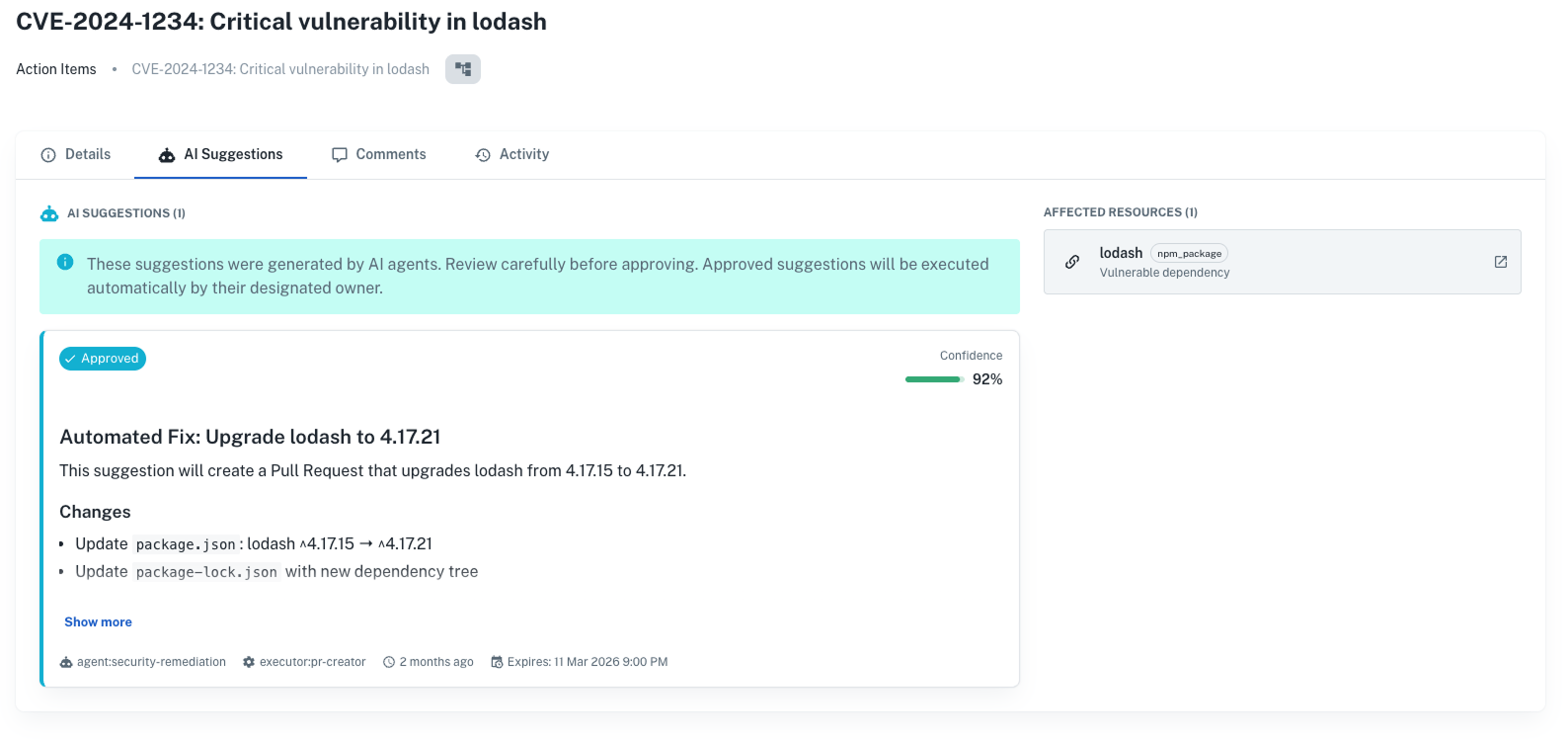 Some suggestions include editable **execution parameters**, like the target version of a dependency upgrade, that you can adjust before approving.
Click **Approve** to authorize the fix, and the owning agent picks it up and runs it. Click **Reject** to dismiss the suggestion. After execution, the card shows whether the fix succeeded, usually with a link to the resulting pull request, or failed, in which case you can adjust the parameters and approve it again.
Suggestions can expire. If you don't act on a pending or approved one before its expiration date, it can no longer be applied.
Over the API, [approve](/docs/api/suggestion-approve) and [reject](/docs/api/suggestion-reject) are POST requests on `/action_item/{actionItemId}/suggestions/{id}`.
```bash
curl -L -X POST 'https://api.nullplatform.com/action_item/xYz789AbCdEf/suggestions/sUg123AbCdEf/approve' \
-H 'Authorization: Bearer '
```
## Comments and activity
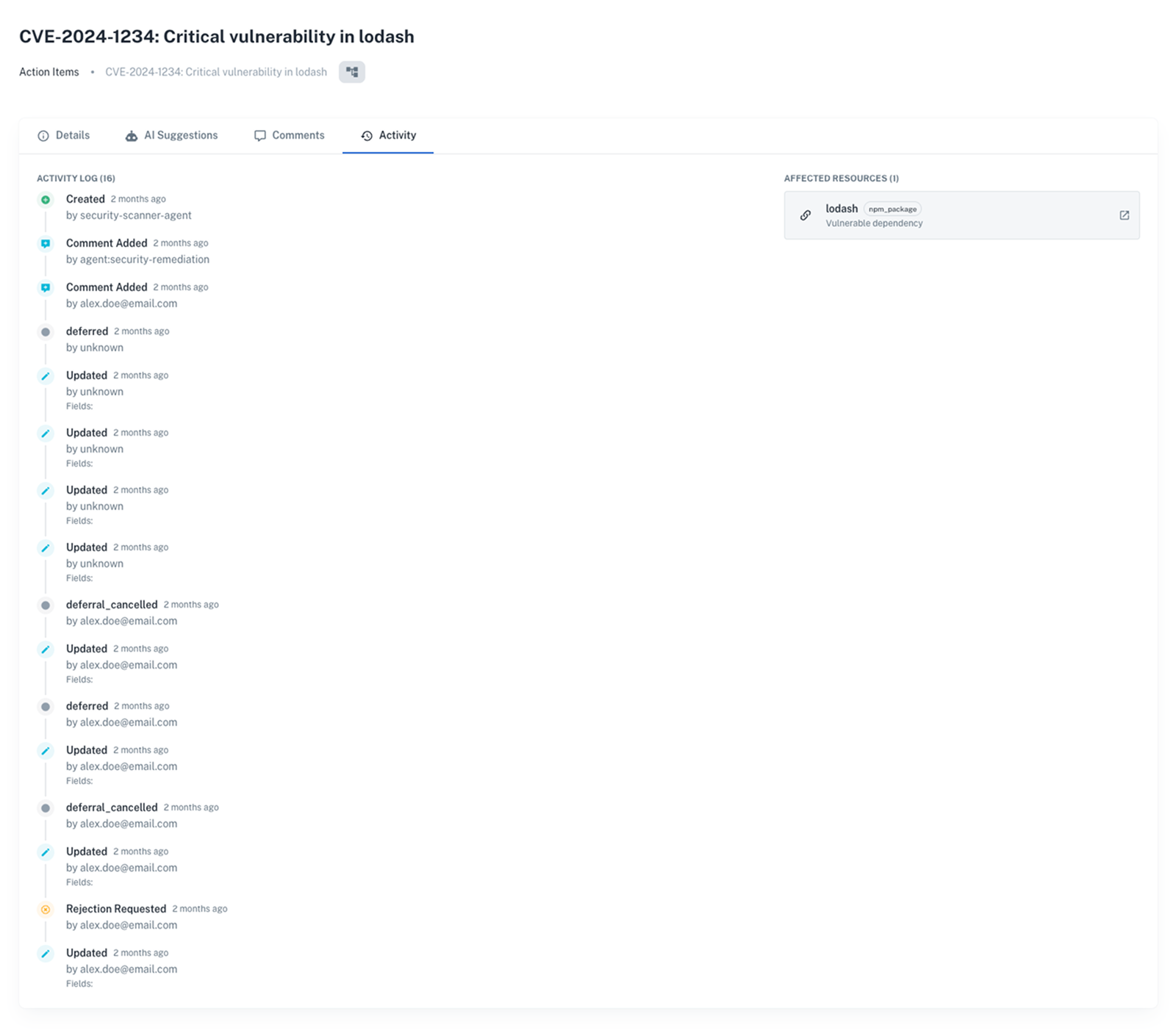
The **Activity** tab is the item's whole history as one thread, newest first: what people said and what happened to the item, in the order it occurred. The comment box sits on top, since saying something is why most people open it.
Agent comments are labeled with a `BOT` badge, similar to how Dependabot leaves notes on pull requests. Add a comment with a [POST request](/docs/api/action-item-comment-create) to `/action_item/{id}/comments`.
```bash
curl -L -X POST 'https://api.nullplatform.com/action_item/xYz789AbCdEf/comments' \
-H 'Content-Type: application/json' \
-H 'Authorization: Bearer ' \
-d '{
"content": "Reviewed the affected resources. This should be prioritized for the next sprint."
}'
```
The same thread records every status change, field update, assignment, and approval decision, with the actor and timestamp on each one. Use it to understand why an item is in its current state and who did what.
Some suggestions include editable **execution parameters**, like the target version of a dependency upgrade, that you can adjust before approving.
Click **Approve** to authorize the fix, and the owning agent picks it up and runs it. Click **Reject** to dismiss the suggestion. After execution, the card shows whether the fix succeeded, usually with a link to the resulting pull request, or failed, in which case you can adjust the parameters and approve it again.
Suggestions can expire. If you don't act on a pending or approved one before its expiration date, it can no longer be applied.
Over the API, [approve](/docs/api/suggestion-approve) and [reject](/docs/api/suggestion-reject) are POST requests on `/action_item/{actionItemId}/suggestions/{id}`.
```bash
curl -L -X POST 'https://api.nullplatform.com/action_item/xYz789AbCdEf/suggestions/sUg123AbCdEf/approve' \
-H 'Authorization: Bearer '
```
## Comments and activity
The **Activity** tab is the item's whole history as one thread, newest first: what people said and what happened to the item, in the order it occurred. The comment box sits on top, since saying something is why most people open it.
Agent comments are labeled with a `BOT` badge, similar to how Dependabot leaves notes on pull requests. Add a comment with a [POST request](/docs/api/action-item-comment-create) to `/action_item/{id}/comments`.
```bash
curl -L -X POST 'https://api.nullplatform.com/action_item/xYz789AbCdEf/comments' \
-H 'Content-Type: application/json' \
-H 'Authorization: Bearer ' \
-d '{
"content": "Reviewed the affected resources. This should be prioritized for the next sprint."
}'
```
The same thread records every status change, field update, assignment, and approval decision, with the actor and timestamp on each one. Use it to understand why an item is in its current state and who did what.
 ## Next steps
- [Action items overview](/docs/action-items): see how the detect-triage-resolve cycle fits together
- [Action item owners](/docs/action-items/owners): assign an item to a person and find what you own
- [Configure and manage action items](/docs/action-items/configure-and-manage): learn what admins and ops engineers configure on the governance side
- [Approvals](/docs/approvals): how the approval requests behind gated transitions work
- [Action items API reference](/docs/api/action-item-list): endpoints to work with items programmatically
## Next steps
- [Action items overview](/docs/action-items): see how the detect-triage-resolve cycle fits together
- [Action item owners](/docs/action-items/owners): assign an item to a person and find what you own
- [Configure and manage action items](/docs/action-items/configure-and-manage): learn what admins and ops engineers configure on the governance side
- [Approvals](/docs/approvals): how the approval requests behind gated transitions work
- [Action items API reference](/docs/api/action-item-list): endpoints to work with items programmatically