---
sidebar_label: Logging in with Google
doc_id: 23e622c5-3ad1-40a5-b1e1-d525a16d3b93
description: >-
Configure Google as an external Identity Provider for nullplatform user
authentication via SAML integration.
keywords:
- Google login
- SAML authentication
- Identity Provider
- nullplatform
- SSO
---
# Logging in with Google
Nullplatform enables users to sign in through third-party federation, using external identity providers (IdPs) like Google.
To add Google as an external IdP and allow your users to log in to nullplatform with their Google accounts, follow these steps:
1. **Add a custom SAML app on Google**:
- Begin by adding a custom SAML (Security Assertion Markup Language) app in your Google account.
- Configure this app according to the setup instructions provided.
2. **Before you start, contact us**:
- [Reach out to our support team](/docs/support) to obtain the necessary information for configuration. You'll need the following details:
- **ACS (Consumer) URL**: This is the Assertion Consumer Service URL, which allows nullplatform to receive authentication responses from Google.
- **Entity ID**: The Entity ID uniquely identifies nullplatform as a service provider in the SAML exchange.
By following these steps and obtaining the required information, you'll enable seamless Google-based login for your users on nullplatform.
## Add a Custom SAML App on Google
1. Log in to the [Google Workspace Admin Console](https://admin.google.com/)
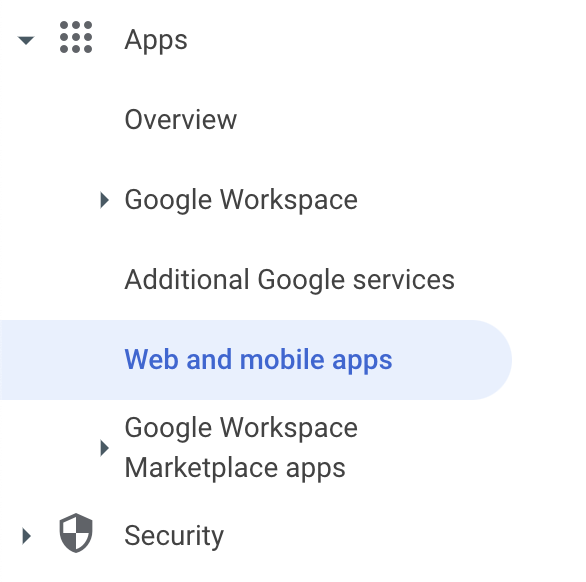
2. Choose **Web and mobile app** under **Apps** on the left side of the page.
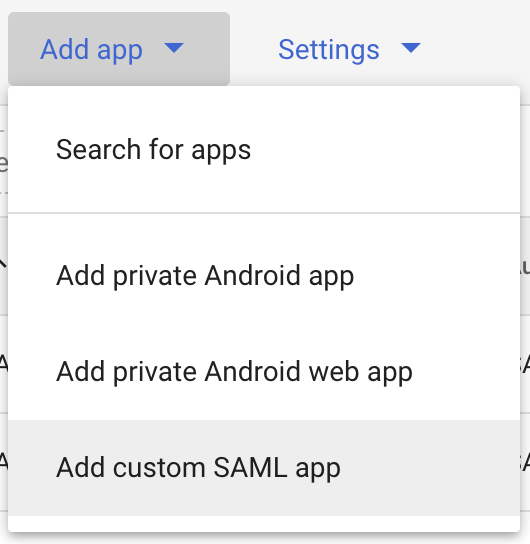
 3. Click the **Add custom SAML app** under **Add app**.
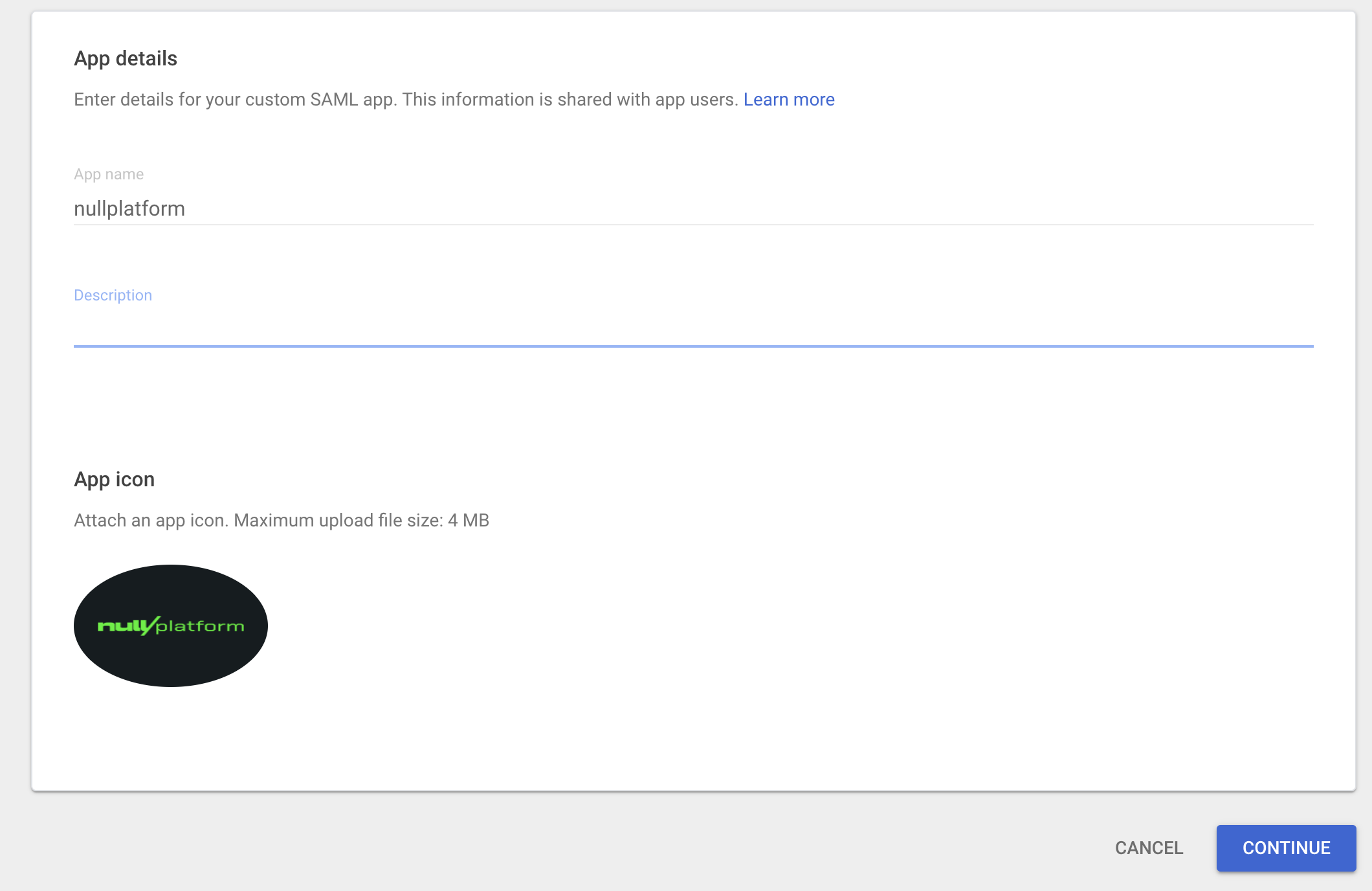
 4. Enter the **App name**, **Description**, and click **CONTINUE**.
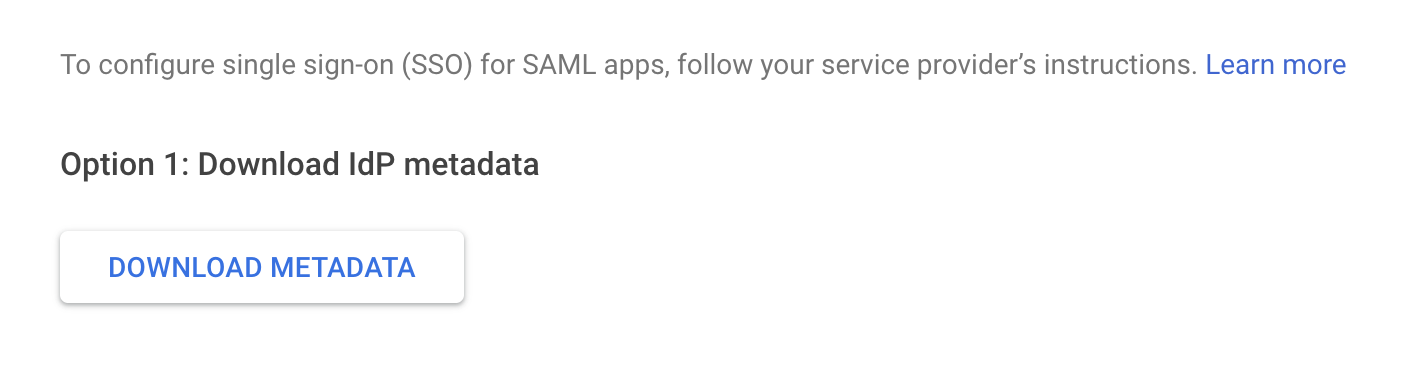
 5. Download IdP metadata as you will need it to share it with the nullplatform team, then click **CONTINUE**.
 6. Next enter the **ACS URL** and **Entity ID**, both of which you obtained from the nullplatform support.
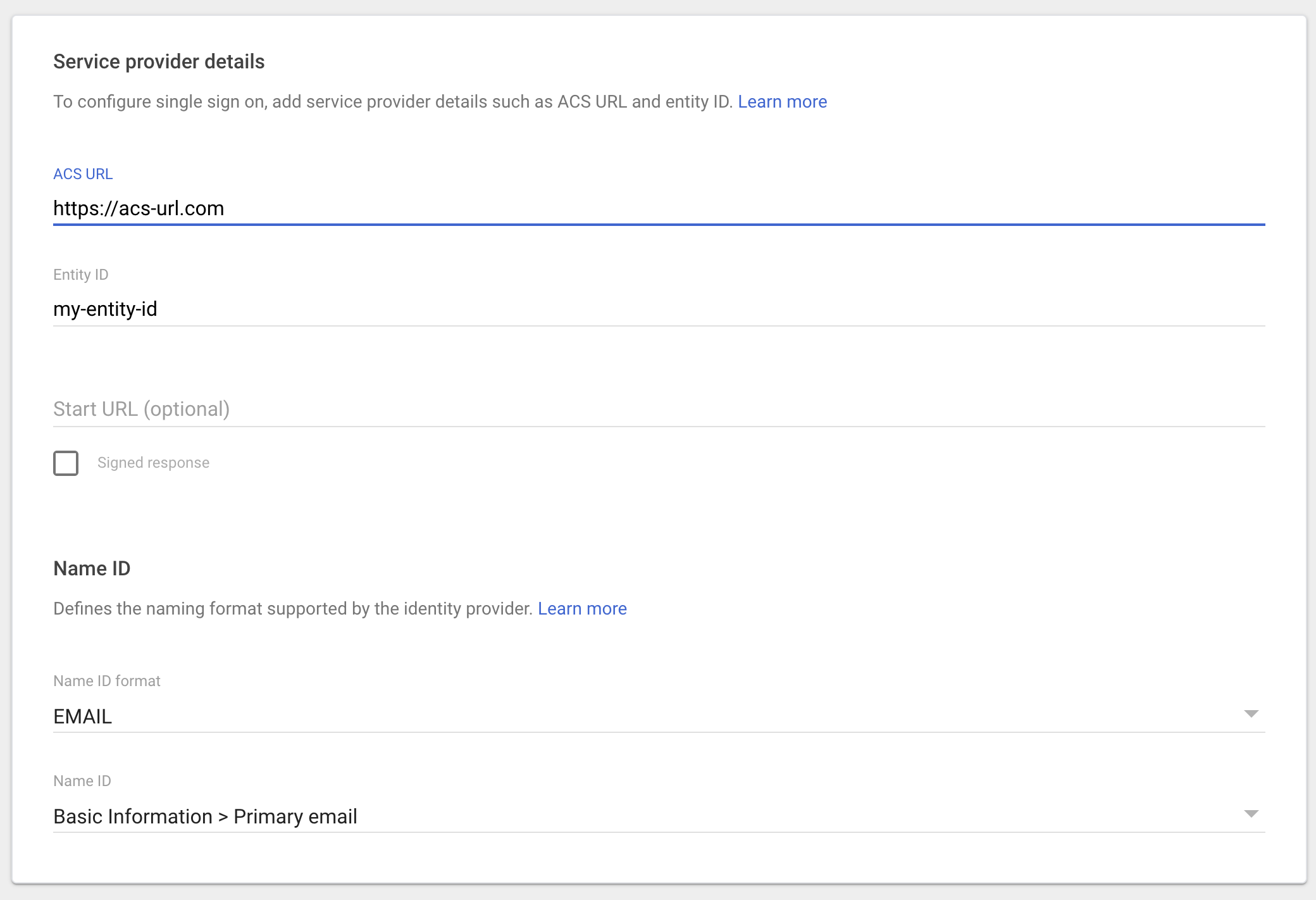 7. Select **EMAIL** from the drop-down menu for **Name ID Format**.
8. Select **Basic Information > Primary email** from the drop-down menu for **Name ID** and click **CONTINUE**.
9. On the Attributes tab, click **ADD MAPPING** to add additional parameters to include in the SAML payload.
7. Select **EMAIL** from the drop-down menu for **Name ID Format**.
8. Select **Basic Information > Primary email** from the drop-down menu for **Name ID** and click **CONTINUE**.
9. On the Attributes tab, click **ADD MAPPING** to add additional parameters to include in the SAML payload.
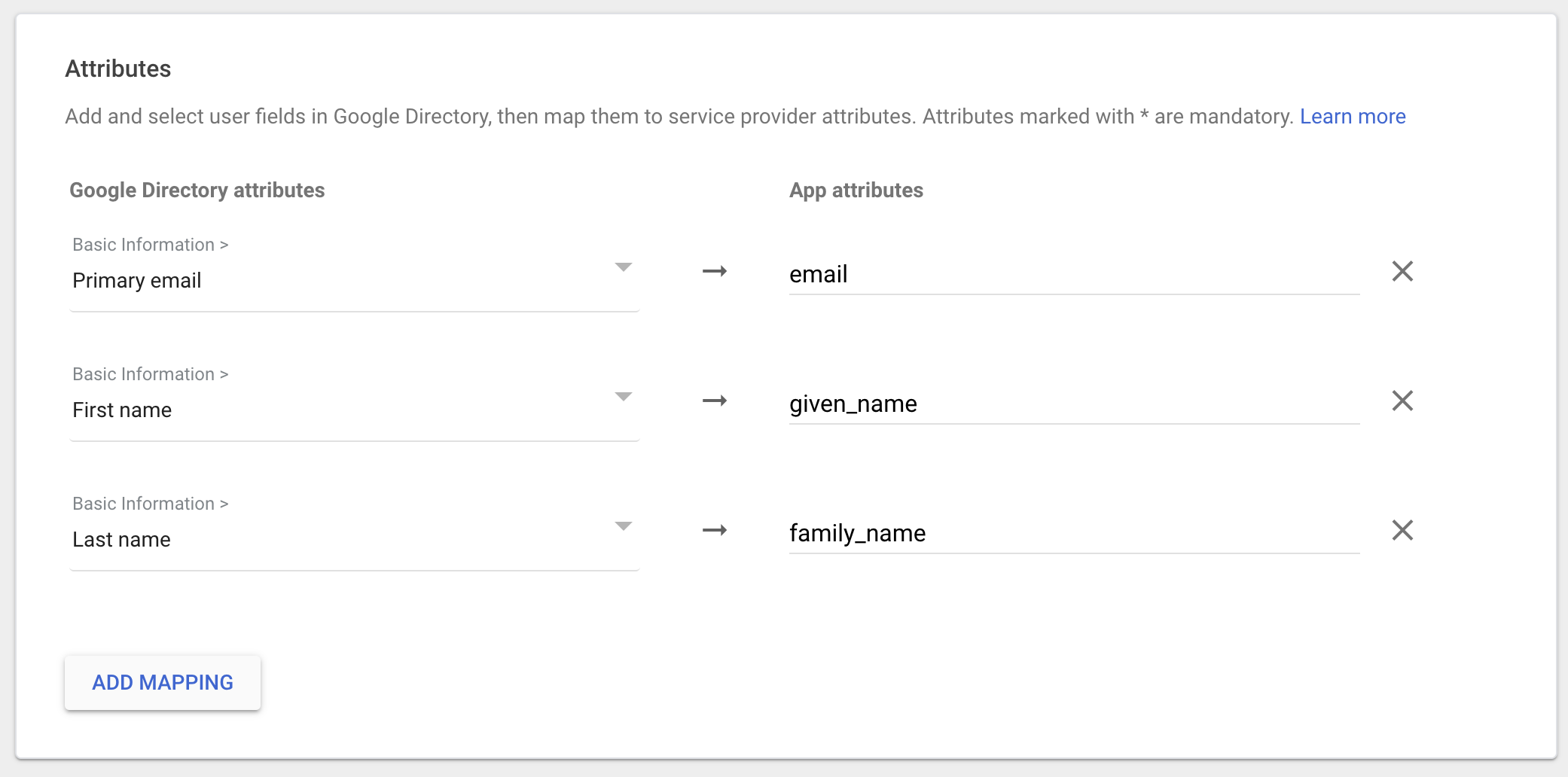 Mapping should be:
| Google Directory attributes | App attributes |
|----------------------------------- |---------------- |
| Basic Information > Primary email | email |
| Basic Information > First name | given_name |
| Basic Information > Last name | family_name |
10. Click **FINISH** to complete.
11. Once the application is created, navigate to the **User access** card.
Mapping should be:
| Google Directory attributes | App attributes |
|----------------------------------- |---------------- |
| Basic Information > Primary email | email |
| Basic Information > First name | given_name |
| Basic Information > Last name | family_name |
10. Click **FINISH** to complete.
11. Once the application is created, navigate to the **User access** card.
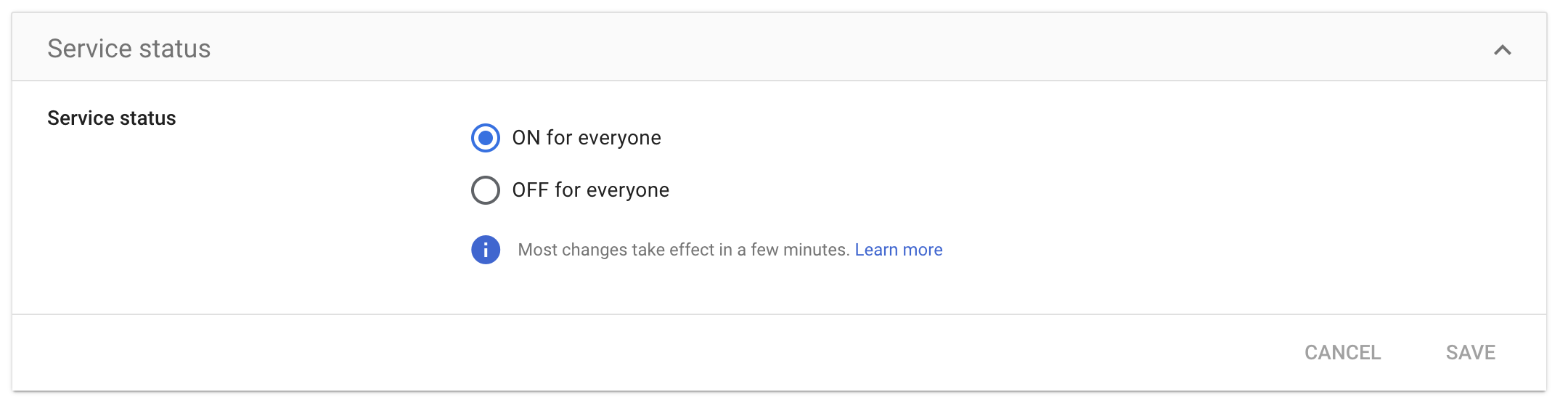
 12. Set the **Service status** as **ON for everyone** and click **Save**.
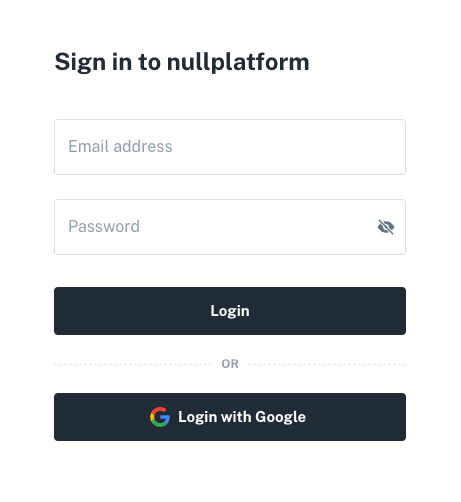
 13. IdP setup is now complete. Share your downloaded IdP metadata with the nullplatform support team, then you will see **Login with Google** in your nullplatform organization account.