---
sidebar_label: Logging in with Okta
doc_id: 8542f9b6-b450-441b-912c-848cdce3a4dd
description: >-
Step-by-step guide for configuring Okta as an Identity Provider to enable SSO
login for nullplatform users.
keywords:
- Okta
- SSO
- SAML
- nullplatform
- authentication
---
# Logging in with Okta
Nullplatform enables users to sign in through third-party federation, using external identity providers (IdPs) like Okta.
To add Okta as an external IdP and allow your users to log in to nullplatform with their Okta accounts, follow these steps:
1. **Create an app integration on Okta**:
- Begin by adding an app integration in your Okta account.
- Configure this app according to the setup instructions provided.
2. **Before you start, contact us**:
- [Reach out to our support team](/docs/support) to obtain the necessary information for configuration. You'll need the following details:
- **Single sign-on URL**: This URL is used to redirect users to Okta for authentication. It's a crucial part of the Single Sign-On (SSO) process.
- **Audience URI (SP Entity ID)**: The Audience URI, also known as the Service Provider (SP) Entity ID, uniquely identifies your service within the SAML exchange. It ensures secure and trusted communication between Okta and your application.
By following these steps and obtaining the required information, you'll enable seamless Okta-based login for your users on nullplatform.
## Create App Integration on Okta
1. Log in to [Okta](https://www.okta.com).
2. Go to the Admin dashboard by clicking the **Admin** button in the top-right corner of the page.
 3. On the left-hand side of the page, under **Applications**, click **Applications**.
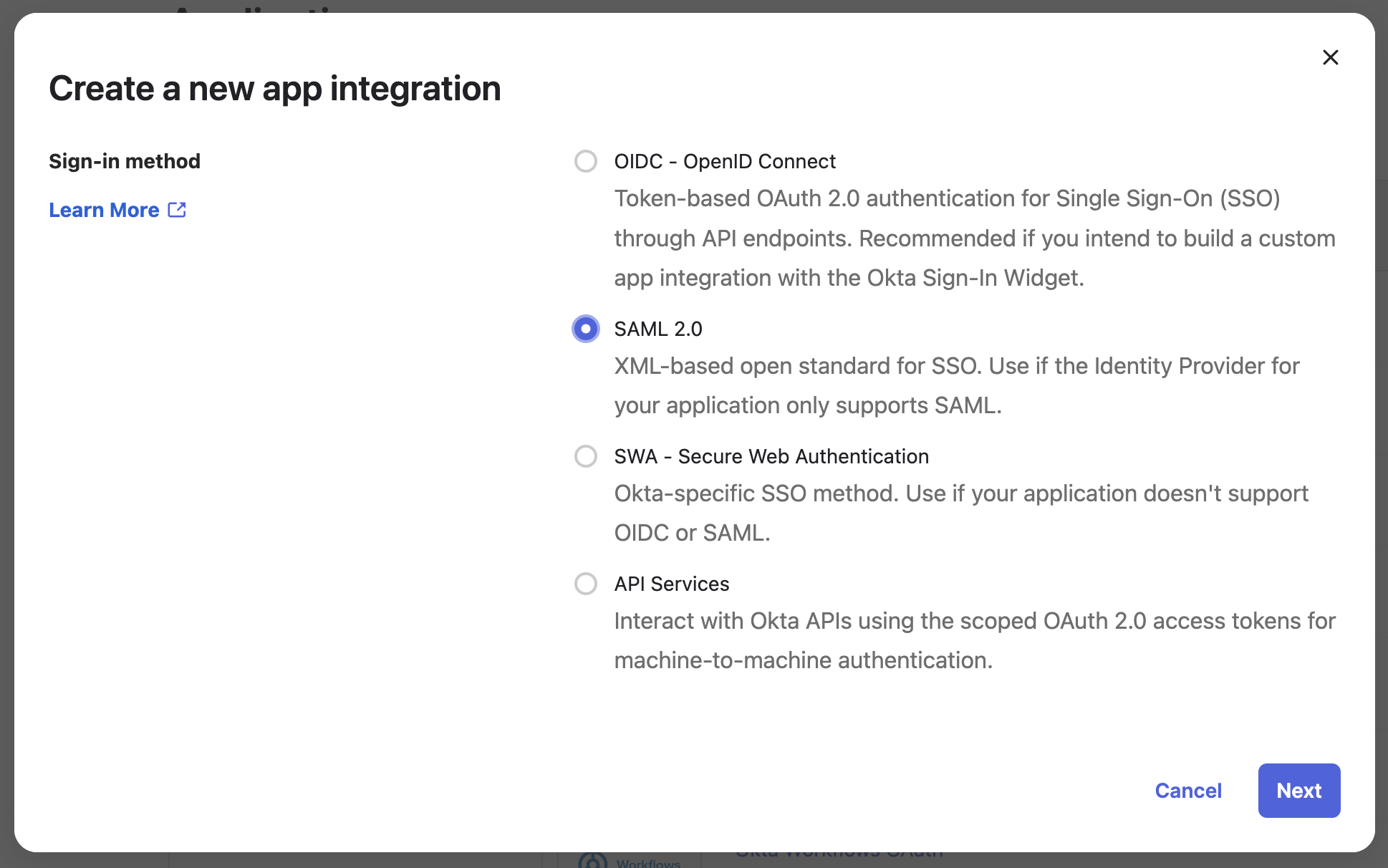
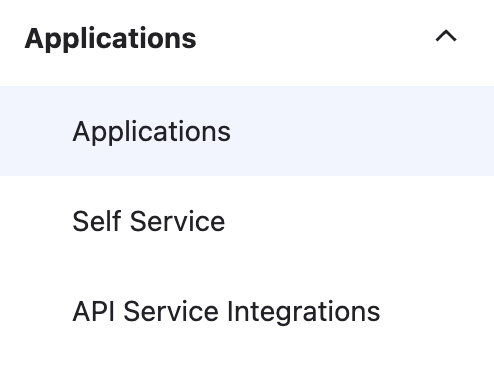 4. Click the **Create App Integration** button.
 5. Select **SAML 2.0** for the sign-in method, then select **Next**.
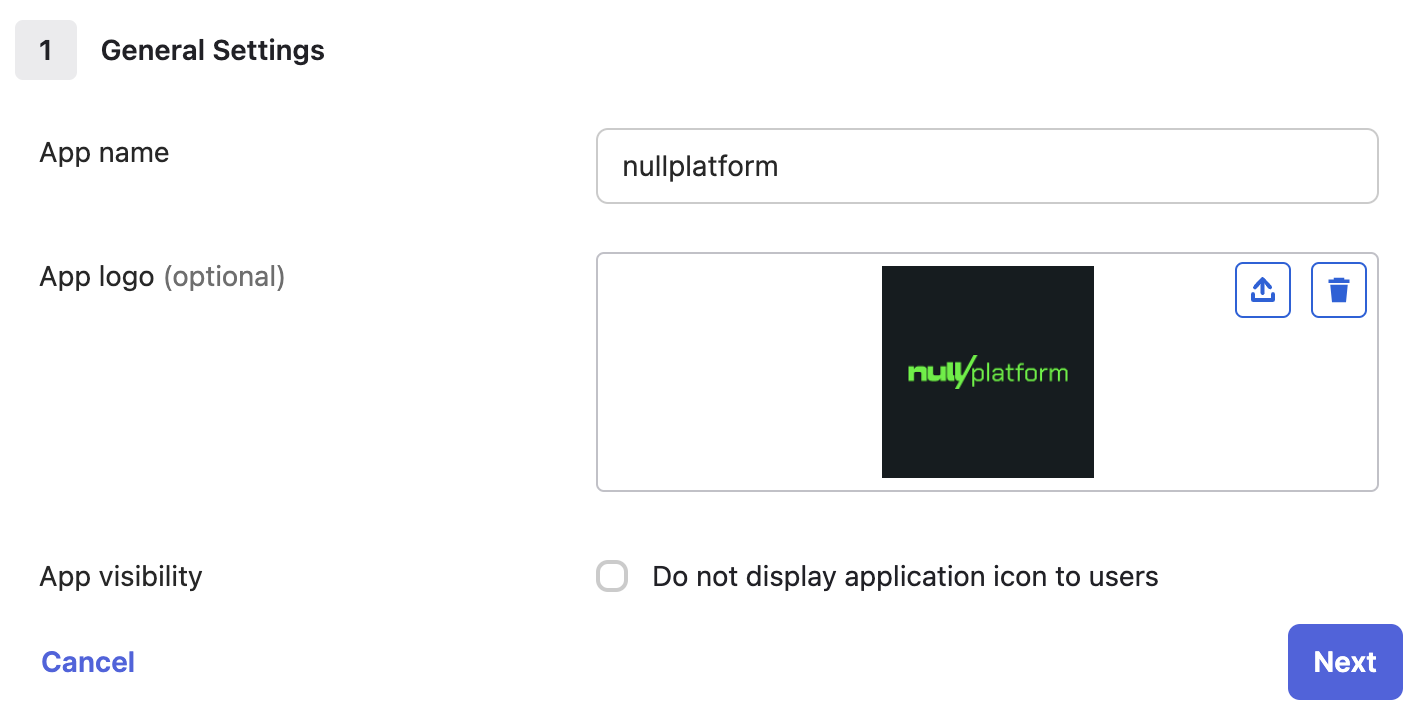
 6. Complete the **App name** and **App logo** (*optional*), then select **Next**.
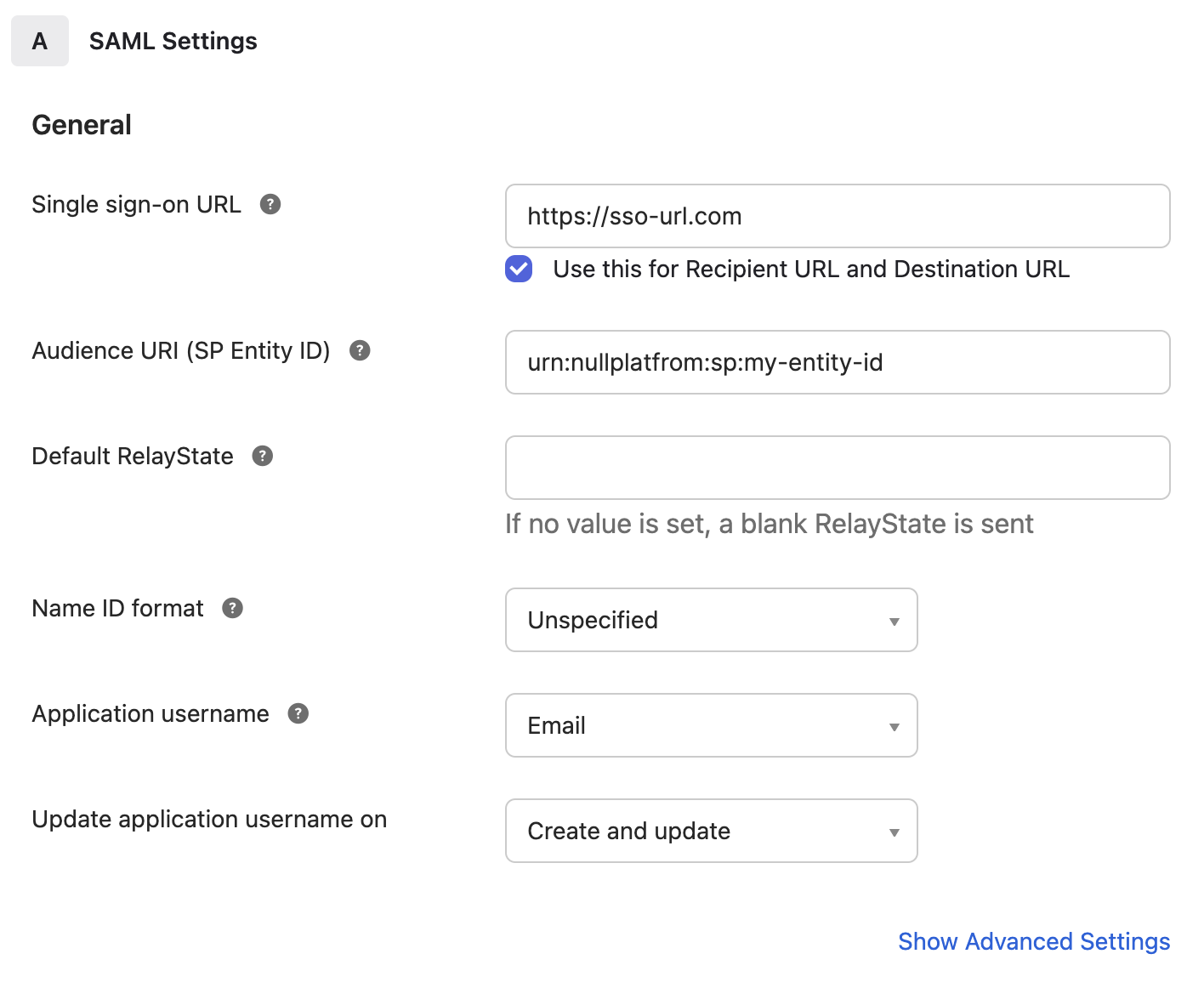
 7. The next page describes the SAML settings for your app.
8. The **Single sign-on URL** and **Audience URI (SP Entity ID)** are provided by nullplatform support.
9. Make sure the **Use this for Recipient URL and Destination URL** box is checked.
10. Leave the **Default RelayState** blank.
11. Select *Unspecified* for **Name ID format**.
12. Select *Email* for **Application username**.
7. The next page describes the SAML settings for your app.
8. The **Single sign-on URL** and **Audience URI (SP Entity ID)** are provided by nullplatform support.
9. Make sure the **Use this for Recipient URL and Destination URL** box is checked.
10. Leave the **Default RelayState** blank.
11. Select *Unspecified* for **Name ID format**.
12. Select *Email* for **Application username**.
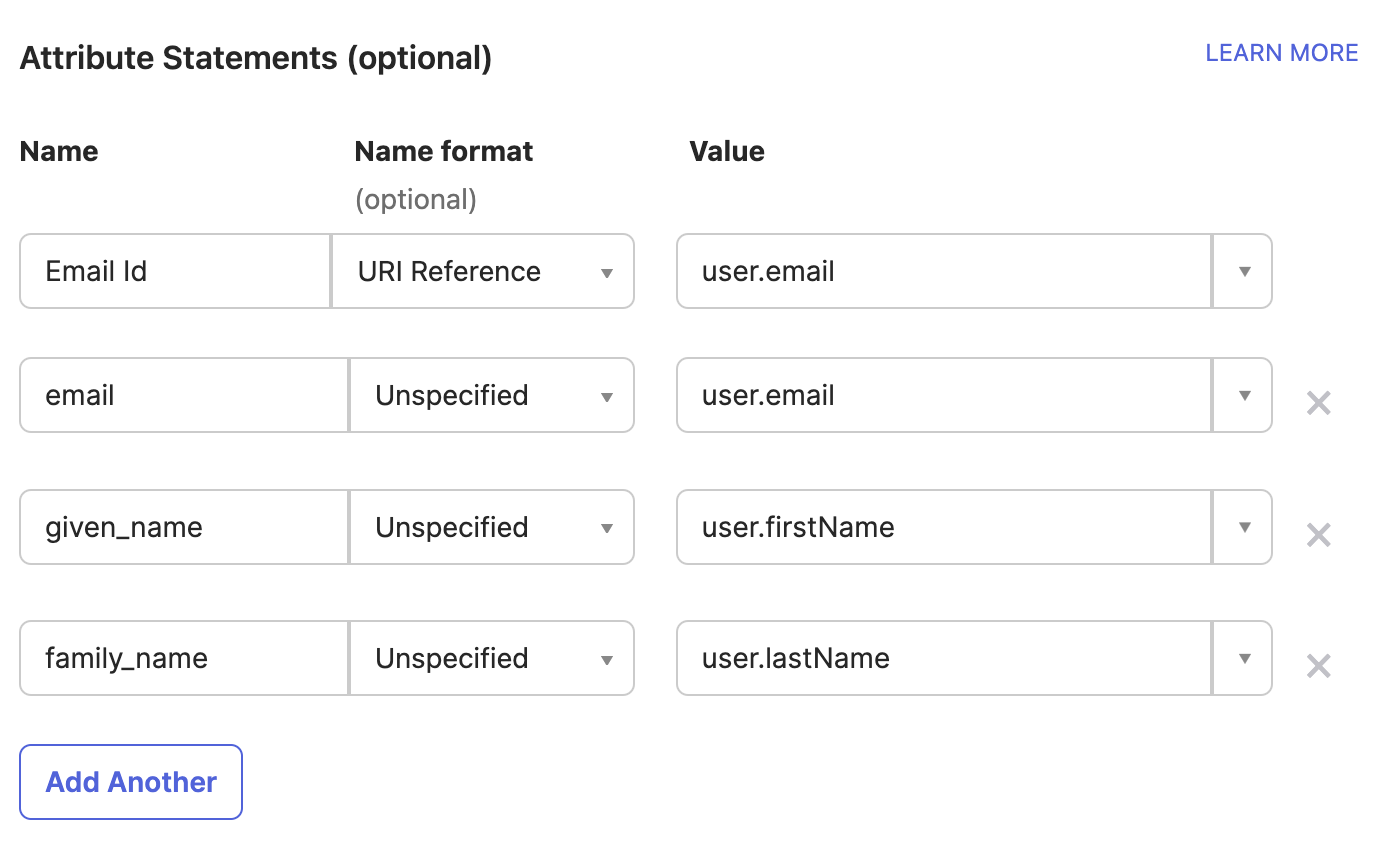
 13. Under **Attribute Statements**, configure the following:
Name | Name format | Value
:-----------: | :---------: | :--------------:
email | Unspecified | user.email
given_name | Unspecified | user.firstName
family_name | Unspecified | user.lastName
Mapping should be:
13. Under **Attribute Statements**, configure the following:
Name | Name format | Value
:-----------: | :---------: | :--------------:
email | Unspecified | user.email
given_name | Unspecified | user.firstName
family_name | Unspecified | user.lastName
Mapping should be:
 14. Click **Next**.
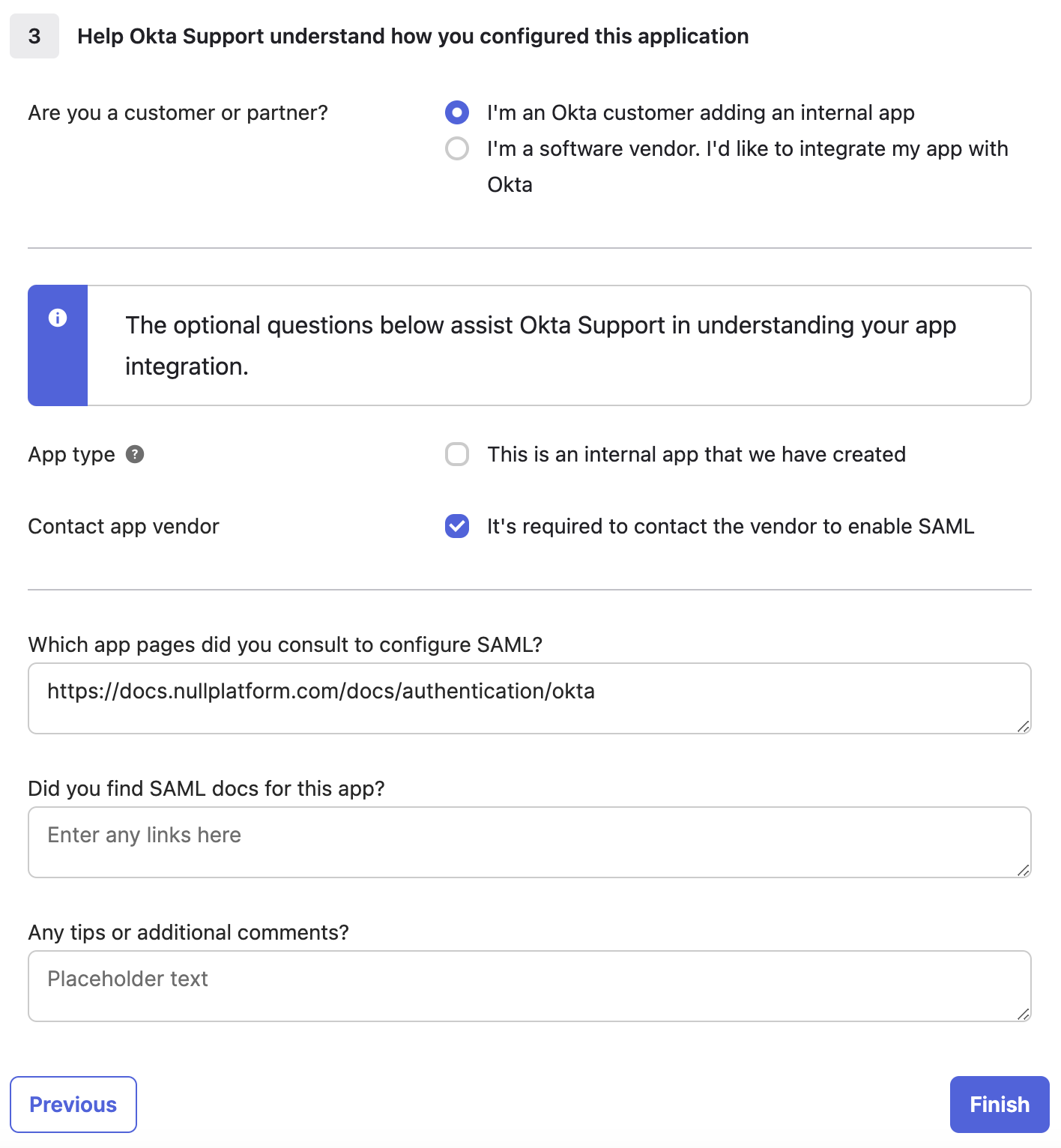
15. Select **I'm an Okta customer adding an internal app** for **Are you a customer or partner?**.
16. Select **It's required to contact the vendor to enable SAML** for **App Type**.
17. Fill **Which app pages did you consult to configure SAML?** input with `https://docs.nullplatform.com/docs/authentication/okta`.
14. Click **Next**.
15. Select **I'm an Okta customer adding an internal app** for **Are you a customer or partner?**.
16. Select **It's required to contact the vendor to enable SAML** for **App Type**.
17. Fill **Which app pages did you consult to configure SAML?** input with `https://docs.nullplatform.com/docs/authentication/okta`.
 18. Click **Finish**.
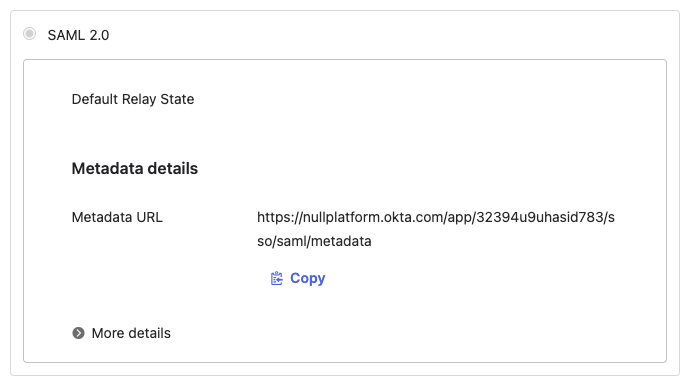
19. On the **Sign On** tab, click **Copy** under **Metadata details** and share the **Metadata URL** with nullplatform support.
18. Click **Finish**.
19. On the **Sign On** tab, click **Copy** under **Metadata details** and share the **Metadata URL** with nullplatform support.
 20. On the **Assignments** tab, click **Assign** to assign the application to selected **People** or **Groups**.
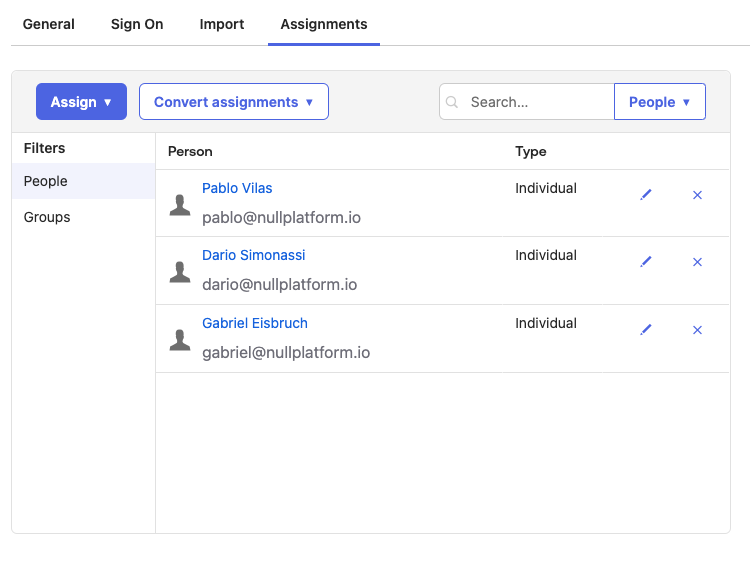 21. IdP setup is now complete. Share your copied **Metadata URL** with the nullplatform support team, then you will see **Login with Okta** in your nullplatform organization account.