Detect and roll out AMI updates
🎯 Goal: Two prompts to your coding assistant, and your AMI rollout tracks itself: every scope running an old image gets its own action item, the item closes itself when the team redeploys, and a live dashboard shows how the rollout is going.
Introduction
When security publishes a patched AMI, updating the EC2 provider configuration in nullplatform takes minutes. The follow-up is where the real work is: every scope keeps running the old image until its team redeploys, and tracking that usually falls to a spreadsheet, a round of Slack messages, and a manual check weeks later.
This suite automates that follow-up. It takes two prompts:
- One prompt builds the automation: nightly drift detection, one self-closing action item per affected scope
- One prompt builds the dashboard that watches the rollout live
From then on, detection, assignment, follow-up, and reporting run on their own, every night.
What you'll set up
- A nightly scan that compares the AMI each active EC2 deployment runs against the one its provider configuration expects
- One action item per drifted scope, on the application's dashboard, with the deployed AMI, the expected AMI, and a due date. No duplicates: an already-reported scope gets its item refreshed, never recreated
- Automatic cleanup: once a scope is redeployed, its item is closed with a comment explaining why
- A live Insights dashboard showing open drift items by account and namespace, so the rollout status is always visible
💡 Want to see how it works first? Jump to What you just built, then come back.
Prerequisites
- The data lake enabled: the scanner and the closer run on lake queries
- The np-workflow skill, part of the nullplatform AI plugins for your coding assistant. See Set up the AI plugins to install it
- Access to Insights for the tracking dashboard
Step 1: Describe the suite to your coding assistant
Open a session of your coding assistant with the np-workflow skill available and describe the automation you want. The prompt below is a good template because it states everything the suite needs to get right: the comparison, the action items, the cleanup, and a manual escape hatch.
💡 You can start narrow. The suite is built to watch the whole fleet, and that's usually the point. If you'd rather limit what it touches on day one, or something similar already runs in your organization, point the prompt at one account or namespace.
/np-workflow create an AMI drift suite for my organization:

- Every night, check the active EC2 deployments and compare the AMI each
  scope is running against the one its provider configuration says it
  should run.
- If a scope has drifted, open an action item in the "Engineering"
  category (create it if it doesn't exist) with the deployed AMI, the
  expected AMI, the deployment id, and a due date 14 days out. If the
  scope already has an item, refresh it instead of creating a duplicate.
- After each scan, close the items whose scope was redeployed, with a
  comment explaining why.
- Let me trigger everything manually too, with an optional NRN filter so
  I can scan a single namespace on demand.

Publish everything but don't activate anything yet.
The skill builds the three workflow definitions, wires the sub-workflow references, checks the result is valid, and publishes it to your organization under a folder like /action-items/ami-drift. Nothing is scheduled yet: "don't activate" leaves you a chance to review first.
The suite reads four configuration entries. Ask the skill to set them as part of the same conversation, or set them later from the editor's configuration panel:
| Entry | Type | What it is |
|---|---|---|
NP_API_KEY | Secret | API key the workflows use to call nullplatform |
NP_ORGANIZATION_ID | Variable | Your organization id |
AMI_DRIFT_CATEGORY_SLUG | Variable | Action item category for the findings |
AMI_DRIFT_DUE_DAYS | Variable | Days until a drift item is due (default 14) |
✅ Checkpoint
The skill reports the three workflows (scanner, ensure action item, closer) as published, with activation skipped. You'll see them in the UI in the next step.
Step 2: Meet the suite in the workflow editor
In the nullplatform UI, open Platform Settings → Workflow Editor. The left panel shows your workflows tree: the suite lives in its own folder, with the three workflows inside. Click the scanner and the canvas draws it: triggers on the left, then each step in the order data flows through it.
This is the same suite you just described, node by node. Use the list on the left to switch between the three workflows, and click any step to see what it runs:
Daily scan (03:00, also manual) that compares the AMI each active EC2 deployment runs against the configured one, and ensures one action item per drifted scope.
12 steps
Click a node to see the step it runs.
Two things to notice while you're here:
- The canvas and the YAML are the same thing. The CODE toggle shows the definition behind the canvas; edit either and the other follows. Prompting got you here fast, but from now on you can refine visually, no prompt required.
- The lock icon opens Variables & Secrets. That's where the four configuration entries live, scoped to the suite's folder so every workflow in it resolves them. Secrets are write-only: you can rotate them, never read them back.
✅ Checkpoint
You can open each of the three workflows and follow the canvas from trigger to final step.
Step 3: Run the scanner on one namespace
Don't scan the whole organization on your first run. The scanner's manual trigger accepts an optional NRN filter: run it scoped to a single namespace and check the result before any schedule exists.
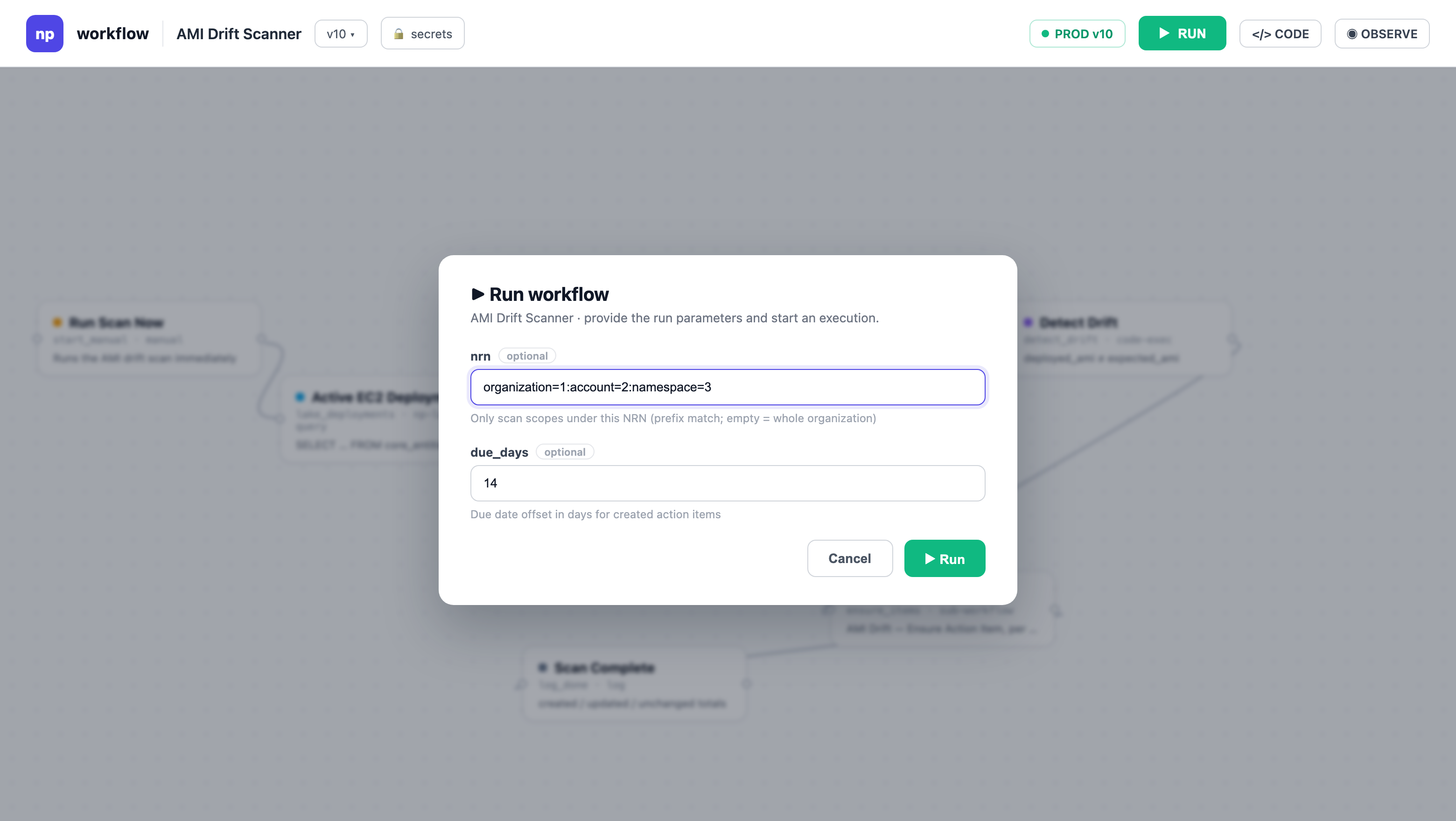
Click RUN on the scanner. The dialog renders the trigger's two optional inputs as a form: fill nrn with the namespace to scan (it's a prefix match, so organization=1:account=2:namespace=3 covers everything under that namespace), and leave due_days empty to use the configured default.
While it runs, the canvas updates live: each node lights up with its status, and the panel below streams logs, per-step inputs and outputs, and the final summary (how many deployments were scanned, how many drifted, how many items were created, updated, or unchanged).
✅ Checkpoint
The run completes, and its summary log reports the scan totals for the namespace you filtered to.
Step 4: What your developers see
Each drifted scope now has an action item on its application. Open the application and go to Governance → Action Items: the item carries everything the developer needs to act without asking around, the deployed AMI, the expected AMI, the deployment where it was detected, and the due date.
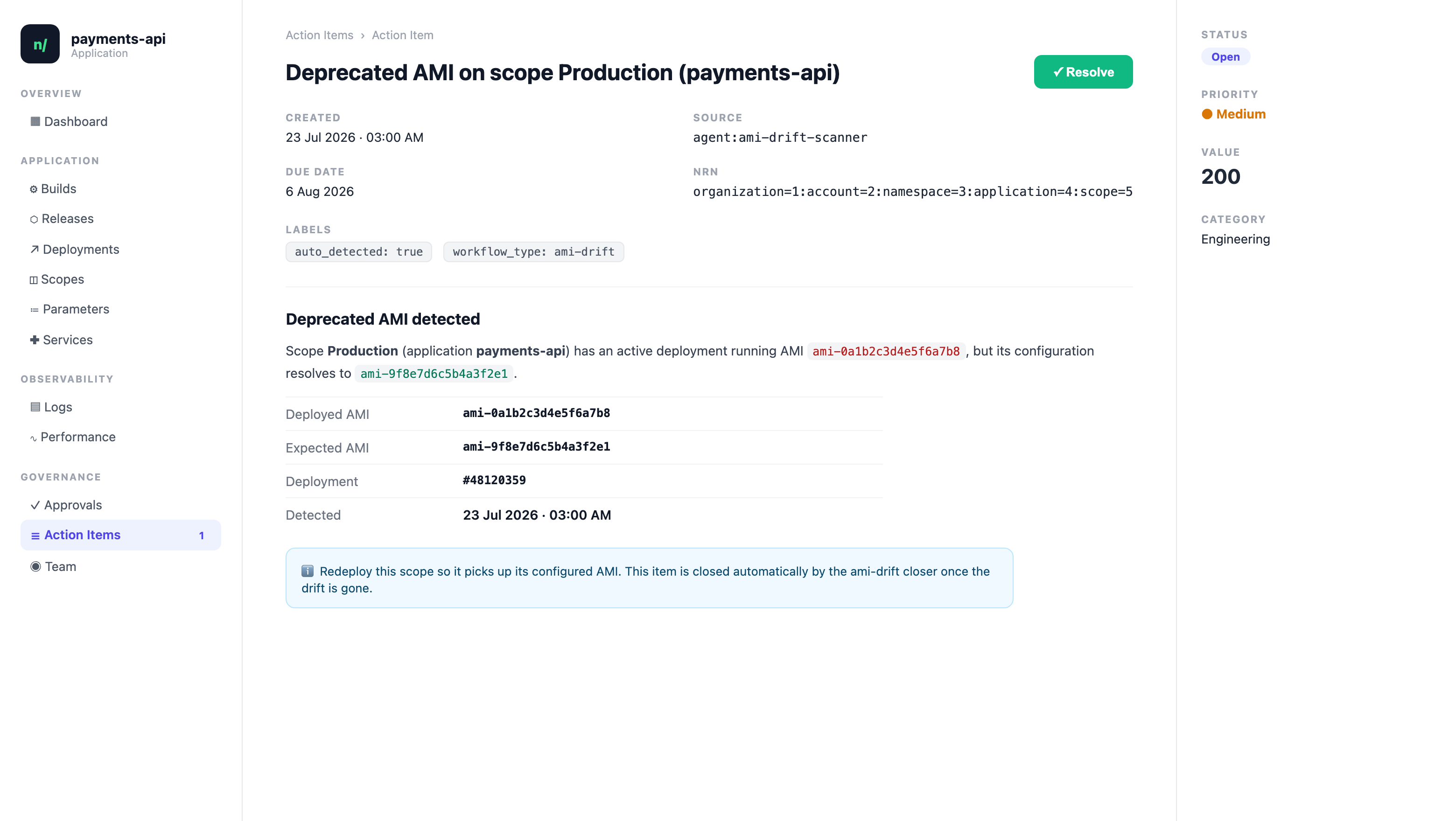
The item also says, right in its description, that it closes automatically once the drift is gone. That's the closer's job: the developer redeploys (because of this item or for any other reason), and the next nightly closer run comments on the item and closes it. Nobody circles back to check, and no item goes stale.
✅ Checkpoint
A drifted scope shows the action item with deployed vs. expected AMI; redeploying that scope gets the item closed on the closer's next run, with a comment explaining why.
Step 5: Activate the nightly schedule
Happy with what the scoped run produced? Activate the scanner and the closer. Activation is the moment the cron triggers register; until then, saved workflows have zero side effects.
Open each workflow in the editor and click ACTIVATE, right next to RUN in the toolbar. The dialog asks which alias to activate: pick the existing one, or create one if the list is empty (live is a fine default).
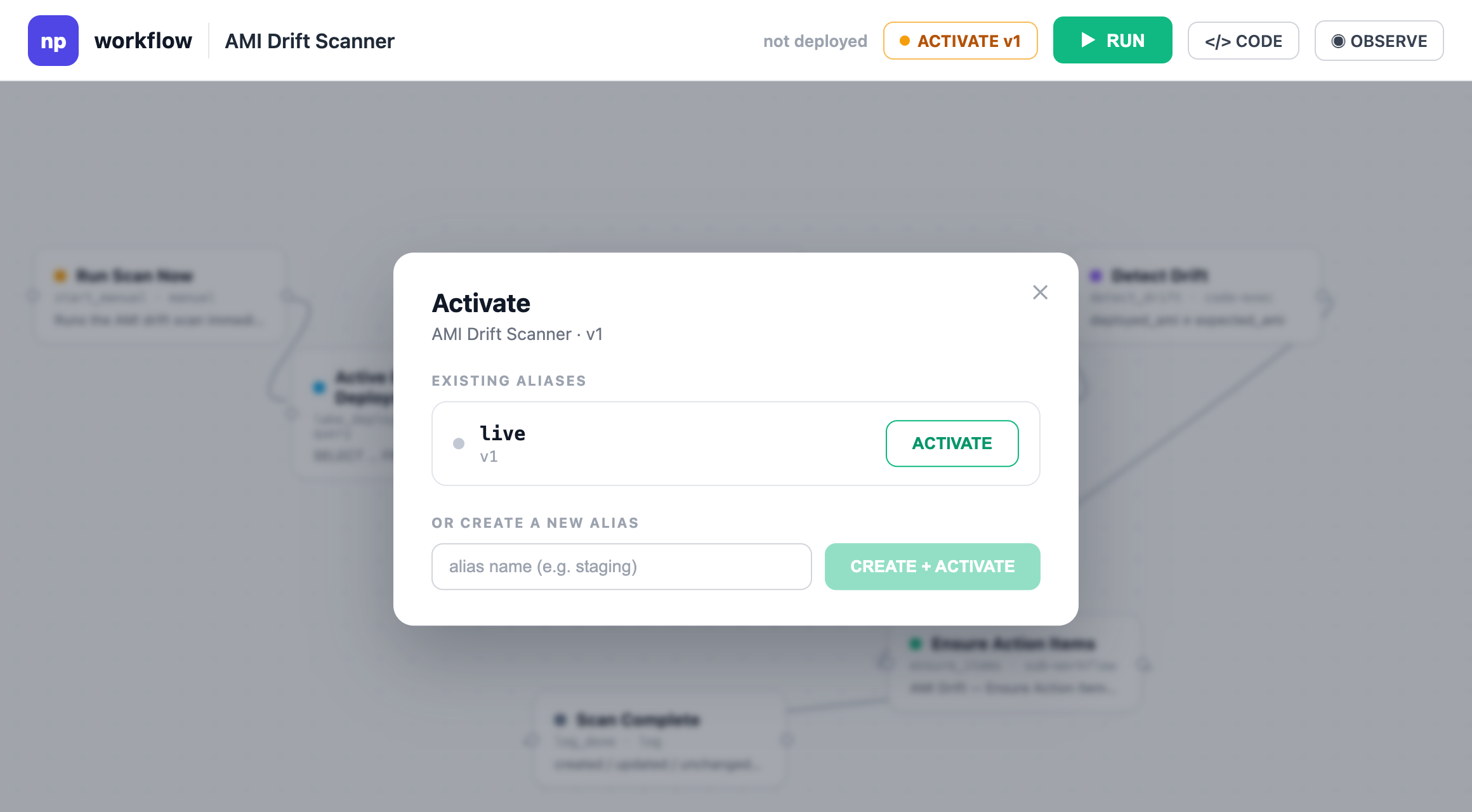
From now on the suite scans the whole organization every night: new drift becomes an action item by morning, resolved drift gets its item closed and commented.
✅ Checkpoint
Both workflows show as active, and the next morning's runs appear in each workflow's executions list.
Step 6: Watch the rollout in Insights
The suite manages each scope individually, but an AMI rollout is a fleet-level question: how many scopes are still behind, and where are they concentrated? Every action item the suite opens is queryable, so you can build that view with one more prompt.
In the nullplatform UI, open Insights, click + New Dashboard, and describe the dashboard to the AI Builder:
Create a dashboard to track AMI drift action items in the "Engineering"
category. I want KPIs for open items, overdue items, and affected accounts
and namespaces, charts breaking open items down by account and namespace,
and the full list of items with their due dates and links.
The AI Builder generates the dashboard: summary KPIs on top, distribution charts below, and the full item list with links back to each application.
Save it and publish it with organization visibility. It updates in real time as the scanner opens items and the closer clears them, so the rollout's status is always one click away, for anyone.
✅ Checkpoint
The dashboard shows your open drift items, and closing one (by redeploying its scope) is reflected the next time the closer runs.
Make it yours
This suite is a starting point. The pieces most teams adjust first:
- Schedule and timezone: both crons are plain trigger config; change
scheduleandtimezone. - Priority and due dates: tune how urgent a drifted scope is, globally via
AMI_DRIFT_DUE_DAYSor per finding. - Notifications: add a Slack node after the scanner's summary step to post how many scopes drifted overnight.
- The pattern itself: detect, ensure idempotently, auto-close works for any drift you can query. Swap the lake query and the comparison and you have a scanner for expired certificates, outdated base images, or missing tags.
What you just built
How the three workflows fit together
You now have a suite of three workflows that share one folder and one configuration.
Every night the Scanner wakes up on its schedule (03:00 in the reference suite, with the closer following at 04:00). It pulls the active EC2 deployments from the data lake, reads which AMI each scope should be running from your EC2 provider configuration, and compares the two. Nothing drifted? The run ends with a summary log.
For every mismatch, the scanner calls the second workflow, Ensure action item, once per finding. This one is deliberately simple: it looks up the action item by the finding's stable drift_key and then decides: create it if it's new, refresh its metadata if the deployed AMI changed, or do nothing.
The third workflow, the Closer, runs nightly after the scanner. It recomputes the drift set from scratch and closes every open item whose drift is gone, leaving a comment so the developer knows why it disappeared.
The idempotency that prevents duplicates lives in one node. Each finding carries a stable drift_key, and the ensure workflow searches by it before deciding what to do:
find_existing:
  type: module
  plugin_type: np-action-item-find
  config:
    apiKey: ${{ secrets.NP_API_KEY }}
    nrn: organization=${{ workflow.inputs.organization_id }}
    metadataKey: drift_key
    metadataValue: ${{ workflow.inputs.finding.drift_key }}
Notice there are no credentials or organization ids hardcoded anywhere: the API key resolves from secrets, and the finding and organization id arrive as inputs from the scanner's sub-workflow call, which fills them from variables. The same workflows run unchanged in any organization.
Building blocks used
| Block | Role in this suite |
|---|---|
| Cron and manual triggers | Nightly schedule, plus on-demand runs from the editor |
| Data lake query node | Finds the active EC2 deployments and the AMI each one runs |
| Code nodes | Builds the expected-AMI baseline and detects mismatches |
| Action item nodes | Find, create, update, comment, and close the findings |
| Sub-workflows | The scanner calls Ensure action item once per finding |
What's next
- Your first workflow: build and activate a workflow from scratch before adapting this suite
- Migrate deprecated Lambda runtimes: the same scan-and-track pattern plus an AI step that reads AWS docs