Detect stale applications with AI
🎯 Goal: Surface every forgotten or idle application in your account before it becomes a cost or security risk. One prompt creates the action items. A second builds a live dashboard to track them.
Introduction
Applications that go undeployed for weeks are often forgotten, over-provisioned, or security risks. Finding them manually means querying multiple APIs and cross-referencing deployment history across dozens of namespaces, tedious work that's easy to skip.
This tutorial shows the same workflow done with two prompts. The first scans your account, filters by deployment date, and creates a tracked action item per stale app. The second builds a live dashboard so you can see the full picture at a glance.
What you'll set up
By the end of this guide, you'll have:
- A "Stale deployments" category for action items
- One action item per stale application with last deployment date in the description
- Deduplication so running the prompt again won't create duplicates
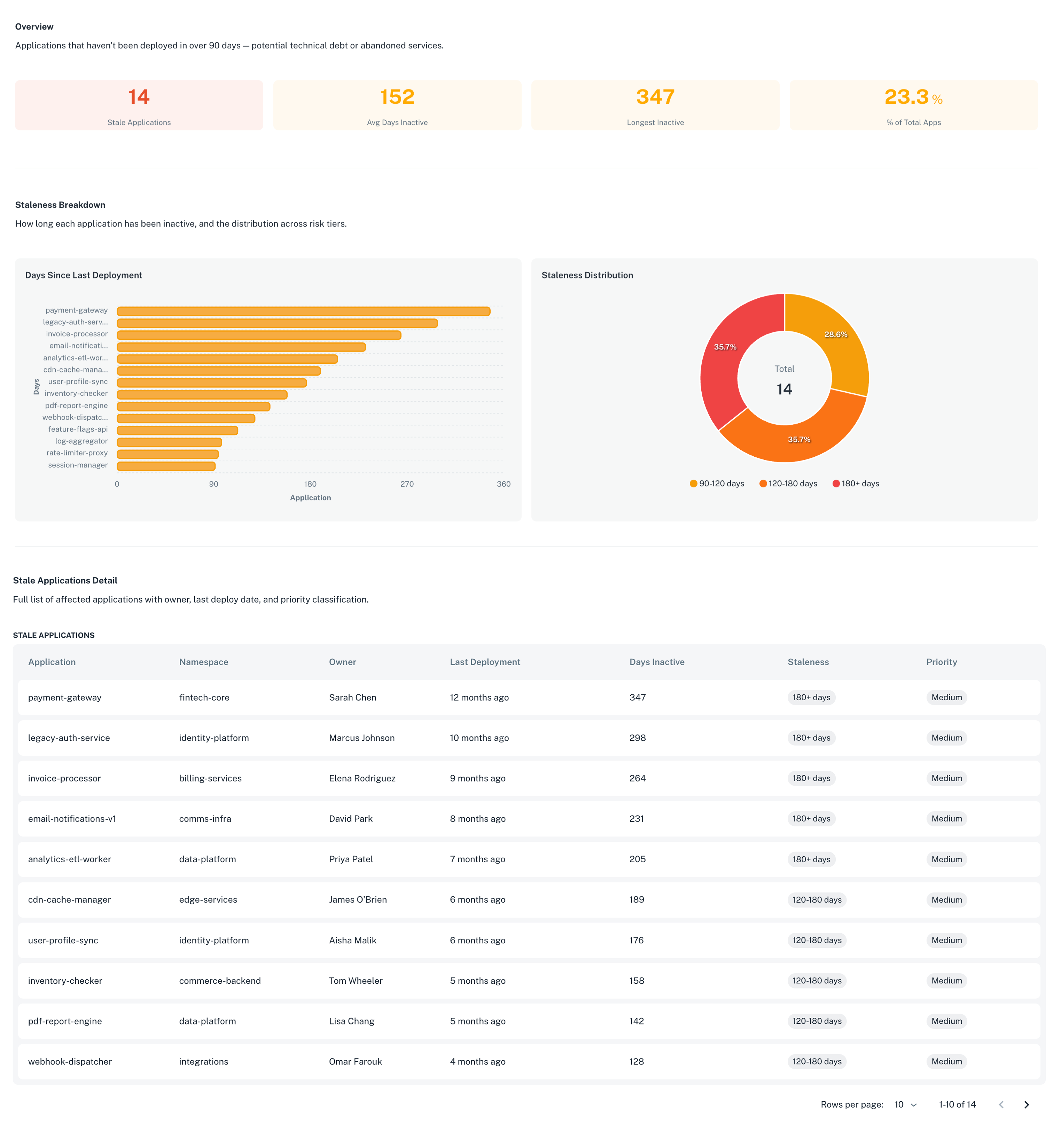
- A live Insights dashboard showing all stale applications and their status
Prerequisites
- The nullplatform AI plugins installed. See Set up the AI plugins if you haven't done this yet.
- An account ID to scan (you can get this from the URL in the nullplatform UI)
- Access to Insights in your nullplatform organization
Phase 1: Create action items with np-governance
1. Run the governance prompt
Open a Claude Code session and run:
/np-governance Find all applications in my account <account_id> that haven't had a deployment
in over 90 days. For each one, create an action item in the "Stale deployments" category with
medium priority. Include the last deployment date in the description.
Replace <account_id> with the ID of the account you want to scan.
The plugin scans every namespace and application in the account, checks deployment history against the 90-day threshold, creates the "Stale deployments" category if it doesn't exist yet, and opens one action item per stale app. If you run the same prompt again next week, items that already exist won't be duplicated.
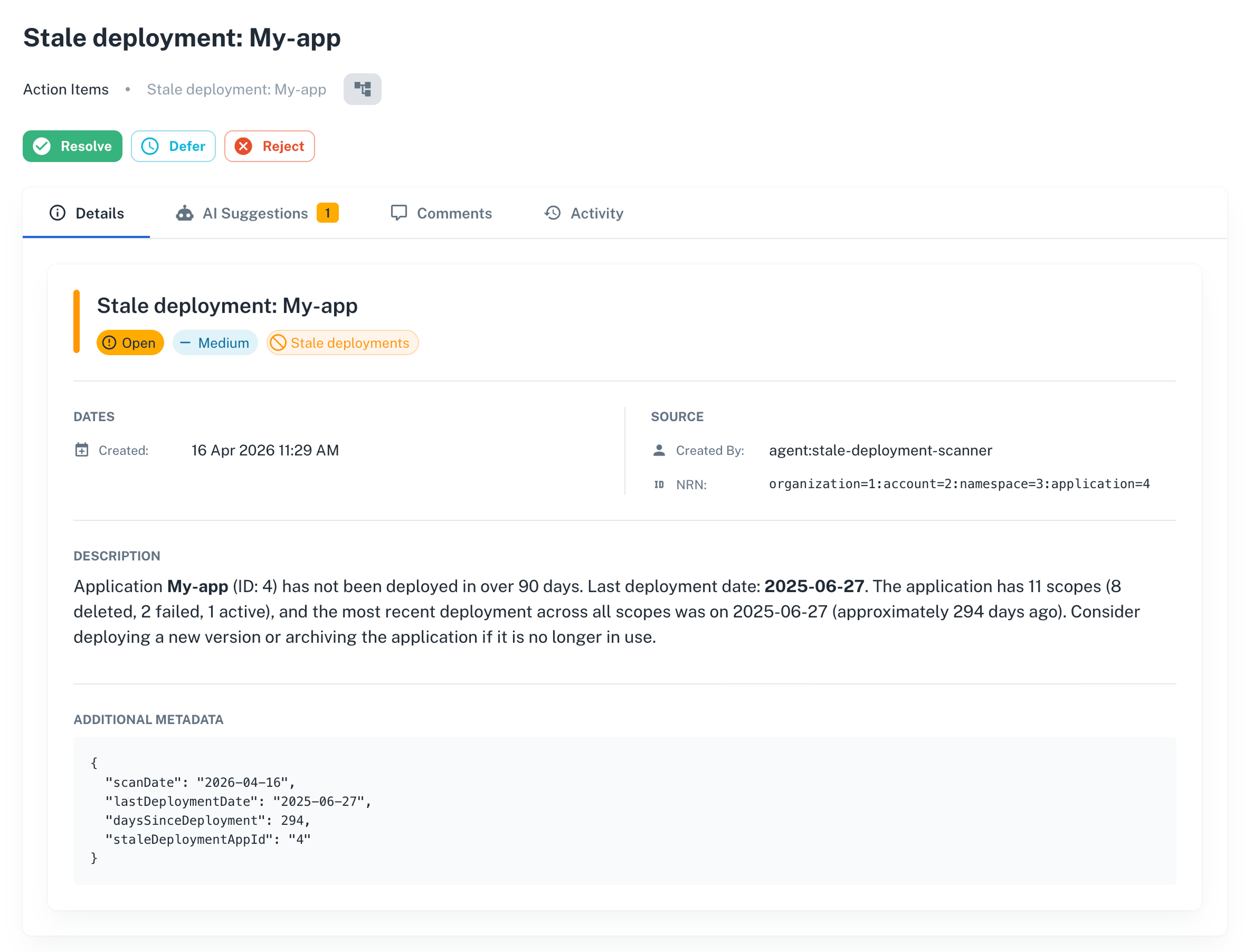
✅ Checkpoint — Action items created
Open any stale application in nullplatform and go to Manage > Action Items. Each stale app now has an item with the last deployment date in the description, medium priority, and the stale-deployments category.
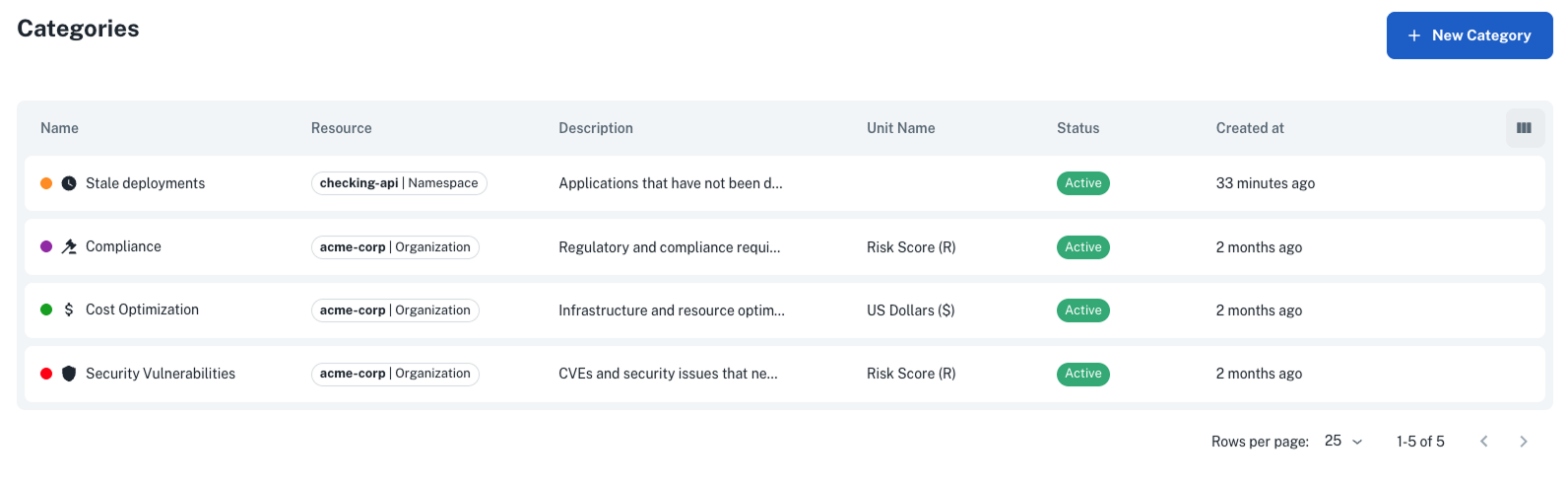
The new category also appears in Platform Settings > Action Items > Categories:
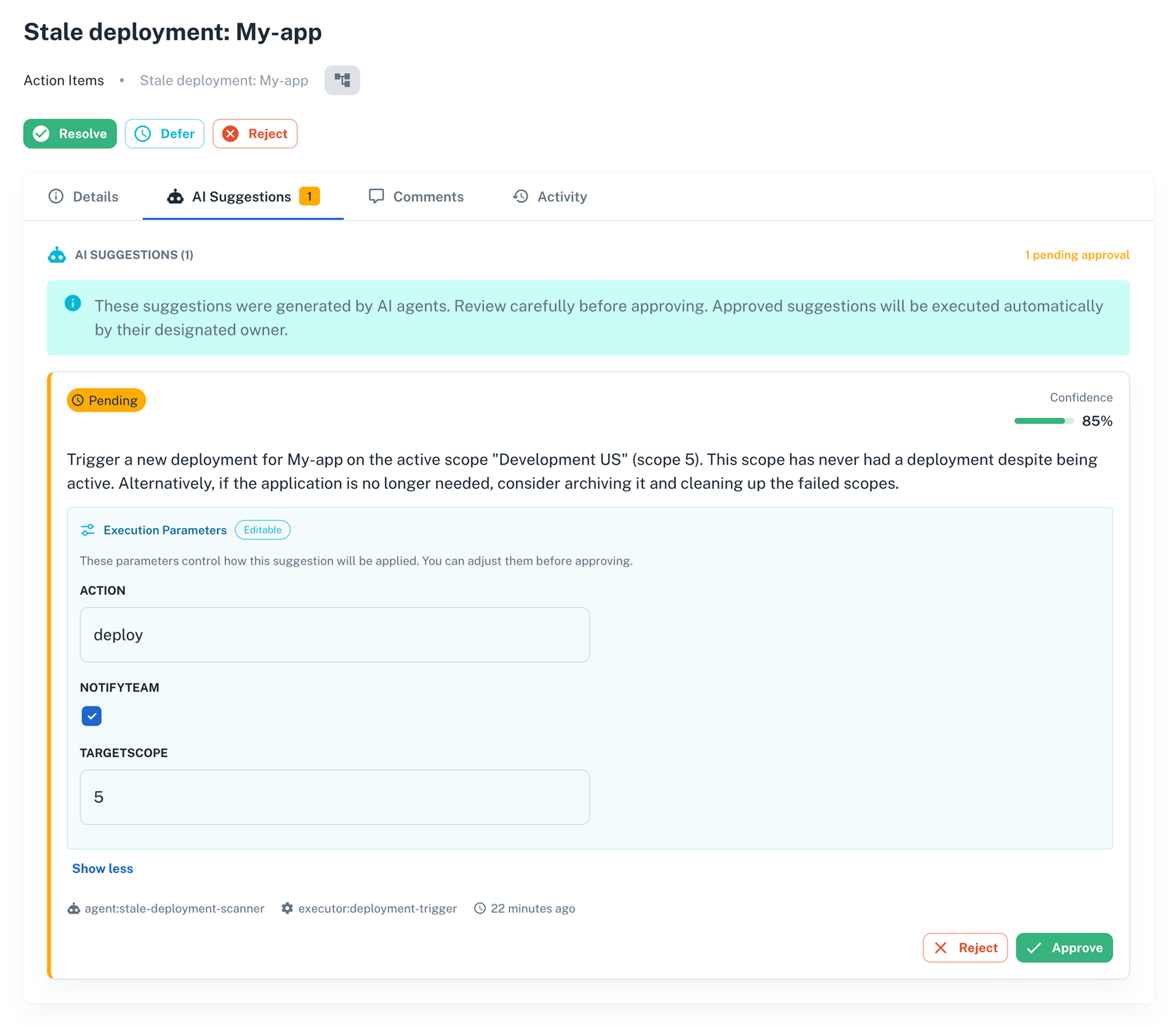
The plugin can also attach an AI suggestion to each item proposing a remediation, like triggering a new deployment or archiving the application. If attached, the suggestion appears in the AI Suggestions tab and waits for a human to approve before anything runs. See Triage and resolve for details.
Phase 2: Build a tracking dashboard with Insights
2. Open the Insights AI Builder
- In the nullplatform UI, open Insights from the top navigation.
- Click + New Dashboard.
- The AI Builder chat panel opens on the right.
3. Run the Insights prompt
Type this in the AI Builder chat:
Build a Stale Deployments Tracker dashboard that shows applications that haven't been
deployed in over 90 days.
The AI Builder generates a dashboard with stale application data pulled directly from your action items, including deployment dates, priority breakdown, and the full application list.
4. Save and share the dashboard
- Click Save to save the dashboard.
- To share it with your team, click Publish and set visibility to Organization.
The dashboard updates in real time as developers resolve action items. Anyone with access to Insights can open it without asking for a status update.
Wrap-up 🎉
In two prompts you:
- Scanned all applications in an account for stale deployments
- Created one action item per stale app, with deduplication baked in
- Built a live dashboard your whole team can access to track resolution progress
Run the governance prompt weekly from a scheduled script or CI job to keep the action items current. The dashboard will update automatically.
What's next
- Require manual approval for applications in prod: turn what you learn about your apps into enforceable policies