---
title: Gate deploys on a Jira ticket your team already uses
description: "🎯 Every gated deploy opens its own Jira ticket: someone resolves it and the release goes out, someone discards it and the release stops, all attributed and audited."
sidebar_label: Jira approval gate
doc_id: 8f4c9a37-61be-4d02-9a75-3c2e94f1b6d8
toc_max_heading_level: 3
tutorial_type: tutorial
tutorial_category: checklists
tutorial_time: 20 min
tutorial_featured: true
tutorial_cover: /img/tutorials/covers/jira-approval-gate.svg
keywords:
- checklists
- workflows
- jira
- approvals
- deployment gate
- human in the loop
- nullplatform
tags:
- governance
- checklists
---
import WorkflowCanvas from '@site/src/components/WorkflowCanvas';
import jiraApprovalGate from '@site/src/components/WorkflowCanvas/examples/jira-approval-gate';
# Gate deploys on a Jira ticket your team already uses
> 🎯 **Goal:** two prompts to your coding assistant, and every gated deploy opens its own Jira ticket. Resolve the ticket and the deploy goes out, discard it and the deploy stops, leave it untouched for two hours and the checklist fails closed. Every decision is recorded, in Jira and in the run's audit trail.
## Introduction
Approvals often happen outside the tools that record them. The request is asked for in a Slack thread, the person who decides tracks their work in Jira, and the deploy button lives in nullplatform. When the approval finally happens, nothing connects the three.
This tutorial closes that gap. It takes two prompts:
- **One prompt creates the workflow** that opens a Jira ticket for each gated deploy, waits for a person to resolve it, and answers the checklist with the ticket's outcome
- **One prompt creates the checklist spec** and points your deployment approval action at it
From then on, the approval is a ticket in the tool your team already uses, and every deploy waits on it automatically.
## What you'll set up
- A [checklist](/docs/approvals/checklists) on `deployment:create` with a single external item: the Jira ticket
- A workflow that creates one ticket per gated deploy, carrying the application and release in the summary, and reports the ticket key back to the run so the developer knows exactly what they're waiting on
- Push-based waiting: a Jira automation rule notifies the workflow on every ticket transition, so nothing polls, and the workflow re-reads the ticket before deciding, so a forged webhook cannot approve anything
- A fail-closed timeout: a ticket nobody touches for two hours fails the item with a message naming the ticket
> 💡 **Want the machinery first?** Jump to [What you just built](#what-you-just-built), then come back.
## Prerequisites
- Checklists enabled in your organization ([early release](/docs/approvals/checklists))
- The np-workflow and np-checklist skills, part of the [nullplatform AI plugins](https://github.com/nullplatform/ai-plugins) for your coding assistant. See [Set up the AI plugins](/docs/ai-ops/ai-plugins) to install them
- A Jira project where the tickets will live, and admin access to add one custom field and one automation rule
## Step 1: Create the workflow that opens the ticket
Open a session of your coding assistant and describe the ticket side. The prompt has to state the three things the workflow cannot guess: which kind it answers, that it waits to be notified and then re-reads the ticket, and what to do on every exit path.
```
/np-workflow create a workflow that resolves checklist items of kind
"create-jira-ticket":
- Triggered by the checklist dispatch for that kind.
- Create a Jira ticket in the APPR project with the summary and description
the gate sends as inputs, and store this execution's callback URL in a
custom field on the ticket.
- Report a progress heartbeat with the ticket key and URL, so the developer
sees which ticket they're waiting on.
- Wait for a signal on that callback URL with a 2-hour timeout. When it
arrives, re-read the ticket from Jira and decide from that read, never
from the webhook body: resolved statuses (Done, Resolved, Closed) pass the item,
discard statuses (Cancelled, Won't Do, Rejected) fail it, anything else
keeps waiting.
- On timeout, fail the item naming the ticket. If the ticket can't be
created, fail the item with the Jira error.
Publish it but don't activate anything yet.
```
The skill builds the definition, validates it, and publishes it under a folder like `/governance/create-jira-ticket`. The workflow reads five configuration entries; ask the skill to set them in the same conversation, or set them later from the editor's configuration panel:
| Entry | Type | What it is |
|---|---|---|
| `NP_API_KEY` | Secret | API key the trigger uses to subscribe to item dispatches |
| `JIRA_API_TOKEN` | Secret | Jira API token the workflow creates and re-reads tickets with |
| `JIRA_EMAIL` | Variable | The Jira account the token belongs to |
| `okStatuses` | Variable | Ticket statuses that pass the gate (default: Done, Resolved, Closed) |
| `failStatuses` | Variable | Ticket statuses that fail it (default: Cancelled, Won't Do, Rejected) |
#### ✅ Checkpoint
The skill reports the workflow as published, activation skipped. The Jira side doesn't exist yet: that's the next two steps.
## Step 2: Let Jira notify the workflow
The workflow never polls Jira. Every ticket carries its own callback URL in a custom field, and a Jira automation rule sends a request to that URL whenever the ticket changes status. This is a one-time setup per Jira project, done by an operator:
1. Add a short-text custom field named **Workflow Callback** to the project's screens. The workflow writes each ticket's callback URL into it at creation.
2. Add an automation rule: trigger **Issue transitioned** → action **Send web request** to `{{issue.Workflow Callback}}`, with a JSON body containing the issue key and status.
That request is only a wake-up signal. The workflow re-reads the ticket with its own credentials before deciding, so the webhook body is never trusted: a forged or replayed request makes the workflow re-read, find no change, and keep waiting.
> 💡 **Tip:** each callback URL signals one specific execution, so any number of tickets can wait in parallel without interfering with each other.
#### ✅ Checkpoint
Transition any test ticket in the project and the automation rule's audit log shows the web request firing (it 404s until a real gate run exists, which is fine).
## Step 3: Create the checklist that uses it
Now the checklist side. One more prompt:
```
/np-checklist create a checklist for deployments of this application:
- A single external item of kind "create-jira-ticket", dispatched
automatically when the run starts, with a 2-hour timeout. Send a summary
of "Approve deployment of {{ context.application.name }}
(release {{ context.release.id }})" and a description linking back to the
approval request.
Associate it with the deployment:create approval action for this
application (create the action if it doesn't exist).
```
The spec carries no URLs and no credentials: just the kind and the inputs. The coupling to the workflow happens entirely through `kind: create-jira-ticket`, which is what makes the spec portable and lets the same workflow serve as many specs as you like.
#### ✅ Checkpoint
The skill reports the checklist spec created and linked to the action. A dry run against a sample context shows the single external item, pending.
## Step 4: Review the workflow and activate it
In the nullplatform UI, open **Platform Settings → Workflow Editor** and click the workflow. The canvas shows the whole definition: the trigger on the left, the successful path through the middle, and every failure exit branching off where it can happen.
Two things to notice:
- **The canvas and the YAML are the same definition.** The CODE toggle shows the YAML behind the canvas, and editing either updates the other. The prompt got you here quickly, but from now on you can refine the workflow visually.
- **Undecided transitions go back to waiting.** A status that is neither a pass nor a discard, such as "In Progress", restarts the two-hour wait. The item resolves only on a real decision or a real timeout.
Activate the workflow when you are done reviewing it: **ACTIVATE**, next to RUN in the toolbar. Activation is what makes the trigger start answering dispatches. Until then, the checklist would dispatch the item and never get an answer.
#### ✅ Checkpoint
The workflow shows as active, and its trigger lists `create-jira-ticket` as the kind it subscribes to.
## Step 5: Deploy and resolve the ticket
Trigger a deployment of the gated application in your staging environment. Instead of going straight out, the deploy now shows the checklist: one item, pending, and a heartbeat that names the Jira ticket that was just created for it.
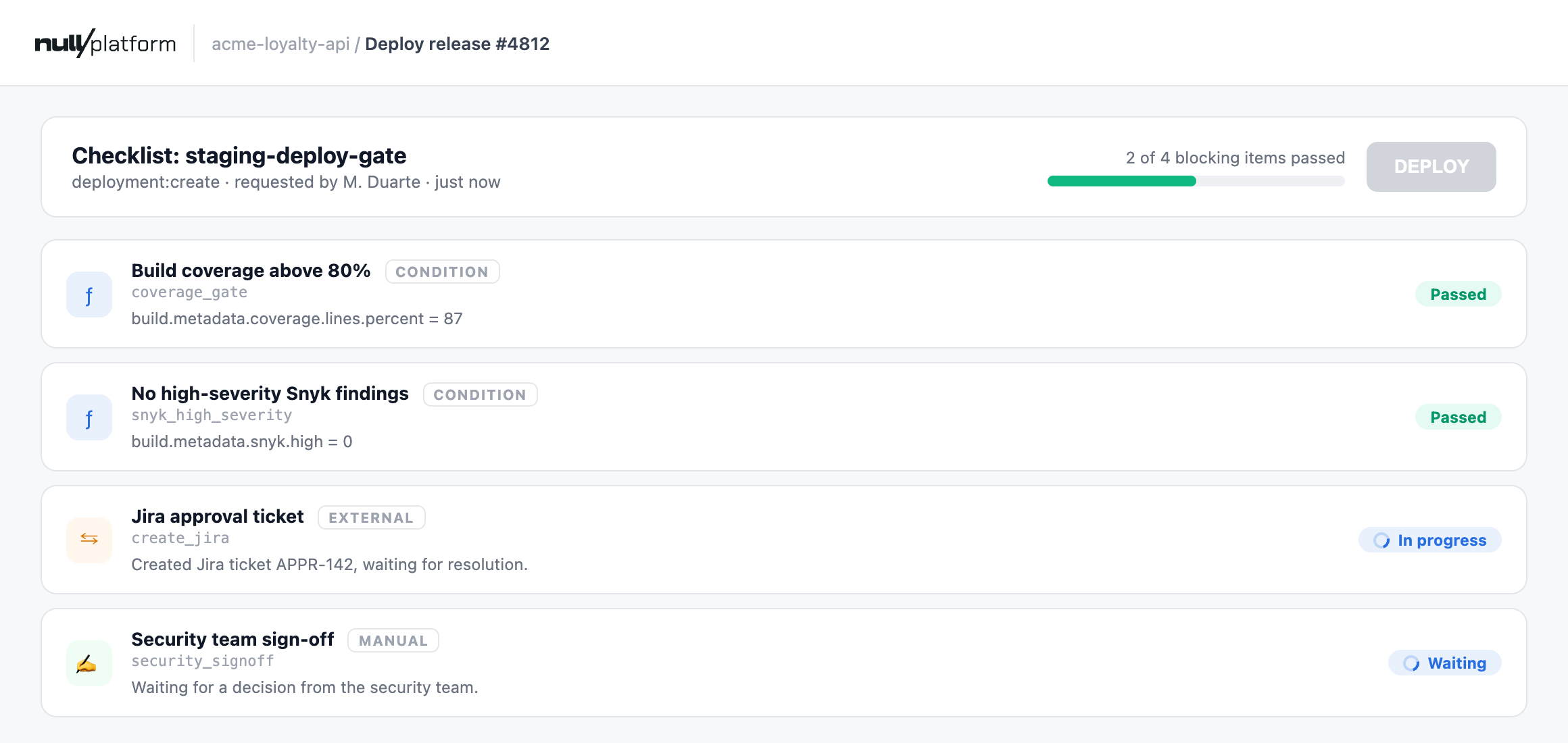 Whoever owns the decision sees a new ticket in the APPR project, with the application and the release in the summary. From there, three things can happen:
- **They resolve the ticket.** The workflow re-reads it, the item passes, the run approves, and the deploy proceeds. The item card shows the ticket key and its final status.
- **They discard it.** The item fails with the discard status recorded, and the run resolves as failed.
- **Nobody touches it for two hours.** The item fails closed with "not resolved within 2h" on the card, instead of leaving the deploy waiting indefinitely.
In all three cases the run's event trail keeps the record: when the ticket was created, every progress update, and who resolved it, still readable months later.
#### ✅ Checkpoint
Resolving the test ticket in Jira releases the deploy within seconds; the item card shows the ticket key and status `passed`.
## Make it yours
- **Apply it only where it is needed.** An `applies_when` on the item, such as `"scope.dimensions.environment": "production"`, requires the ticket in production while staging deploys pass the same spec without one.
- **Swap Jira for anything with an API.** The pattern is create-wait-reread: ServiceNow change requests, Linear issues, or your internal approvals tool all fit the same three-plugin skeleton.
- **Tune the statuses and the clock.** `okStatuses`, `failStatuses`, and the timeout are configuration, not code: a CAB that meets daily probably wants a 24-hour window.
- **Add company context to the ticket.** Everything in the request context can travel in `external.inputs`: the requester, the release notes URL, the affected scopes. The richer the ticket, the faster the decision.
- **Reuse the pattern elsewhere.** Create a record in an external tool, wait for a person to act on it, then re-read it as the source of truth: that sequence can govern any action. Swap `deployment:create` for a parameter change or a scope deletion and the same workflow protects it.
## What you just built
Whoever owns the decision sees a new ticket in the APPR project, with the application and the release in the summary. From there, three things can happen:
- **They resolve the ticket.** The workflow re-reads it, the item passes, the run approves, and the deploy proceeds. The item card shows the ticket key and its final status.
- **They discard it.** The item fails with the discard status recorded, and the run resolves as failed.
- **Nobody touches it for two hours.** The item fails closed with "not resolved within 2h" on the card, instead of leaving the deploy waiting indefinitely.
In all three cases the run's event trail keeps the record: when the ticket was created, every progress update, and who resolved it, still readable months later.
#### ✅ Checkpoint
Resolving the test ticket in Jira releases the deploy within seconds; the item card shows the ticket key and status `passed`.
## Make it yours
- **Apply it only where it is needed.** An `applies_when` on the item, such as `"scope.dimensions.environment": "production"`, requires the ticket in production while staging deploys pass the same spec without one.
- **Swap Jira for anything with an API.** The pattern is create-wait-reread: ServiceNow change requests, Linear issues, or your internal approvals tool all fit the same three-plugin skeleton.
- **Tune the statuses and the clock.** `okStatuses`, `failStatuses`, and the timeout are configuration, not code: a CAB that meets daily probably wants a 24-hour window.
- **Add company context to the ticket.** Everything in the request context can travel in `external.inputs`: the requester, the release notes URL, the affected scopes. The richer the ticket, the faster the decision.
- **Reuse the pattern elsewhere.** Create a record in an external tool, wait for a person to act on it, then re-read it as the source of truth: that sequence can govern any action. Swap `deployment:create` for a parameter change or a scope deletion and the same workflow protects it.
## What you just built
How the pieces fit together
You now have two artifacts that only know each other by a kind.
The **checklist spec** declares one external item of kind `create-jira-ticket` with a two-hour timeout. When a gated deploy is requested, the run dispatches that item, and the developer sees a pending item with a heartbeat naming their ticket.
The **Jira workflow** answers the dispatch. It builds a callback URL unique to this execution, creates the ticket with that URL stored in a custom field, reports the ticket back to the run, and goes to sleep. Jira's automation rule calls that URL on every transition, and each call makes the workflow re-read the ticket and classify its status as pass, fail, or keep waiting.
```mermaid
flowchart LR;
A["Gated deploy
requested"] --> B["Run dispatches item
kind: create-jira-ticket"];
B --> C["Workflow creates ticket,
callback URL on board"];
C --> D["Person resolves or
discards in Jira"];
D --> E["Automation notifies,
workflow re-reads ticket"];
E --> F["Item resolved:
passed / failed"];
F --> G["Deploy proceeds
or stays blocked"];
classDef np fill:#e6faf4,stroke:#00b894,color:#1a1a1a;
classDef infra fill:#eef3fb,stroke:#274a86,color:#1a1a1a;
class A,B,F,G np;
class C,D,E infra;
linkStyle default stroke:#9aa5b1,stroke-width:1.5px;
```
The important part is the wait. The workflow never trusts the webhook that wakes it, only its own authenticated re-read of the ticket:
```yaml
- id: wait
type: module
plugin_type: signal-wait
name: "Wait for Jira resolution"
config:
signalName: jira-callback
correlationKey: "${{ execution.id }}"
timeout: 2h
onTimeout: error
errorHandling:
fallbackStep: resolve_timeout
- id: reread
type: module
plugin_type: jira-get-issue
name: "Re-read Jira ticket (source of truth)"
inputs:
issueKey: "${{ steps.create_issue.outputs.key }}"
```
A forged request is harmless: at worst the workflow re-reads the ticket, finds no change, and keeps waiting. The Jira API credential, not the webhook payload, is the trust boundary.
Notice there are no callback URLs, organization ids, or credentials hardcoded anywhere: the trigger hands the workflow its callback, the ticket carries its own webhook target, and Jira credentials live in the folder's secrets. The same workflow runs unchanged in any organization.
### Building blocks used
| Block | Role in this suite |
|---|---|
| [Triggers](/docs/workflows/building-blocks/triggers) | `np-checklist-trigger` subscribes the workflow to item dispatches by kind |
| [Nodes](/docs/workflows/building-blocks/nodes) | `jira-create-issue` and `jira-get-issue` talk to Jira; `signal-wait` waits until the automation calls back; `conditional` deciders classify the status |
| [Expressions](/docs/workflows/building-blocks/expressions) | `contains(variables.okStatuses, $item.status)` turns the status lists into configuration |
| [Secrets and variables](/docs/workflows/building-blocks/secrets-and-variables) | Jira credentials as secrets; status lists and callback base URL as variables |
| [Runs and versions](/docs/workflows/building-blocks/runs-and-versions) | Each gated deploy is one execution, with per-step logs feeding the audit trail |
## What's next
- [Match approval friction to deploy risk](/docs/tutorials/deploy-risk-matrix): a risk matrix decides which deploys need a person at all
- [Audit every deploy against your architecture rules](/docs/tutorials/ai-architecture-compliance): the same handoff with nobody in the loop
- [Items reference](/docs/approvals/checklist-items): everything an external item can declare, including timeouts and on-demand triggers
---
## Related docs
- [Checklists](/docs/approvals/checklists)
- [Specs and actions](/docs/approvals/checklist-specs)
- [Approval actions](/docs/approvals/actions)