---
title: Migrate deprecated Lambda runtimes
description: "🎯 Two prompts, and Lambda runtime deprecations track themselves: a live runtime catalog, one action item per affected scope with a one-click migration, and a live migration dashboard."
toc_max_heading_level: 2
sidebar_label: Lambda runtime lifecycle
doc_id: c79d7e61-b5f7-4cdf-81dc-740faf4084c2
tutorial_type: tutorial
tutorial_category: workflows
tutorial_time: 20 min
tutorial_featured: true
tutorial_order: 2
tutorial_cover: /img/tutorials/covers/lambda-runtime-lifecycle.svg
keywords:
- workflows
- lambda
- runtime deprecation
- organization metadata
- action items
- nullplatform
tags:
- workflows
- ai
---
import WorkflowCanvas from '@site/src/components/WorkflowCanvas';
import lambdaCatalogSync from '@site/src/components/WorkflowCanvas/examples/lambda-catalog-sync';
import lambdaScanner from '@site/src/components/WorkflowCanvas/examples/lambda-scanner';
import lambdaEvents from '@site/src/components/WorkflowCanvas/examples/lambda-events';
import lambdaApply from '@site/src/components/WorkflowCanvas/examples/lambda-apply';
import lambdaCloser from '@site/src/components/WorkflowCanvas/examples/lambda-closer';
# Migrate deprecated Lambda runtimes
> 🎯 **Goal:** Two prompts, and Lambda runtime deprecations track themselves: a live catalog of AWS runtime lifecycles in your organization's metadata, one action item per affected scope with a one-click migration suggestion, items that close themselves once a compliant deploy is live, and a dashboard that watches the migration.
## Introduction
AWS retires Lambda runtimes on a schedule, and there is no API that lists which runtimes exist or when they expire. The information lives on a documentation page.
Keeping up means checking that page by hand, cross-referencing which functions run which runtime, and following up with each team before the block-update date lands. **After that date a function can't ship any update at all, not even a fix**, until its runtime is upgraded.
This suite automates that loop. It takes two prompts:
- **One prompt builds the automation**: the runtime catalog, the daily detection, the one-click migration, and the cleanup
- **One prompt builds the dashboard** that watches the migration live
From then on, the catalog, the detection, the follow-up, and the reporting run on their own.
## What you'll set up
- **A weekly sync** that reads the AWS Lambda runtime tables and keeps a `lambda_runtimes` catalog in your organization's metadata, with a precomputed migration target per runtime
- **A daily scan** that compares every Lambda scope against the catalog and opens one action item per affected scope, with a suggestion the developer accepts in one click. No duplicates: an already-reported scope keeps its existing item, never gets a second one
- **An apply workflow** that patches the scope to the target runtime when the suggestion is accepted
- **Automatic cleanup**: once a compliant deployment is live, the item is closed with a comment explaining why
- **A live Insights dashboard** showing scopes still on deprecated or expiring runtimes, so nobody asks "how's the migration going" in a meeting again
> 💡 **Want to see how it works first?** Jump to [What you just built](#what-you-just-built), then come back.
## Prerequisites
- The [data lake](/docs/data-lake/) enabled: the scanner and the closer run on lake queries
- The np-workflow skill, part of the [nullplatform AI plugins](https://github.com/nullplatform/ai-plugins) for your coding assistant. See [Set up the AI plugins](/docs/ai-ops/ai-plugins) to install it
- Access to [Insights](/docs/insights/overview) for the tracking dashboard
## Step 1: Describe the suite to your coding assistant
Open a session of your coding assistant with the np-workflow skill available and describe the automation you want. The prompt below is a good template because it states everything the suite needs to get right: the catalog, the detection, the suggestions, the production policy, and the cleanup.
> 💡 **You can start narrow.** The suite is built to watch every serverless scope, and that's usually the point. If you'd rather limit what it touches on day one, or something similar already runs in your organization, point the prompt at one account or namespace.
```
/np-workflow create a Lambda runtime lifecycle suite for my organization:
- Once a week, use AI to read the AWS Lambda runtime support pages and
keep a catalog of runtimes in organization metadata (create the
metadata spec if it doesn't exist), including which runtime each one
should migrate to. Validate what comes back before saving it.
- Every day, check active serverless scopes against the catalog. If a
scope runs a deprecated or expiring runtime, open an action item in
the "Engineering" category (create it if it doesn't exist) with a
migration suggestion the developer can accept. Don't create duplicates
for scopes that already have one.
- When a suggestion is accepted, update the scope's runtime to the
target. In production, only change the config, never trigger a deploy.
- After each scan, close the items whose scope is already running a
compliant runtime, with a comment explaining why.
- Let me trigger everything manually too, and give the catalog sync a
dry-run option.
Publish everything but don't activate anything yet.
```
The skill builds the five workflow definitions (catalog sync, scanner, events, apply, closer), wires the sub-workflow references, checks the result is valid, and publishes it to your organization under a folder like `/action-items/runtime-lifecycle`. Nothing is scheduled yet: "don't activate" leaves you a chance to review first.
The suite reads five configuration entries. Ask the skill to set them as part of the same conversation, or set them later from the editor's configuration panel:
| Entry | Type | What it is |
|---|---|---|
| `NP_API_KEY` | Secret | API key the workflows use to call nullplatform |
| `NP_ORGANIZATION_ID` | Variable | Your organization id |
| `RUNTIME_LIFECYCLE_CATEGORY_SLUG` | Variable | Action item category for the findings |
| `RUNTIME_WARN_DAYS` | Variable | Days before a deprecation counts as urgent (default 31) |
| `RUNTIME_QA_MAX_REPLIES` | Variable | Cap on AI answers per item thread (default 3) |
The apply workflow also reads the shared `/deploy` folder entries (traffic steps, soak times, deploy window) if you want progressive redeploys outside production.
#### ✅ Checkpoint
The skill reports the five workflows (catalog sync, scanner, events, apply, closer) as published, with activation skipped. You'll see them in the UI in the next step.
## Step 2: Meet the suite in the workflow editor
In the nullplatform UI, open **Platform Settings → Workflow Editor**. The left panel shows your workflows tree: the suite lives in its own folder, with the five workflows inside. Click the catalog sync and the canvas draws it: triggers on the left, then each step in the order data flows through it.
This is the same suite you just described, node by node. Use the list on the left to switch between the five workflows, and click any step to see what it runs:
Two things to notice while you're here:
- **How small the AI surface is.** In the catalog sync, one step scrapes and everything after it validates, compares, and writes deterministically. In the events workflow, the AI answer sits behind a bot filter, a reply cap, and a no-egress config. Click those steps and read their YAML: those guardrails are plain config, not policy documents.
- **The lock icon opens Variables & Secrets.** That's where the five configuration entries live, scoped to the suite's folder so every workflow in it resolves them. Secrets are write-only: you can rotate them, never read them back.
#### ✅ Checkpoint
You can open each of the five workflows and follow the canvas from trigger to final step.
## Step 3: Run the catalog sync once
Everything downstream reads the catalog, so seed it before anything else. Click **RUN** on the catalog sync: the trigger's optional `dry_run` input lets you see what it would write without touching anything, so run it once with `dry_run` enabled, check the log, then run it for real.
While it runs, the canvas updates live: each node lights up with its status, and the panel below streams logs and per-step inputs and outputs. You can watch the scrape return the runtime tables, the validation accept them, and the summary report what changed.
#### ✅ Checkpoint
Your organization metadata has a `lambda_runtimes` instance listing supported and deprecated runtimes, each with its migration `target`.
## Step 4: Scan and see what your developers get
Click **RUN** on the scanner. Its summary log reports the totals: how many scopes were on a deprecated or expiring runtime, how many items were created, how many suggestions were attached.
Each affected scope now has an action item on its application. Open the application and go to **Governance → Action Items**: the item carries the current runtime, the deprecation dates (including the block-update one), a priority that reflects the urgency, and the migration suggestion with the precomputed target.
The suggestion is the one-click part, and it waits for a human: nothing is applied until someone approves it. Outside production, approving lets the developer choose to deploy now, ship with the next deploy, or schedule a time; in production it only ever applies the configuration change, and the migration ships with the next regular deployment.
Everything past that point is the suite reacting on its own, so it only starts working once you activate it in the next step: the approval hands off to the apply workflow, a comment on the item thread gets a fact-grounded AI answer, and a resolution claimed by hand is verified against the live deployment before the suite trusts it. When a compliant deployment is actually live, the closer's next run closes the item with a comment explaining why. Nobody circles back to check, and no item goes stale.
#### ✅ Checkpoint
An affected scope shows the action item with the runtime dates and the migration suggestion attached.
## Step 5: Activate the suite
Happy with what the manual runs produced? Activate the catalog sync, the scanner, the events workflow, and the closer. Activation is the moment the schedules and the action item event subscription register; until then, saved workflows have zero side effects.
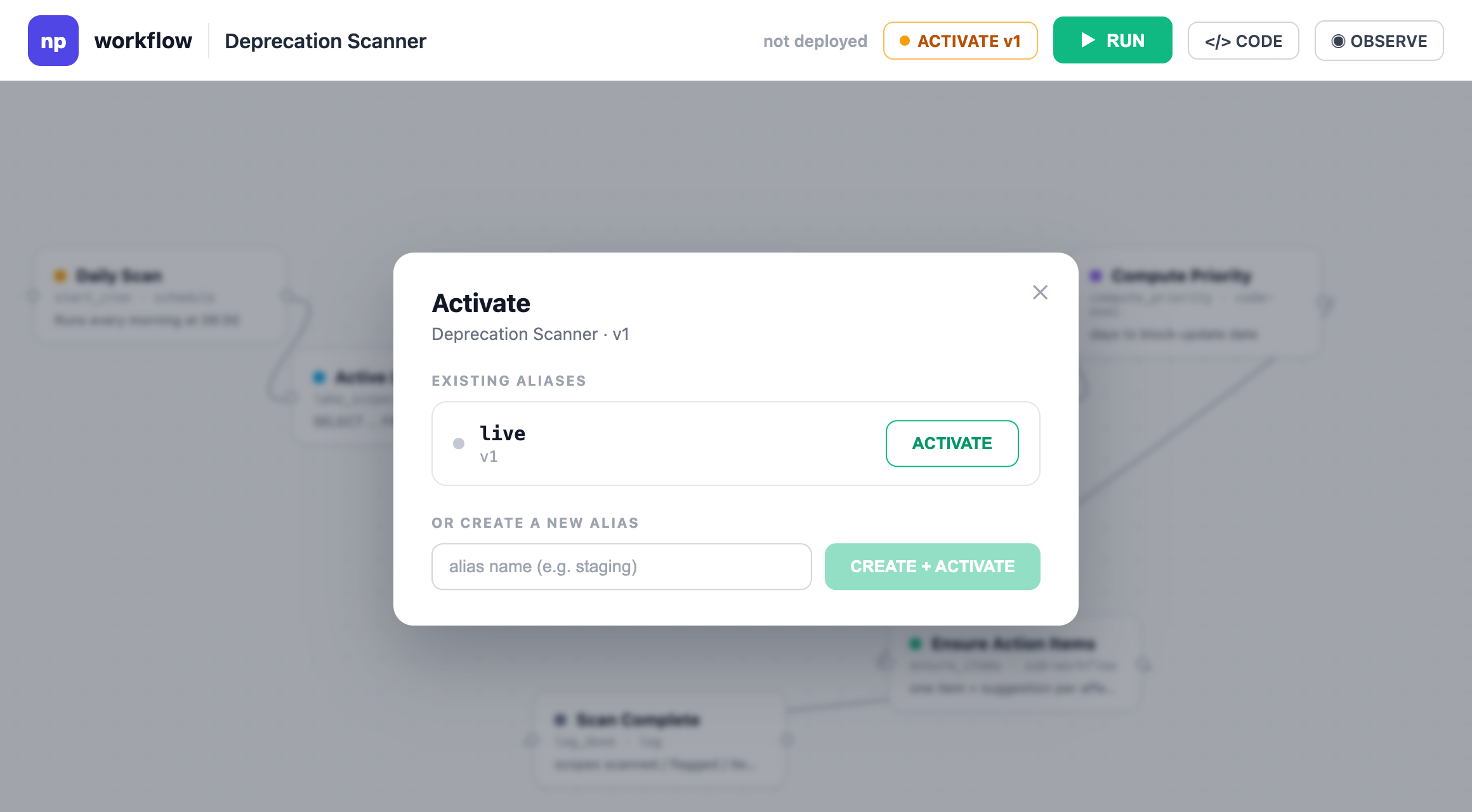
Open each of the four workflows in the editor and click **ACTIVATE**, right next to RUN in the toolbar. The dialog asks which alias to activate: pick the existing one, or create one if the list is empty (`live` is a fine default).
From now on the suite runs on its own schedule: the catalog refreshes weekly, new findings become items every morning, accepted suggestions apply themselves, and compliant scopes get their items closed and commented. The item threads become interactive too, since the events workflow is now subscribed: approve a suggestion and the migration starts, ask a question in the comments and the answer lands there.
#### ✅ Checkpoint
The workflows show as active, and a question posted on an item thread gets an answer within a couple of minutes.
## Step 6: Watch the migration in Insights
The suite manages each scope individually, but a runtime migration is a fleet-level question: how many scopes are still behind, and which teams need a nudge before the block-update date lands? Every action item the suite opens is queryable, so you can build that view with one more prompt.
In the nullplatform UI, open **Insights**, click **+ New Dashboard**, and describe the dashboard to the AI Builder:
```
Create a dashboard to track Lambda runtime action items in the
"Engineering" category. I want KPIs for open items, items on already
deprecated runtimes, and affected applications, charts breaking open
items down by runtime and by application, and the full list of items
with their deprecation dates and links.
```
The AI Builder generates the dashboard: summary KPIs on top, distribution charts below, and the full item list with links back to each application.
Save it and publish it with organization visibility. It updates in real time as the scanner opens items and the closer clears them, so the migration's status is always one click away, for anyone.
#### ✅ Checkpoint
The dashboard shows your open runtime items, and migrating a scope (accepting its suggestion and getting a compliant deploy live) is reflected after the closer's next run.
## Make it yours
This suite is a starting point. The pieces most teams adjust first:
- **Warning threshold**: `RUNTIME_WARN_DAYS` decides how far ahead of a deprecation date an item becomes high priority.
- **Schedules**: weekly sync and daily scans are plain cron config; change `schedule` and `timezone`.
- **Production policy**: the apply workflow hard-gates production to apply-only. Loosen or tighten per environment.
- **The pattern itself**: any vendor page that publishes lifecycle data without an API can feed a catalog the same way. Swap the scrape prompt and the comparison and you have the same loop for database engine versions, base images, or SDK support windows.
## What you just built
How the five workflows fit together
You now have a suite of five workflows that share one folder and one configuration.
There's no AWS API for runtime lifecycles, so the weekly **Catalog sync** uses an [AI step](/docs/workflows/building-blocks/ai-nodes) to read the AWS documentation pages and extract the runtime tables. Everything around that step is deterministic: the result is strictly validated (row count, runtime id format, parseable dates), each runtime gets a migration target computed, and the catalog is written to organization metadata only when it actually changed. A scrape that fails validation fails the run visibly and never touches the existing catalog.
Every morning the **Scanner** runs one [data lake](/docs/data-lake/) query that joins your active Lambda scopes against the catalog, and opens one action item per scope on a deprecated or soon-to-expire runtime. The item carries a suggestion with the precomputed target. When a developer accepts it, the **Events** workflow reacts and hands off to **Apply**, which patches the scope's runtime (in production it stops there, in other environments it can also redeploy). The daily **Closer** verifies real state, closing items only when a compliant deployment is actually live.
```mermaid
flowchart LR
DOCS["AWS docs page"] --> SYNC["Weekly sync: AI reads the tables"]
SYNC --> CAT["Runtime catalog (organization metadata)"]
CAT --> SCAN["Daily scan: scopes vs catalog"]
SCAN --> ITEM["Action item + migration suggestion"]
ITEM --> APPLY["Accepted: runtime updated"]
APPLY --> CLOSE["Closer verifies the live deploy"]
classDef np fill:#e6faf4,stroke:#00b894,color:#0b3d2e;
classDef infra fill:#eef3fb,stroke:#274a86,color:#14243d;
class SYNC,CAT,SCAN,ITEM,APPLY,CLOSE np;
class DOCS infra;
linkStyle default stroke:#94a3b8,stroke-width:1.5px;
```
AI shows up in exactly two places, and both are constrained. The catalog scrape can only reach the AWS docs, because the step's egress is allowlisted in its config:
```yaml
scrape:
type: module
plugin_type: claude-code-agent
config:
# Deny-all egress by default — the fetch targets must be allowlisted.
allowedHosts:
- docs.aws.amazon.com
```
The other one answers developer questions on item threads, with no tools, no network access, and a per-item reply cap. Every step that decides or writes something is deterministic code.
The side benefit is the catalog itself. Organization metadata is usually tedious to keep current; this suite maintains a live runtime table in it that anything else can read, from lake queries to other workflows:
```json
{
"runtimes": [
{ "id": "nodejs16.x", "language": "nodejs", "version": "16",
"status": "deprecated", "deprecation_date": "2024-06-12",
"block_function_update": "2025-03-31", "target": "nodejs22.x" }
],
"supported_count": 17, "deprecated_count": 24
}
```
Notice there are no credentials or organization ids hardcoded anywhere: the API key resolves from [secrets](/docs/workflows/building-blocks/secrets-and-variables), and the organization id, category, and thresholds from variables. The same definitions run unchanged in any organization.
### Building blocks used
| Block | Role in this suite |
|---|---|
| [Cron and manual triggers](/docs/workflows/building-blocks/triggers) | Weekly sync, daily scan and close, on-demand runs |
| [AI node](/docs/workflows/building-blocks/ai-nodes) | Reads the AWS docs pages and answers item comments; both constrained |
| [Data lake query node](/docs/workflows/building-blocks/nodes) | Joins Lambda scopes against the catalog in one query |
| [Action item nodes](/docs/workflows/building-blocks/nodes) | Items, suggestions, comments, and closing |
| [Platform event trigger](/docs/workflows/building-blocks/triggers) | Reacts to accepted suggestions, resolutions, and comments |
| [Sub-workflows](/docs/workflows/building-blocks/nodes) | Events starts *Apply*; Apply can run a progressive deploy |
## What's next
- [Right-size Kubernetes workloads](/docs/tutorials/cost-optimization): the same suggest-apply loop, driven by live cluster metrics instead of a catalog
- [Detect and roll out AMI updates](/docs/tutorials/ami-drift): the same scan-and-track pattern, no AI involved
- [AI nodes](/docs/workflows/building-blocks/ai-nodes): what the scrape step can and can't take on
---
## Related docs
- [Workflow building blocks](/docs/workflows/building-blocks/)
- [Action items](/docs/action-items/)
- [Data lake](/docs/data-lake/)
- [AI dashboard builder](/docs/insights/dashboard-builder)
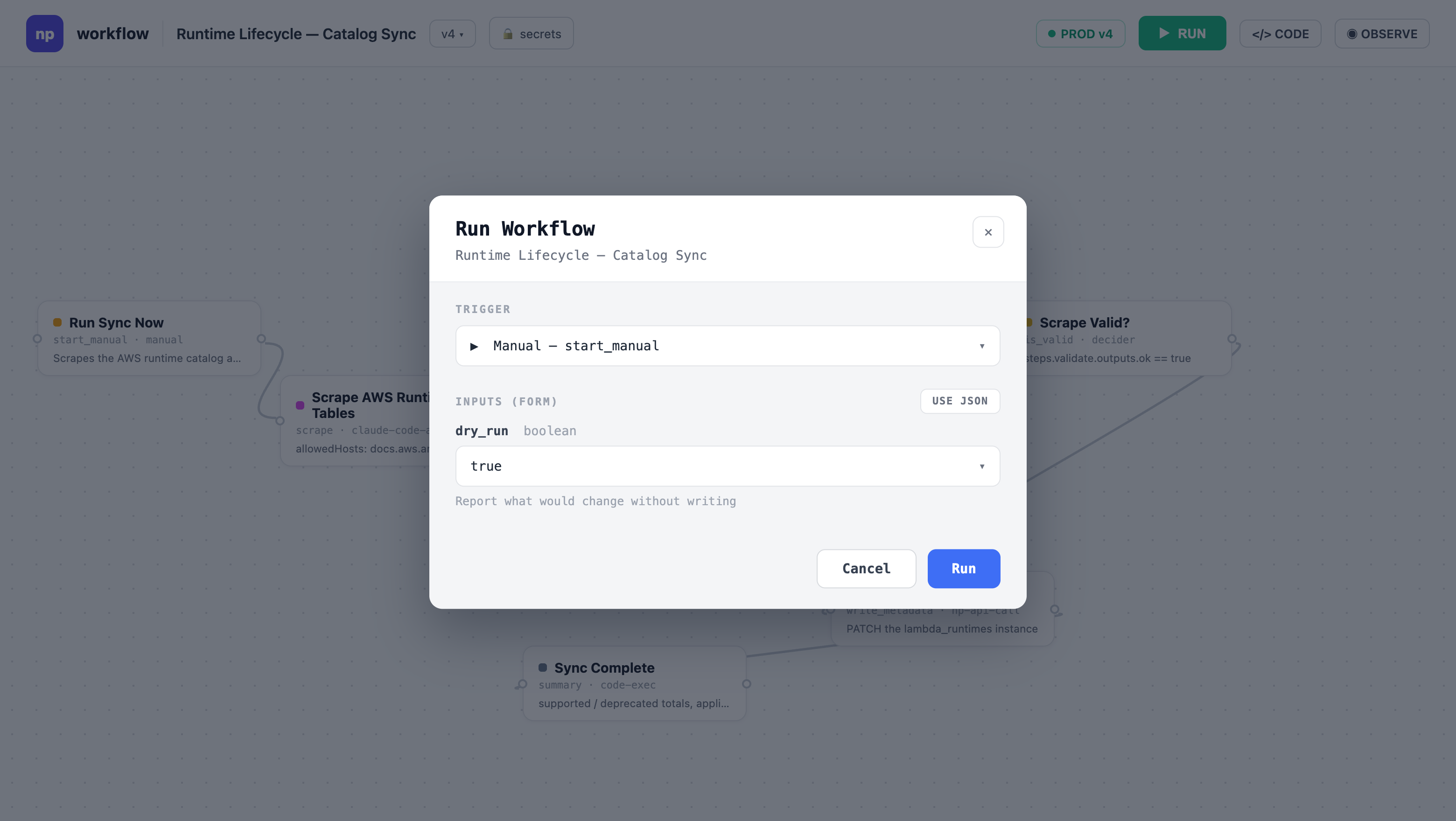 While it runs, the canvas updates live: each node lights up with its status, and the panel below streams logs and per-step inputs and outputs. You can watch the scrape return the runtime tables, the validation accept them, and the summary report what changed.
#### ✅ Checkpoint
Your organization metadata has a `lambda_runtimes` instance listing supported and deprecated runtimes, each with its migration `target`.
## Step 4: Scan and see what your developers get
Click **RUN** on the scanner. Its summary log reports the totals: how many scopes were on a deprecated or expiring runtime, how many items were created, how many suggestions were attached.
Each affected scope now has an action item on its application. Open the application and go to **Governance → Action Items**: the item carries the current runtime, the deprecation dates (including the block-update one), a priority that reflects the urgency, and the migration suggestion with the precomputed target.
While it runs, the canvas updates live: each node lights up with its status, and the panel below streams logs and per-step inputs and outputs. You can watch the scrape return the runtime tables, the validation accept them, and the summary report what changed.
#### ✅ Checkpoint
Your organization metadata has a `lambda_runtimes` instance listing supported and deprecated runtimes, each with its migration `target`.
## Step 4: Scan and see what your developers get
Click **RUN** on the scanner. Its summary log reports the totals: how many scopes were on a deprecated or expiring runtime, how many items were created, how many suggestions were attached.
Each affected scope now has an action item on its application. Open the application and go to **Governance → Action Items**: the item carries the current runtime, the deprecation dates (including the block-update one), a priority that reflects the urgency, and the migration suggestion with the precomputed target.
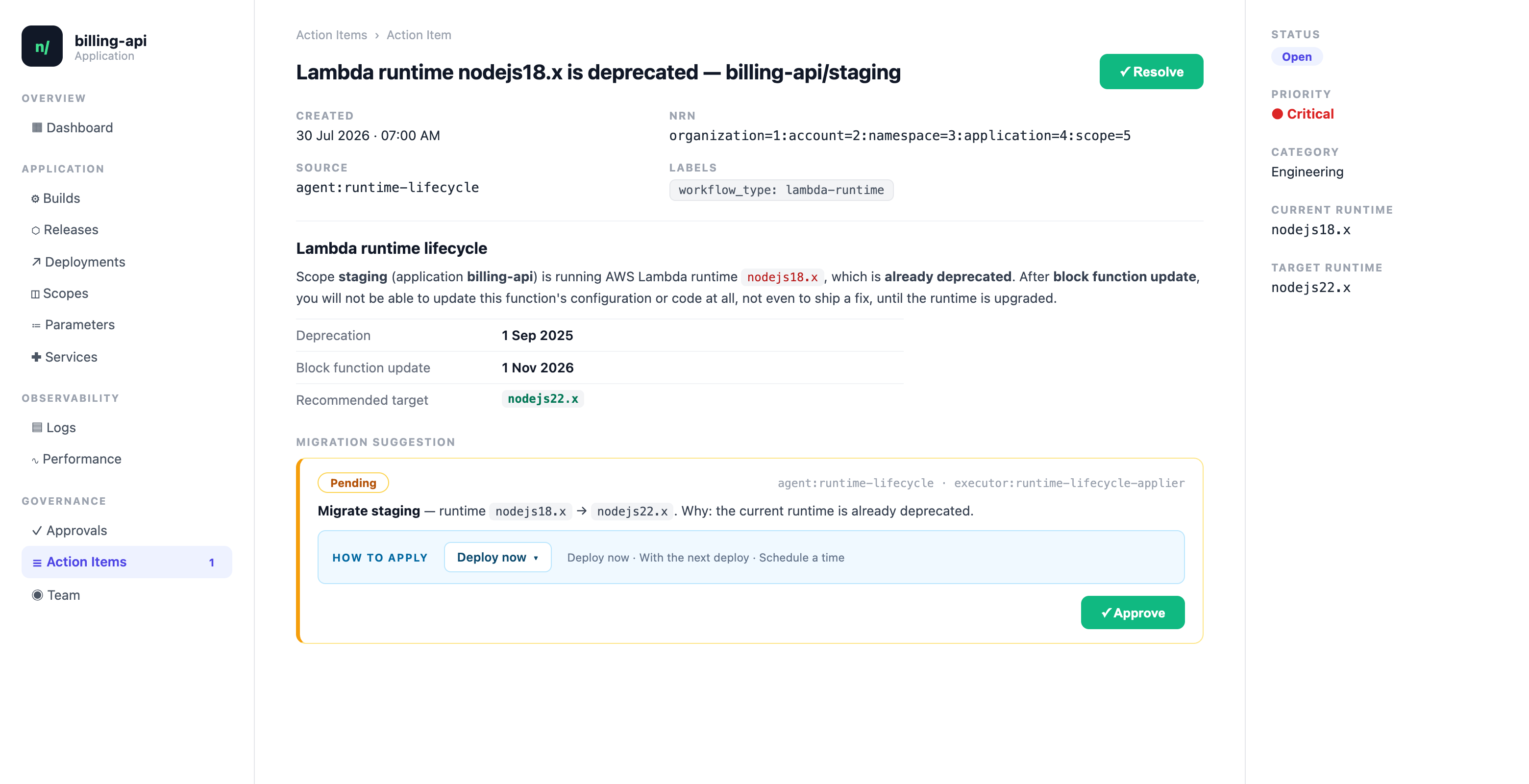 The suggestion is the one-click part, and it waits for a human: nothing is applied until someone approves it. Outside production, approving lets the developer choose to deploy now, ship with the next deploy, or schedule a time; in production it only ever applies the configuration change, and the migration ships with the next regular deployment.
Everything past that point is the suite reacting on its own, so it only starts working once you activate it in the next step: the approval hands off to the apply workflow, a comment on the item thread gets a fact-grounded AI answer, and a resolution claimed by hand is verified against the live deployment before the suite trusts it. When a compliant deployment is actually live, the closer's next run closes the item with a comment explaining why. Nobody circles back to check, and no item goes stale.
#### ✅ Checkpoint
An affected scope shows the action item with the runtime dates and the migration suggestion attached.
## Step 5: Activate the suite
Happy with what the manual runs produced? Activate the catalog sync, the scanner, the events workflow, and the closer. Activation is the moment the schedules and the action item event subscription register; until then, saved workflows have zero side effects.
Open each of the four workflows in the editor and click **ACTIVATE**, right next to RUN in the toolbar. The dialog asks which alias to activate: pick the existing one, or create one if the list is empty (`live` is a fine default).
The suggestion is the one-click part, and it waits for a human: nothing is applied until someone approves it. Outside production, approving lets the developer choose to deploy now, ship with the next deploy, or schedule a time; in production it only ever applies the configuration change, and the migration ships with the next regular deployment.
Everything past that point is the suite reacting on its own, so it only starts working once you activate it in the next step: the approval hands off to the apply workflow, a comment on the item thread gets a fact-grounded AI answer, and a resolution claimed by hand is verified against the live deployment before the suite trusts it. When a compliant deployment is actually live, the closer's next run closes the item with a comment explaining why. Nobody circles back to check, and no item goes stale.
#### ✅ Checkpoint
An affected scope shows the action item with the runtime dates and the migration suggestion attached.
## Step 5: Activate the suite
Happy with what the manual runs produced? Activate the catalog sync, the scanner, the events workflow, and the closer. Activation is the moment the schedules and the action item event subscription register; until then, saved workflows have zero side effects.
Open each of the four workflows in the editor and click **ACTIVATE**, right next to RUN in the toolbar. The dialog asks which alias to activate: pick the existing one, or create one if the list is empty (`live` is a fine default).
 From now on the suite runs on its own schedule: the catalog refreshes weekly, new findings become items every morning, accepted suggestions apply themselves, and compliant scopes get their items closed and commented. The item threads become interactive too, since the events workflow is now subscribed: approve a suggestion and the migration starts, ask a question in the comments and the answer lands there.
#### ✅ Checkpoint
The workflows show as active, and a question posted on an item thread gets an answer within a couple of minutes.
## Step 6: Watch the migration in Insights
The suite manages each scope individually, but a runtime migration is a fleet-level question: how many scopes are still behind, and which teams need a nudge before the block-update date lands? Every action item the suite opens is queryable, so you can build that view with one more prompt.
In the nullplatform UI, open **Insights**, click **+ New Dashboard**, and describe the dashboard to the AI Builder:
```
Create a dashboard to track Lambda runtime action items in the
"Engineering" category. I want KPIs for open items, items on already
deprecated runtimes, and affected applications, charts breaking open
items down by runtime and by application, and the full list of items
with their deprecation dates and links.
```
The AI Builder generates the dashboard: summary KPIs on top, distribution charts below, and the full item list with links back to each application.
Save it and publish it with organization visibility. It updates in real time as the scanner opens items and the closer clears them, so the migration's status is always one click away, for anyone.
#### ✅ Checkpoint
The dashboard shows your open runtime items, and migrating a scope (accepting its suggestion and getting a compliant deploy live) is reflected after the closer's next run.
## Make it yours
This suite is a starting point. The pieces most teams adjust first:
- **Warning threshold**: `RUNTIME_WARN_DAYS` decides how far ahead of a deprecation date an item becomes high priority.
- **Schedules**: weekly sync and daily scans are plain cron config; change `schedule` and `timezone`.
- **Production policy**: the apply workflow hard-gates production to apply-only. Loosen or tighten per environment.
- **The pattern itself**: any vendor page that publishes lifecycle data without an API can feed a catalog the same way. Swap the scrape prompt and the comparison and you have the same loop for database engine versions, base images, or SDK support windows.
## What you just built
From now on the suite runs on its own schedule: the catalog refreshes weekly, new findings become items every morning, accepted suggestions apply themselves, and compliant scopes get their items closed and commented. The item threads become interactive too, since the events workflow is now subscribed: approve a suggestion and the migration starts, ask a question in the comments and the answer lands there.
#### ✅ Checkpoint
The workflows show as active, and a question posted on an item thread gets an answer within a couple of minutes.
## Step 6: Watch the migration in Insights
The suite manages each scope individually, but a runtime migration is a fleet-level question: how many scopes are still behind, and which teams need a nudge before the block-update date lands? Every action item the suite opens is queryable, so you can build that view with one more prompt.
In the nullplatform UI, open **Insights**, click **+ New Dashboard**, and describe the dashboard to the AI Builder:
```
Create a dashboard to track Lambda runtime action items in the
"Engineering" category. I want KPIs for open items, items on already
deprecated runtimes, and affected applications, charts breaking open
items down by runtime and by application, and the full list of items
with their deprecation dates and links.
```
The AI Builder generates the dashboard: summary KPIs on top, distribution charts below, and the full item list with links back to each application.
Save it and publish it with organization visibility. It updates in real time as the scanner opens items and the closer clears them, so the migration's status is always one click away, for anyone.
#### ✅ Checkpoint
The dashboard shows your open runtime items, and migrating a scope (accepting its suggestion and getting a compliant deploy live) is reflected after the closer's next run.
## Make it yours
This suite is a starting point. The pieces most teams adjust first:
- **Warning threshold**: `RUNTIME_WARN_DAYS` decides how far ahead of a deprecation date an item becomes high priority.
- **Schedules**: weekly sync and daily scans are plain cron config; change `schedule` and `timezone`.
- **Production policy**: the apply workflow hard-gates production to apply-only. Loosen or tighten per environment.
- **The pattern itself**: any vendor page that publishes lifecycle data without an API can feed a catalog the same way. Swap the scrape prompt and the comparison and you have the same loop for database engine versions, base images, or SDK support windows.
## What you just built