What you can ask about
Ask a question in the chat panel and nullplatform generates a dashboard backed by live data. The assistant understands your organization's hierarchy and only shows what you have access to. Here's what teams typically build with it.
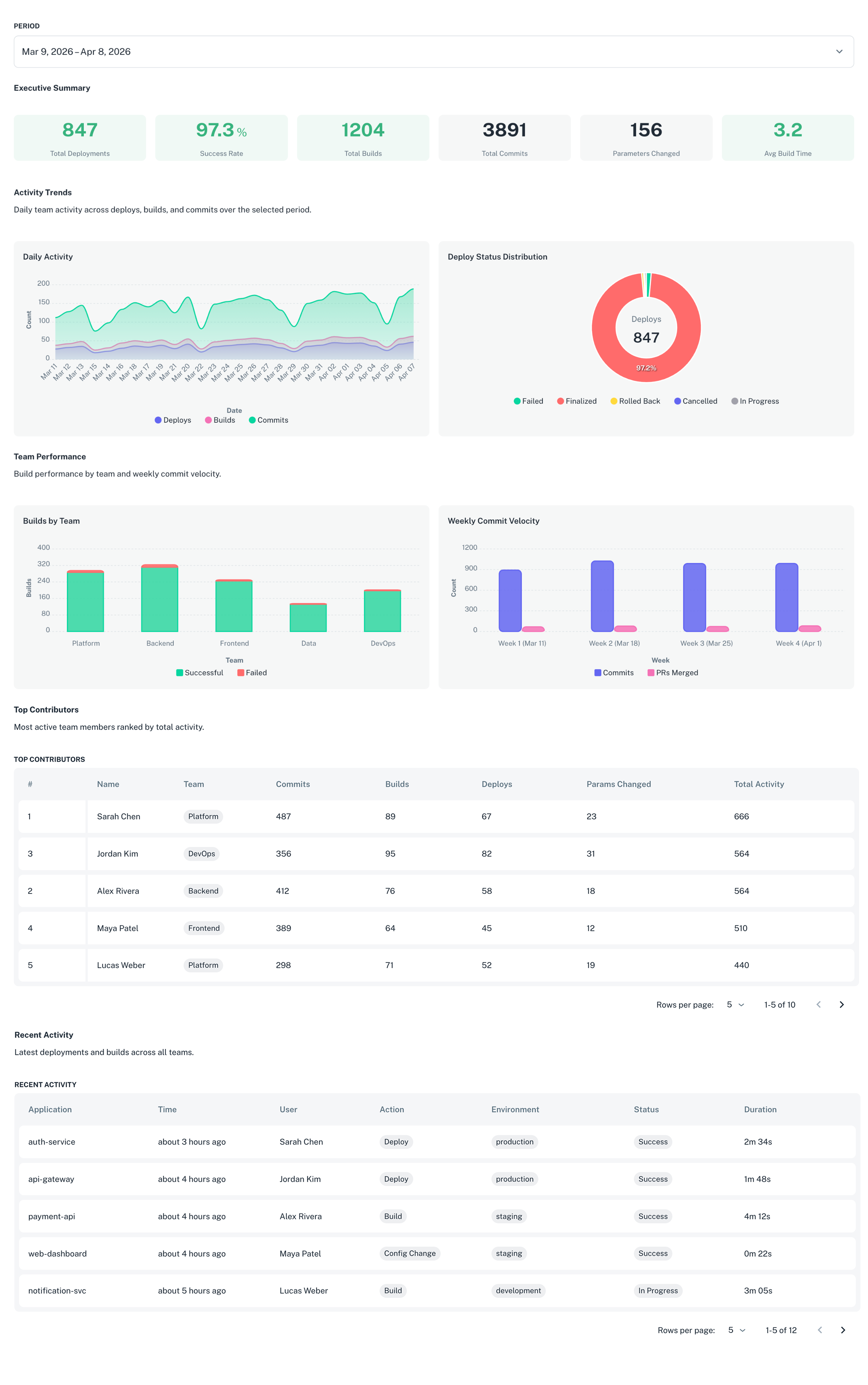
Team activity and velocity
Track what your teams are shipping: builds, deployments, parameters, and contributor activity over any time range. Try "Show me all team activity for the last 4 weeks: deploys, builds, and parameters".
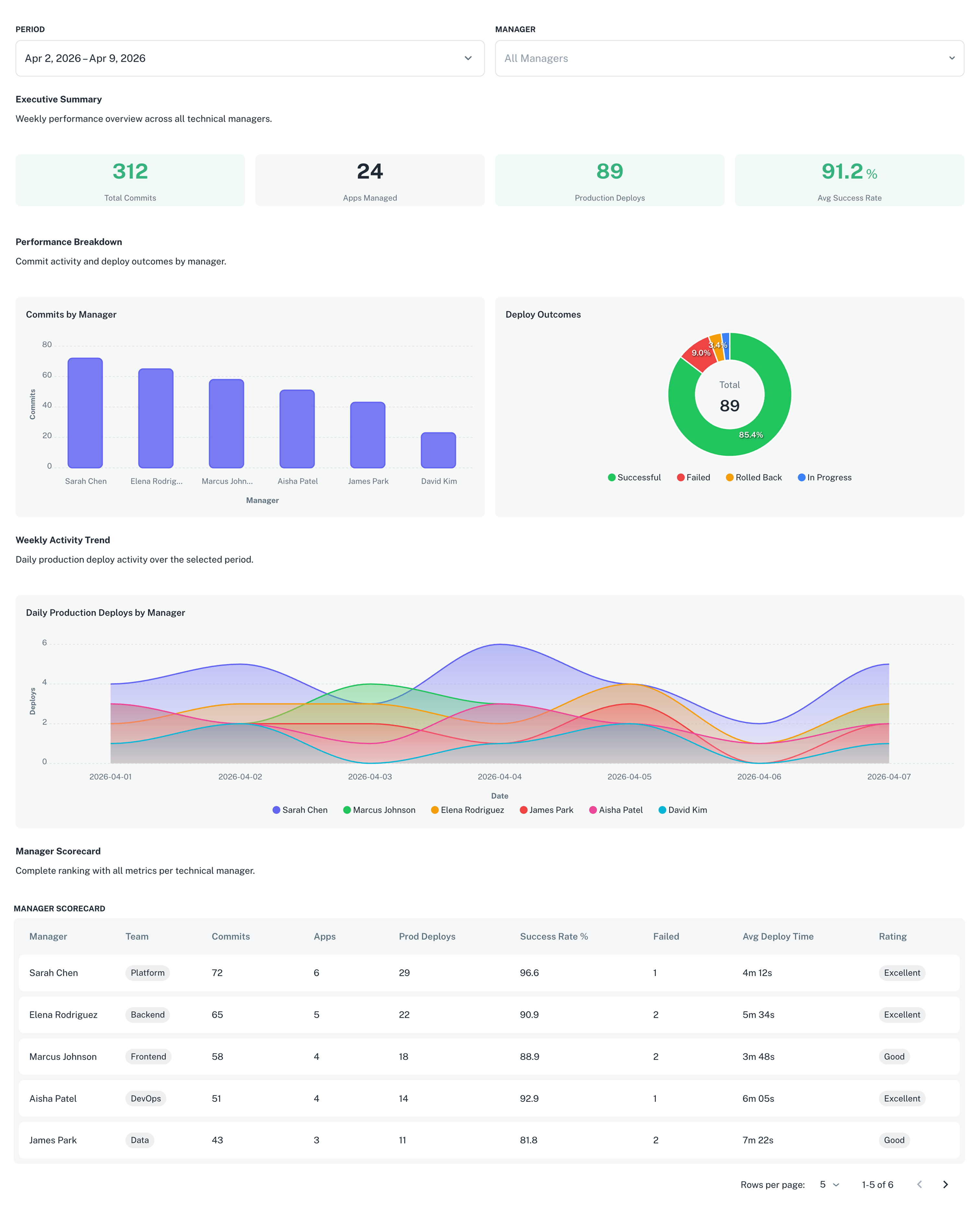
Manager scorecards
Get a per-manager view of engineering output: commits, applications worked on, production deployments, and success rates. Try "Give me the weekly scorecard for each technical manager".
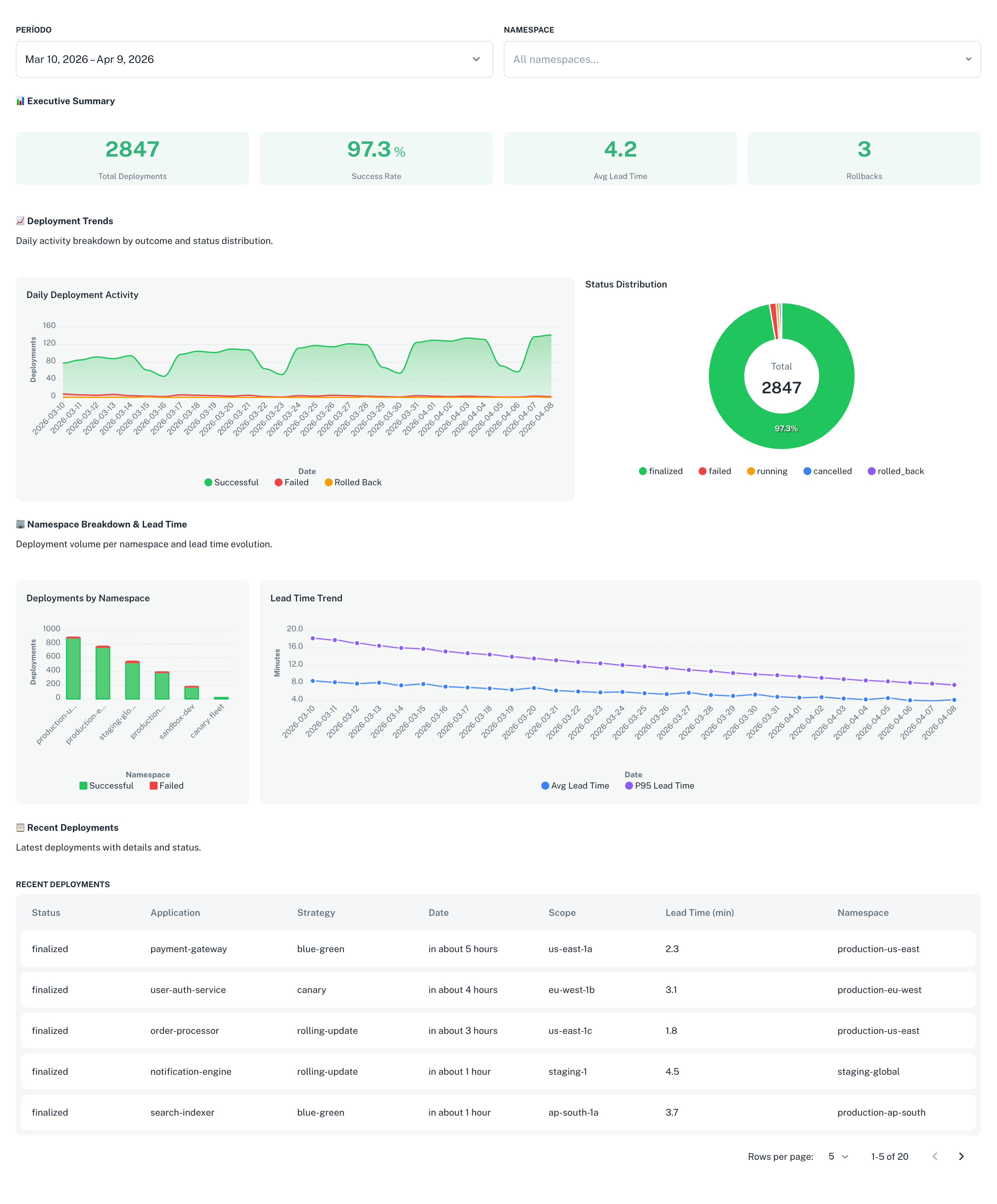
Deployment health
Monitor deployment frequency, success rates, rollbacks, and lead times across your organization. Try "Show deployment success rate by namespace for the last 30 days".
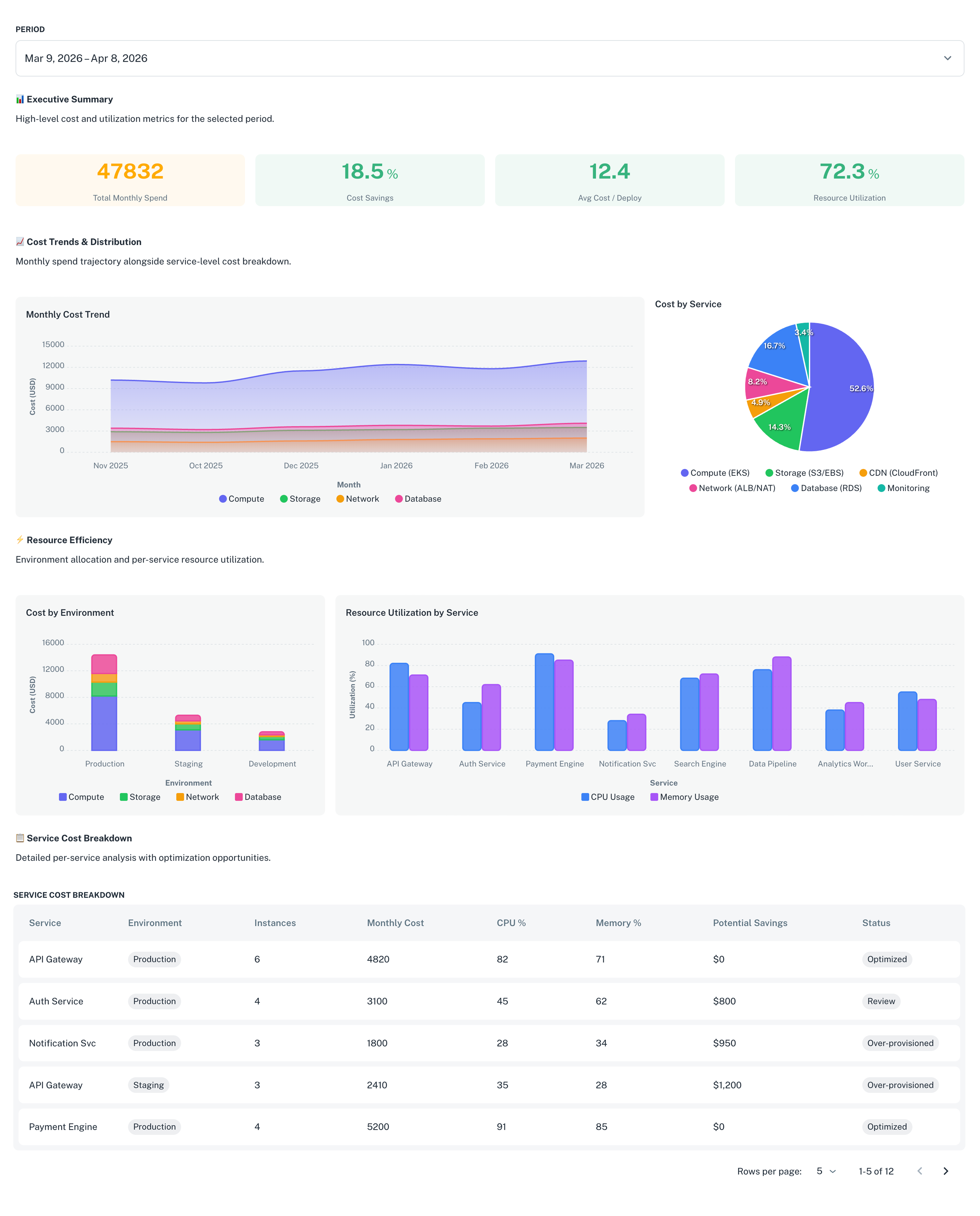
Cost and resource analysis
Understand where your infrastructure spend is going and where you can optimize. Try "Show me applications that are over-provisioned".
Security posture
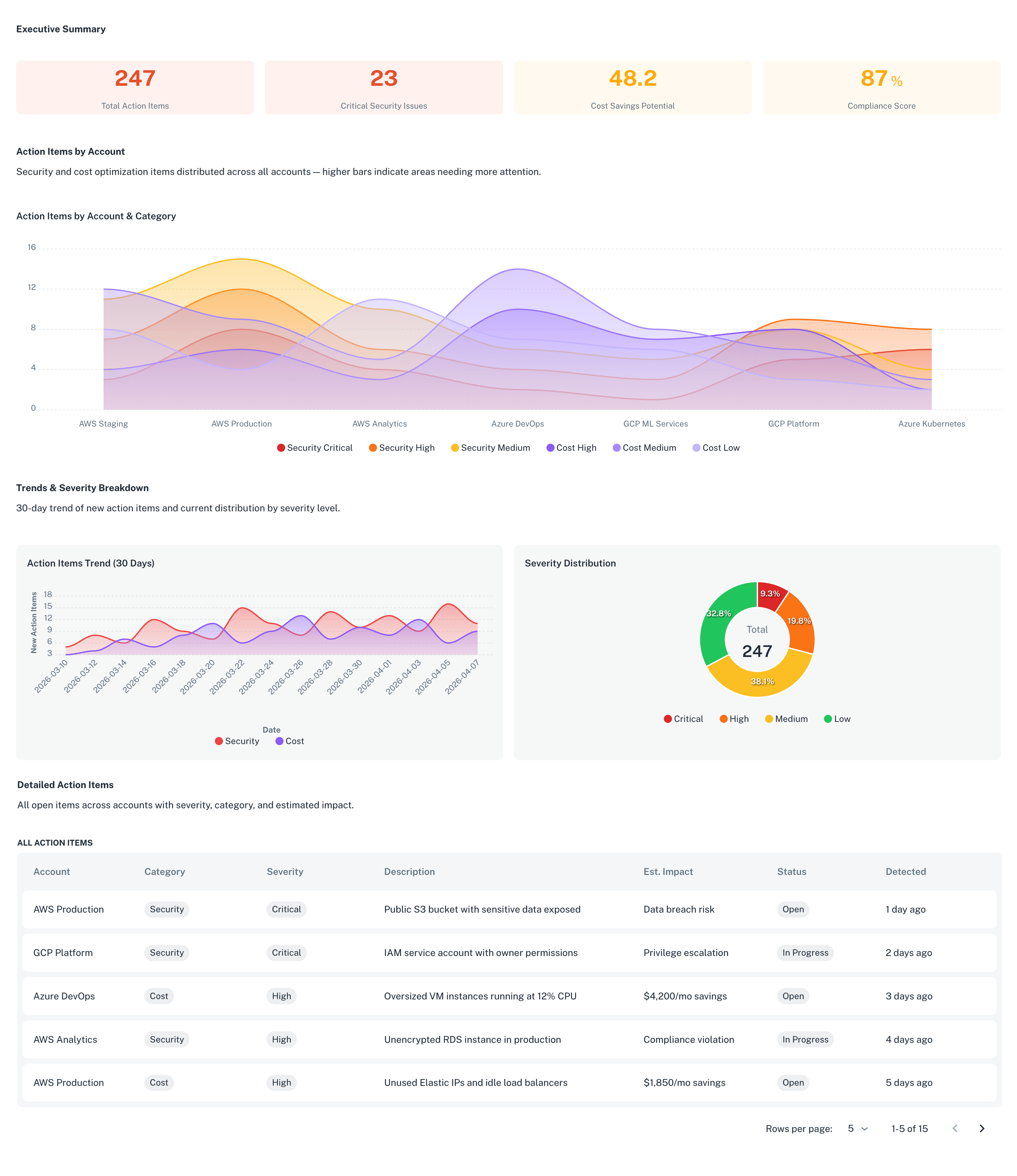
Track vulnerability status, scan coverage, and remediation velocity. Try "Show a heatmap of security and cost action items across all accounts".
If you're after something else, just ask. The assistant queries the same data that powers the nullplatform Data Lake: deployments, builds, scopes, parameters, applications, action items, and more. If you need raw access or want to join nullplatform data with your own sources, the Data Lake lets you query it directly via SQL.
Analyze a dashboard
Any dashboard you own also works as a starting point for deeper analysis. Open it, click the AI chat icon, and ask about the data you see. The assistant reads every widget on the dashboard, always with live numbers rather than a snapshot from when it was created, and responds with conclusions and suggested next steps.
Ask it to summarize what matters ("Give me a short list of the key things I should focus on right now, and why"), flag anomalies ("Anything unusual in the last 7 days?"), compare ("How does production compare to staging in terms of failures?"), or recommend actions ("What should we prioritize fixing based on this dashboard?").
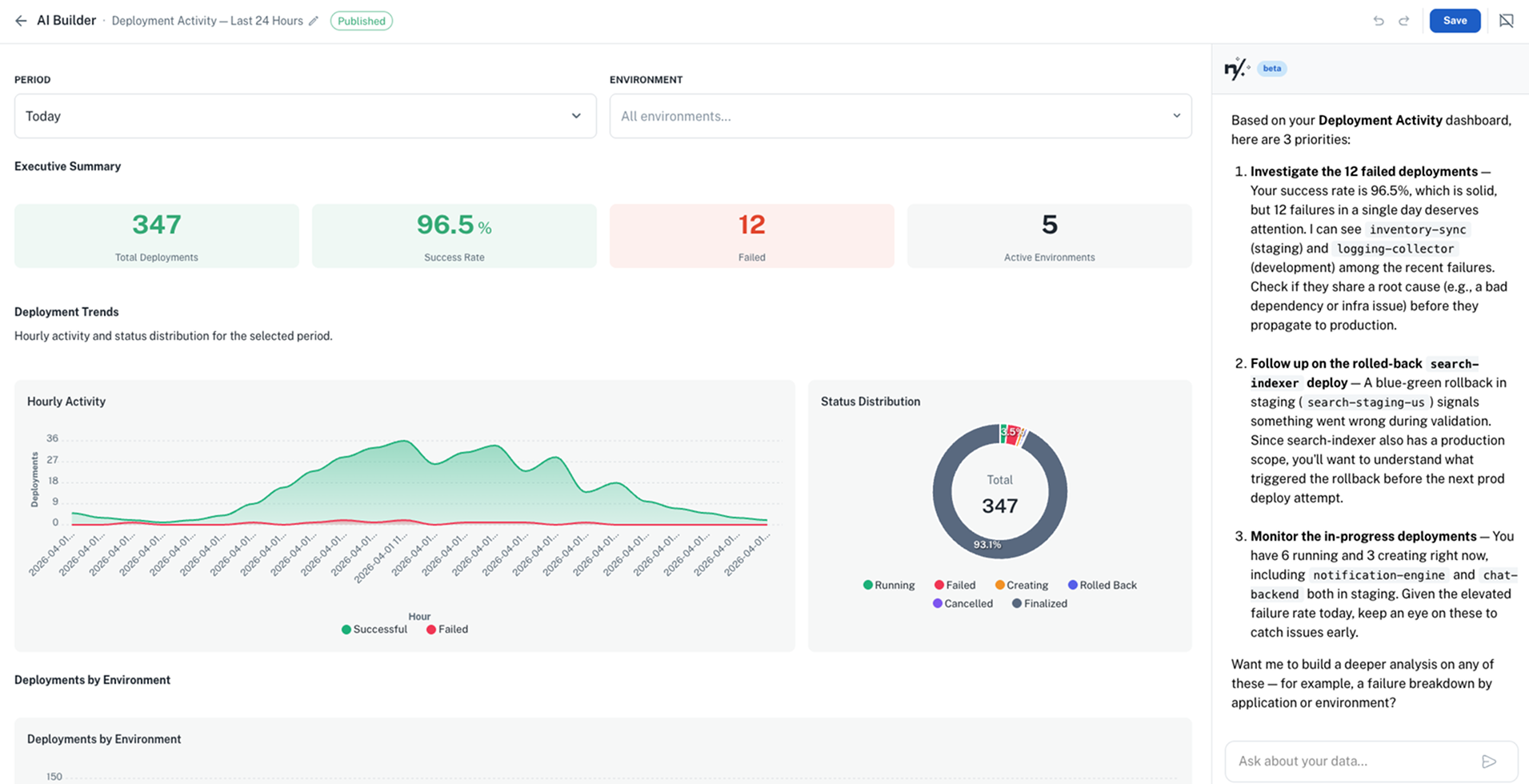
The AI chat is only available on dashboards you own. Predefined dashboards and dashboards shared by other team members are view-only.
Tips for better results
- Be specific about time ranges: "last 7 days" and "this quarter" produce different dashboards
- Reference entities by name: "the payments namespace" or "checkout-service" gives the assistant precise context
- Start broad, then refine: ask "Show deployment activity this week", then follow up with "Break that down by team"
From question to shared dashboard
Every dashboard you create here can be saved, published, and shared with your organization. A question you ask once can become a recurring dashboard that your entire leadership team accesses from the Insights sidebar.