Where catalogs appear in the UI
This page explains where and how catalogs appear in the platform, and how you can control their visibility and layout
using fields like visibleOn, tag, and uiSchema.
Once a catalog instance is attached to an entity, nullplatform automatically surfaces it in the UI without any custom development.
The platform uses the associated catalog specification to determine:
- Where the catalog appears (tabs, side panels, etc.)
- How it's displayed (tags, read-only sections, editable forms)
- When it's visible (on create, update, list, read—based on your schema)
This makes it easy to build structured, discoverable, and reusable experiences across teams.
Entity dashboards
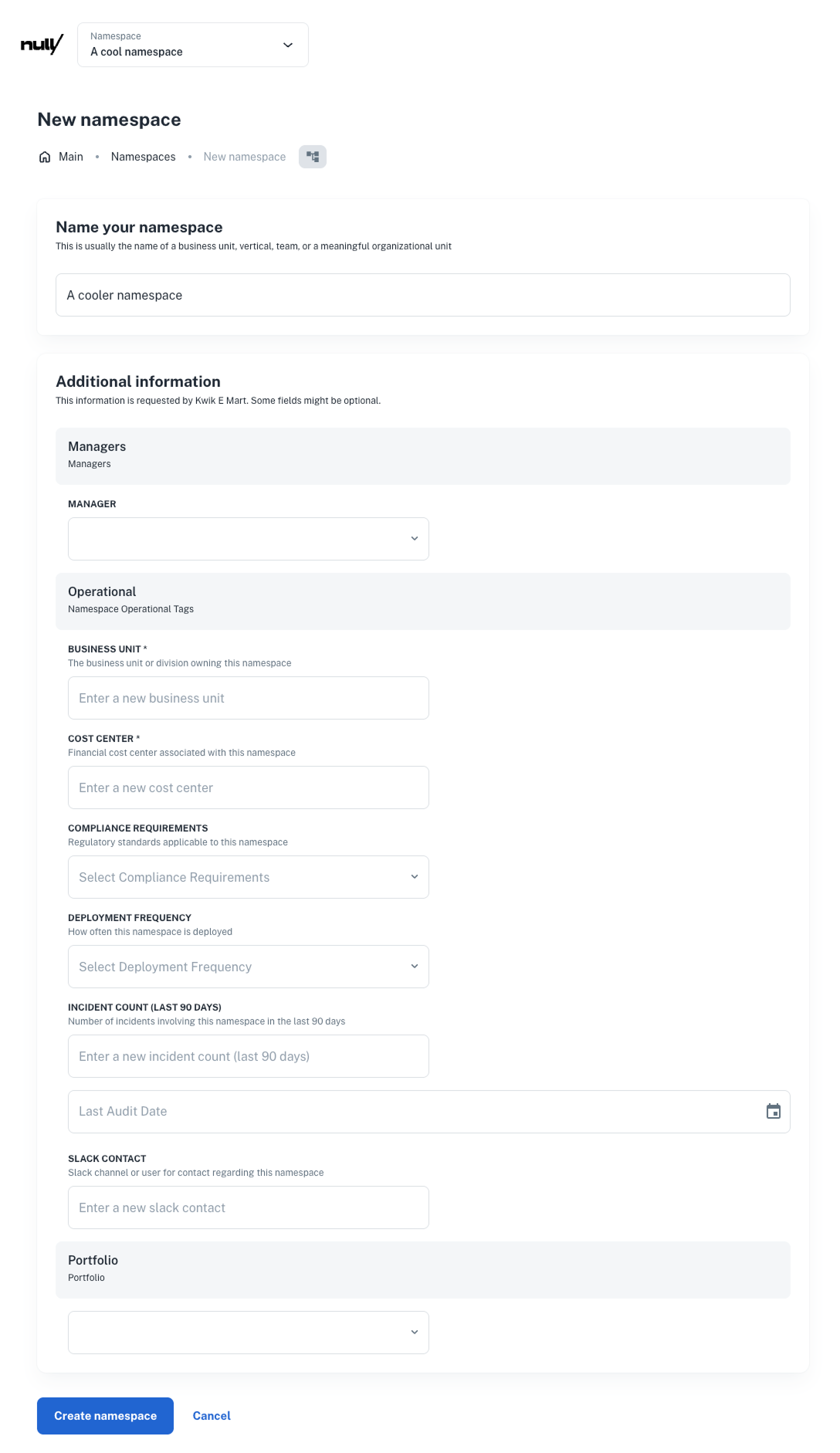
Namespace dashboard
-
Form section during creation
If one or more specs exist fornamespace, a dynamic form will be shown when creating one. -
Catalog blocks on show all modal
Each catalog group (e.g.,operational,portfolio,managers) appears as a section. Users can click Show all to open the full form for editing. -
linksrenders a dedicated “Resources” block at the top of the page.
Example:
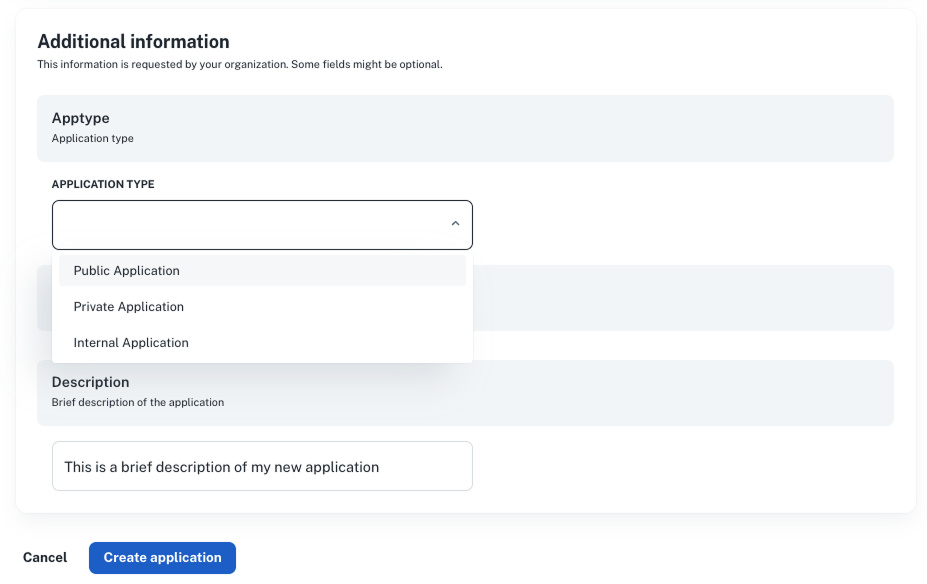
Application dashboard
-
Form section during creation
Specs likeapptype,description, orplatform_infogenerate form fields when a new application is created. -
Sidebar catalog
Catalog instances show up as compact summary blocks in the right sidebar. Users can click Show all to open the full form for editing. -
Tags and filters
If fields are tagged in the schema, they appear:- In application filters
- As chips in table views
- As sorting and grouping options
-
Built-in blocks
links→ renders a Useful links component for external tools or dashboards
Example:
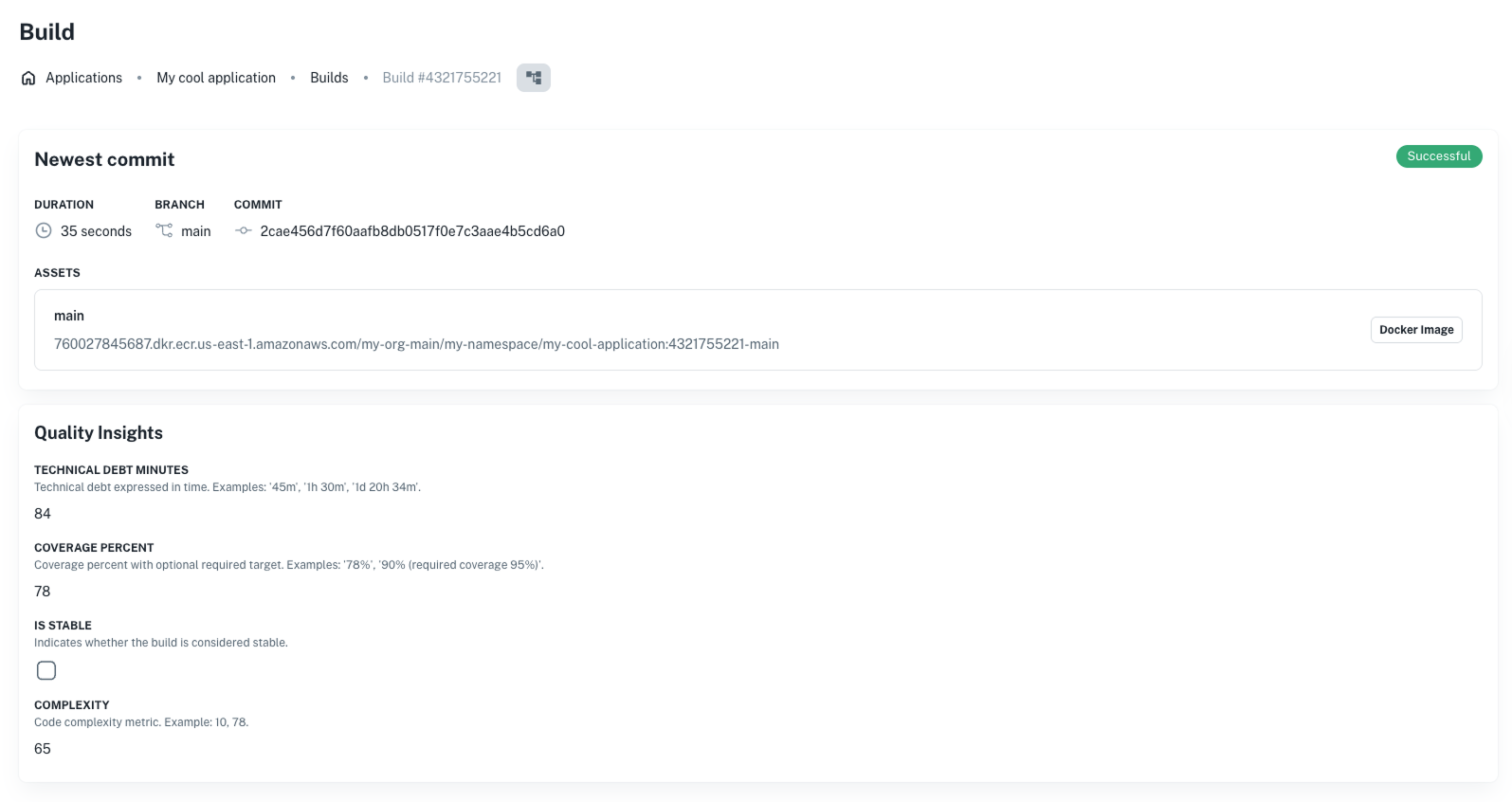
Build detail page
-
Quality Insights section
When aquality_insightsspec is attached, for example, fields likecoverage_percent,complexity, orvulnerabilitiesare rendered in a dedicated block. -
Visual filters and tags
If a catalog field is marked with"tag", it becomes available for:- Dashboard filters
- Custom reporting
- Smart grouping in list views
-
linksrenders a dedicated “Resources” block at the top of the page.
Example:
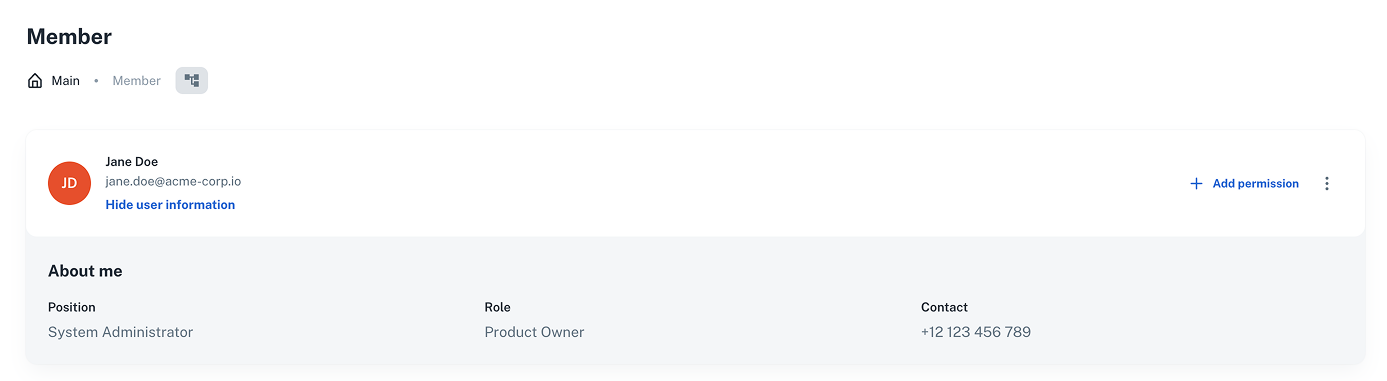
User profiles
- If the
aboutcatalog spec is attached to a user, it renders as a profile summary (e.g., role, contact info, job title) on their member page. - This catalog is read-only in most cases and used for directory browsing and user context.
Example:
Controlling field visibility with visibleOn
Each field in a catalog spec can use a visibleOn array to control where it shows up in the UI and platform views.
"coverage_percent": {
  "type": "integer",
  "description": "Coverage % for this build",
  "visibleOn": ["create", "update", "read", "list"]
}
Accepted values:
create: shows up in the entity creation formread: shows up in the detail viewupdate: appears when editing cataloglist: appears in tables and overviews
💡 If
visibleOnis not set, the field defaults to being visible in all views except forlistviews.
You’ll define visibleOn in the schema of a catalog spec. We dive into specs in the next page.
Optional UI layout overrides: uiSchema
In most cases, nullplatform will automatically generate a form layout from your JSON Schema.
If you need to customize the layout, such as rendering a field as a radio group, hiding a field, or grouping fields in
sections—you can define an optional uiSchema.
Example:
"uiSchema": {
  "type": "VerticalLayout",
  "elements": [
    {
      "type": "Control",
      "scope": "#/properties/application_type",
      "options": {
        "format": "radio"
      }
    }
  ]
}
Use uiSchema to:
- Override default layout (e.g., horizontal vs. vertical)
- Render enums as radio buttons or dropdowns
- Control spacing and grouping
💡 The platform uses JSON forms behind the scenes for rendering and layout. See our Designing the UI docs for more info.
Tag-driven behavior
Any catalog field marked with "tag": true (or a custom string like "tag": "portfolio") is automatically exposed to:
- Filtering and grouping in dashboards
- Sorting in tables
- External integrations that rely on tags (e.g., for FinOps, cost reporting, inventory mapping)
Example:
"portfolio": {
  "type": "string",
  "enum": ["Online", "Payments", "RBI"],
  "tag": "portfolio"
}
See Tags in catalogs for detailed use cases, API queries, and integration patterns.